Introducing Control Room: Your Live Production Hub
The Control Room is a powerful tool that allows you to watch and manage all available video streams in your production directly from the Studio platform.
With Control Room, you can:
- Manage Audio: Monitor and adjust sound levels for each stream.
- Control Framing: Take control of the camera's behavior and framing.
- Switch stream in multi-camera productions: Change which stream is live in the program feed (this feature depends on the production's configuration).
Important: Control Room can be accessed remotely, without being on the arena's local network. However, it uses the arena's bandwidth, and only one user can be connected to a production's Control Room at a time. If a second user connects, the first user will be disconnected.
How to Access Control Room
1.Navigate to Studio.
2. From the list of productions, find the one you want to manage. You can use the arena and recording type filters to narrow your search.
3. Select the "Control room" option for that production. (Access is permission-based and may not be available for all users).
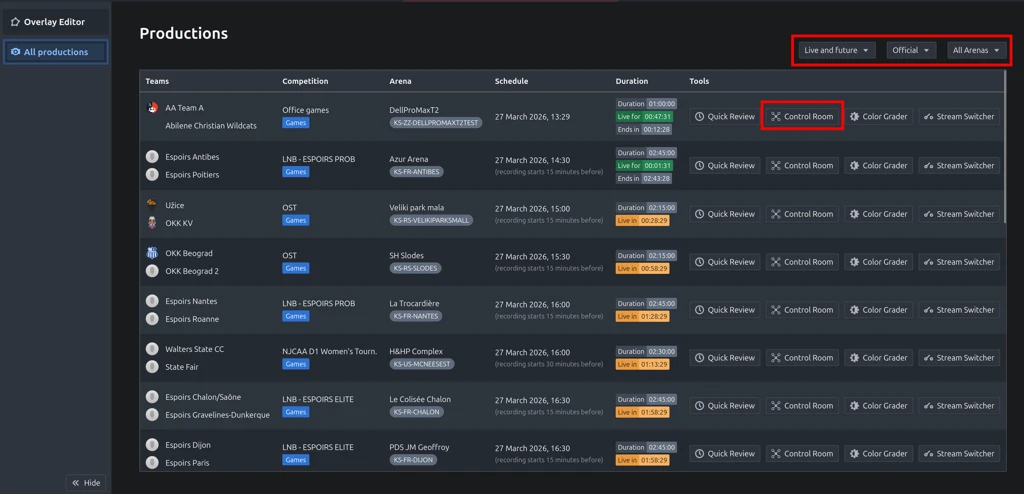
Navigating the Interface
The Control Room is divided into several key sections. The layout may vary slightly depending on your production's configuration.
Scenario 1: Single Stream (No Stream Switching)
If your production has only one stream, or if stream switching is disabled, you will see a simplified interface.
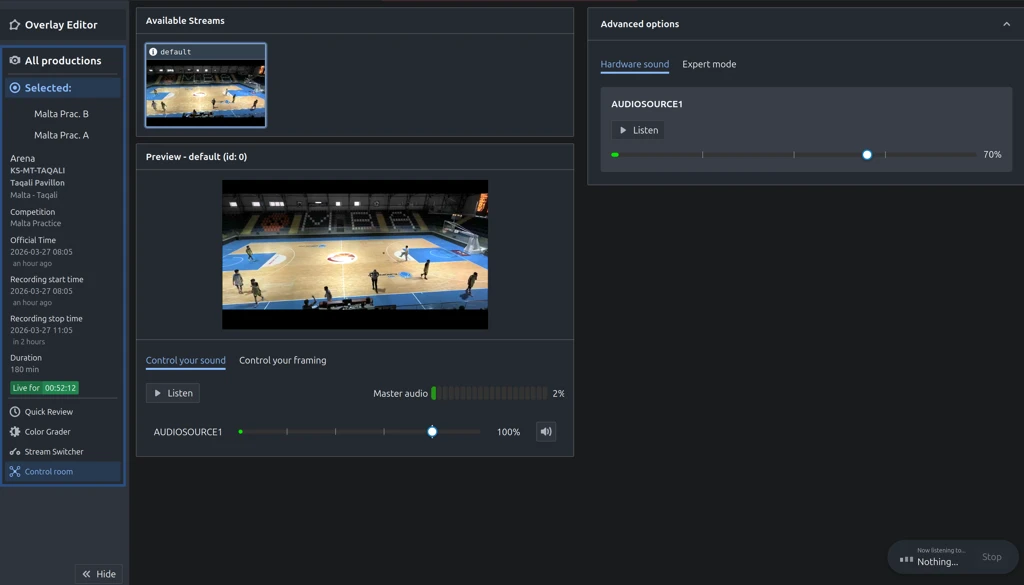
- Available Streams This panel at the top lists all video streams for the production (in this scenario most of the times there will be only a single stream).
- Click on any stream to load it into the Preview window for management.
- The currently selected stream is highlighted.
- Preview (Selected Stream) This is your workspace for the stream you selected from the list. Any changes you make here only affect the selected stream.
- Control your sound: Listen to and adjust the volume for the individual audio sources of the stream. The Master audio meter provides a visual indicator of the overall sound level.
- Control your framing: Adjust the camera's position and behavior. This is only available for the main angle automated camera stream
Scenario 2: Multiple Streams with Stream Switching
This is the standard view when your production has multiple streams and production of a multi-camera feed has been activated for the competition in which the game is being recorded.
To activate a multi-camera production for a competition, reach out to our support at synergy-productioncontrol@sportradar.com.
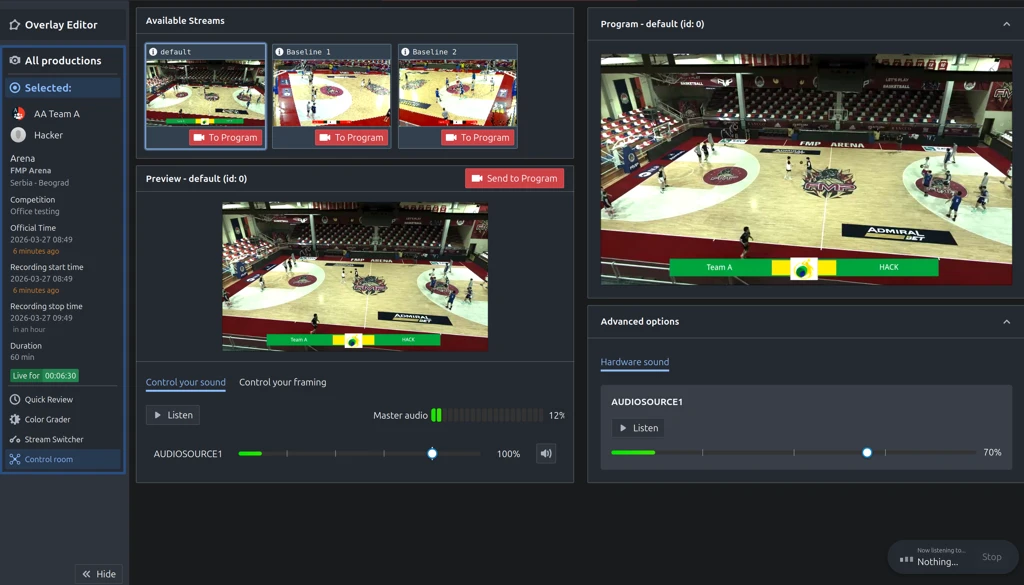
1.) Available Streams - This panel at the top lists all video streams for the production.
- Click on any stream to load it into the Preview window for management.
- The currently selected stream is highlighted.
- Click the "To Program" button on any stream to immediately make it the live feed.
2.) Preview (Selected Stream) - This is your workspace for the stream you selected from the list. Any changes you make here only affect the selected stream.
- Control your sound: Listen to and adjust the volume for the individual audio sources of the stream. The Master audio meter provides a visual indicator of the overall sound level.
- Control your framing: Adjusts the camera's position and behavior. This is only available for the main angle automated camera stream.
3.) Program (Live Feed) - This window on the right always shows what is currently being broadcasted live. You can not make changes to the program stream directly in the “Program” view. If you want to update the audio or framing for that stream you need to bring it in preview.
4.) Send to Program - When you have finished preparing a non-live stream in the "Preview" window, click the "Send to Program" button to make it the new live feed.
Common Workflows
Here are a couple of step-by-step examples for common tasks in the Control Room.
Example 1: Adjusting the Live Stream
Use this method to change the sound or framing of the stream that is currently live.
- From the "Available Streams" list, select the stream that is currently live.
- The stream will load into the "Preview" section.
- Use the sound and framing controls to make your desired adjustments.
- The changes will be applied to the live stream in real-time.
Example 2: Preparing a New Stream to Go Live
(Only available when multiple streams are enabled)
Use this method to get another camera angle or stream ready before you make it live.
- From the "Available Streams" list, select a stream that is not currently live.
- In the "Preview" section, adjust the stream's sound and framing as needed.
- Once you are satisfied, click the "Send to Program" button (or the "To Program" button on the stream thumbnail).
- The stream you prepared will now become the live feed in the "Program" window.
Advanced Options
This below section allows for direct management of hardware-level audio. It affects all streams globally.
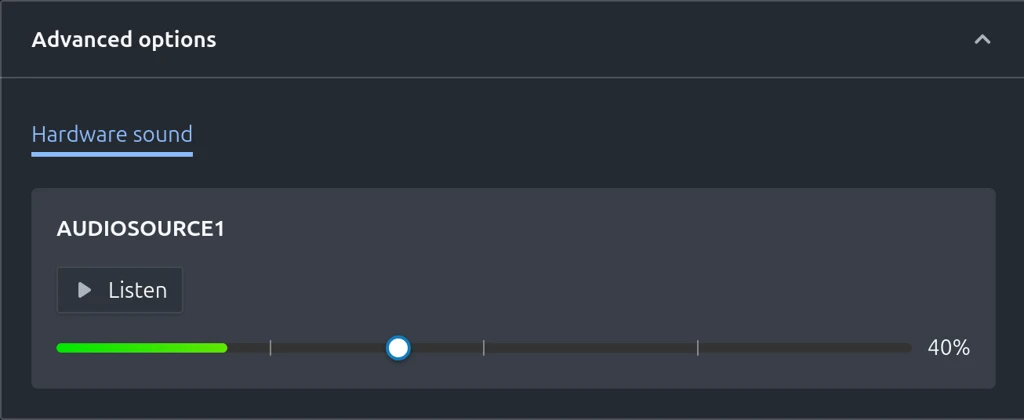
Using the hardware level audio should be a one time or exceptional setup (for example if conditions in the arena change). It can be used to prevent clipping or boost the sound if the source sounds weak. For everyday changes, making a source a bit louder or quieter, use the sliders within the individual streams instead.
Was this article helpful?
That’s Great!
Thank you for your feedback
Sorry! We couldn't be helpful
Thank you for your feedback
Feedback sent
We appreciate your effort and will try to fix the article