What is EVO?
EVO (Enhanced Visual Overlay) is an Automated Production Graphics system. EVO Currently supports 4 Sports: Basketball, Volleyball, Field Hockey and Tennis.
EVO uses our Competition Administration tools for Competition & Team assets (such as logos, colors and images) and combines this with live in-game data to broadcast production graphics without the need for human intervention.
EVO setup
EVO needs to be set up within internal tools before it can be used on your video stream. Setting up EVO requires access to a data source. For example, with basketball this can either be FIBA Live Stats or Synergy Stats.
Once this is set up, users will have access to the EVO Admin website which is located using the following link: https://evo.connect.sportradar.com . The user then have the ability to configure the following things:
1. Venue Configuration and Delay
2. Team Colors
3. Theme/Design Configuration
4. Commercial Media (videos and images)
Section 1. Venue Configuration
Your venue needs to be configured with the correct delay and clock source. Each match has a default delay which is provided by the delay that is set at the venue. We have a delay because the data arrives faster than the video. The delay field delays the data so that it can align with the video. If you don’t have a large enough delay, this might cause the score to update before the video shows the ball going into the basket. The clock source field determines what data source powers the clock data in the graphics. Feed = Data collection tool (FIBA Live Stats or Synergy Stats) and Video = SACS OCR Camera. If you are using the SACS OCR camera then selecting the ‘video’ option will display shot clock data.
Note: Once you set the venue's match delay this will set the delay for all matches played at that menu.
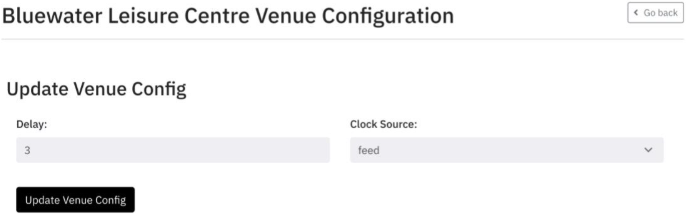
Historically, if you are using a Synergy Automated Camera, you should set the venue delay to 6 seconds. If you are using a manual camera, then you should set the delay to 3 seconds. An example of this is within the image below.
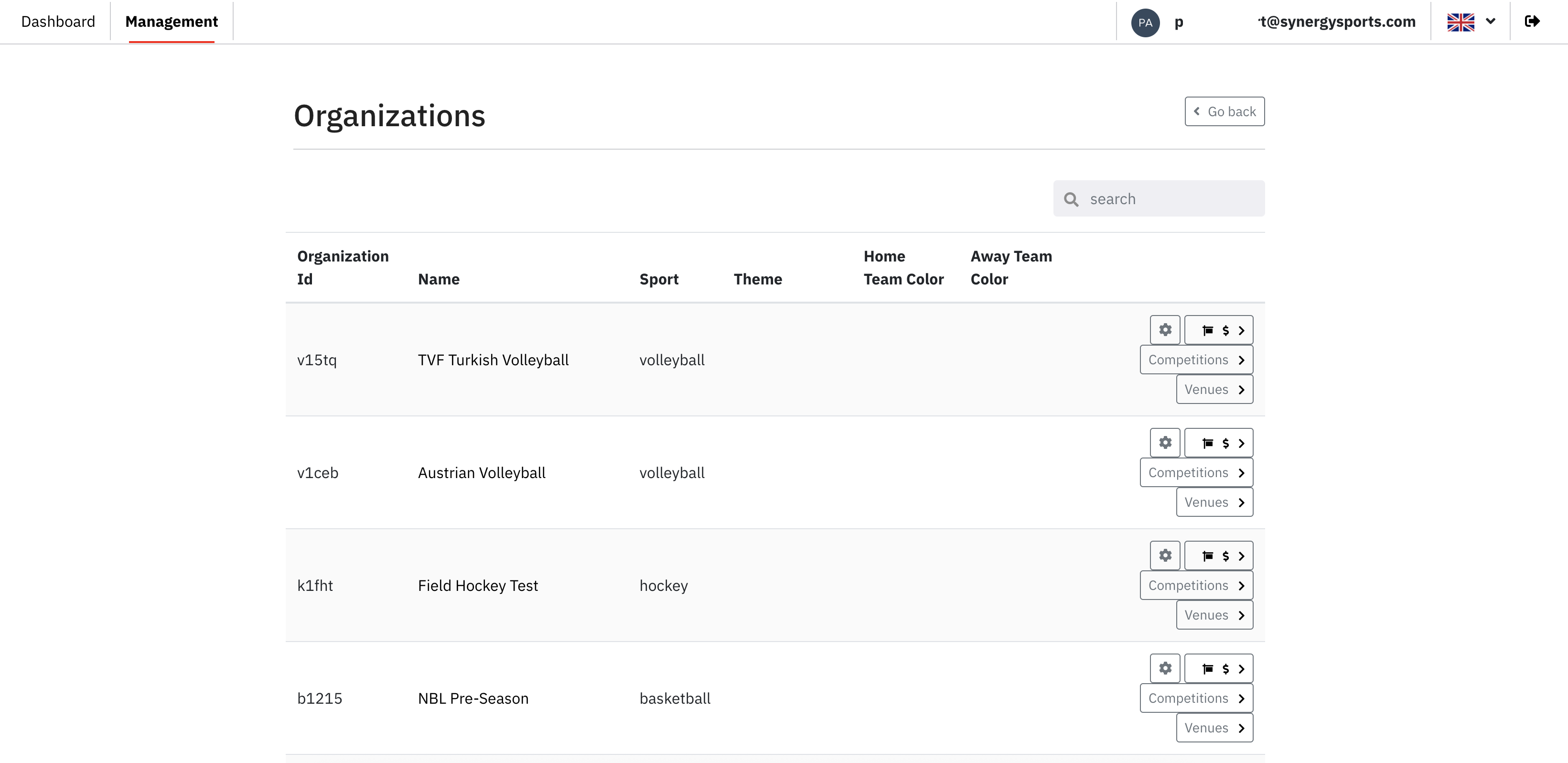
Step 1: After logging into the EVO Admin page, click on the "Venues" button (located on the far right) to update the venue configuration.
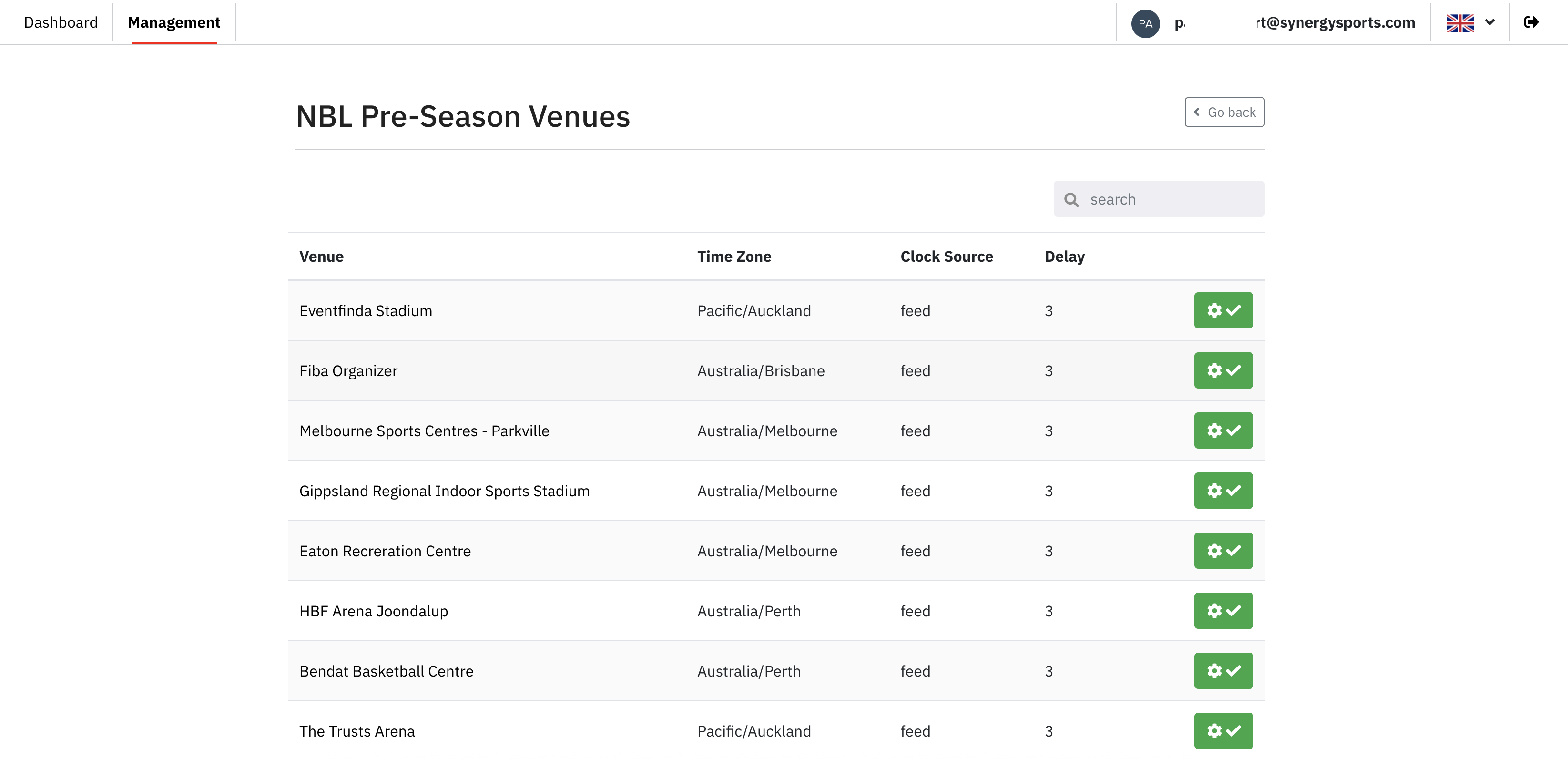
Step 2: Now select the "cog" icon (green button) in order to set the delay and clock source.
Step 3: Now configure the delay and clock source to your liking.
Section 2. Theme/Design Configuration
You can set the theme (what the graphics look like) at the organizational level or at the season level. Setting it at the seasonal level allows you to have different themes for different seasons.
Note: The seasonal level setting will override the setting at the organizational level.
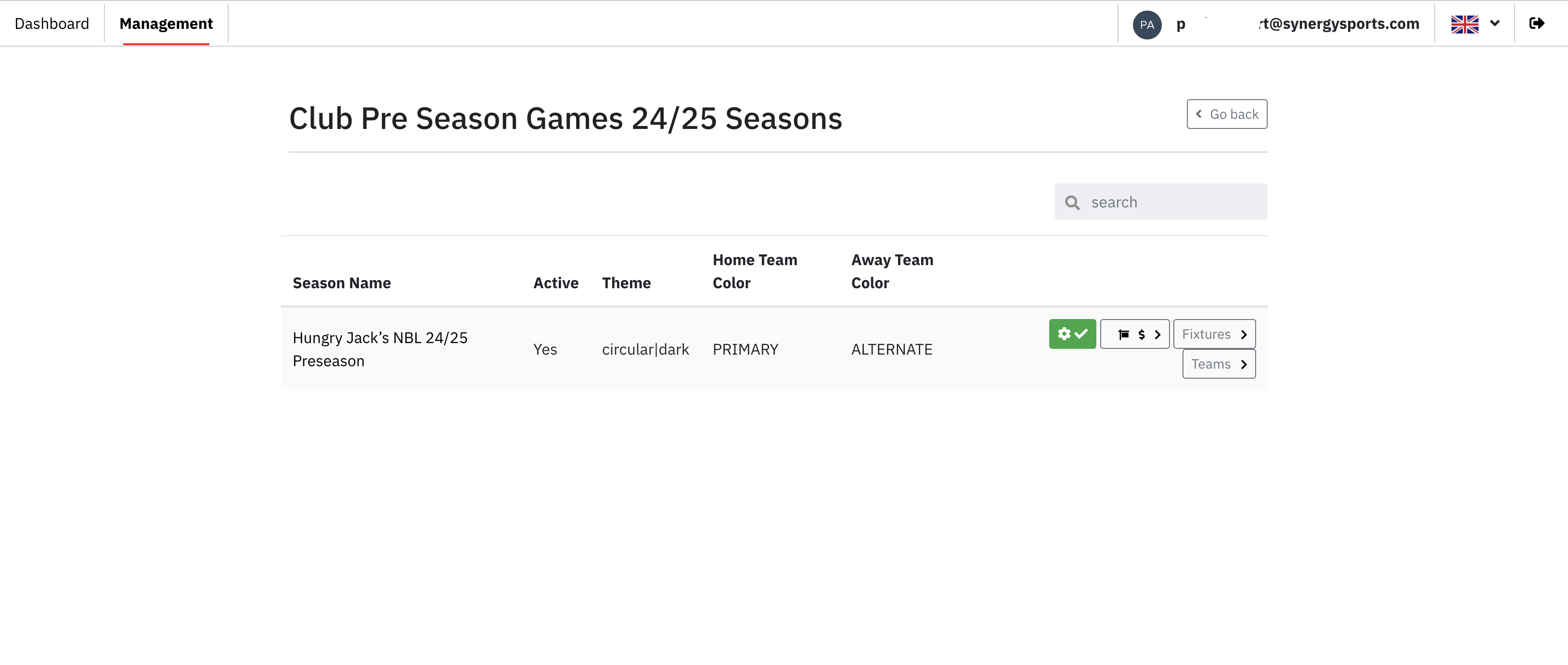
On the season configuration page, you have the ability to set the default Team color display. This means that every game will have this team color setting. However, each game can be configured individually in case you have a clash of colors (For example, the home team's primary color is the same as the away team's alternative color).
Step 1: After logging into the EVO Admin page, click on the "Competitions" button (located on the far right) to navigate to the competitions list.
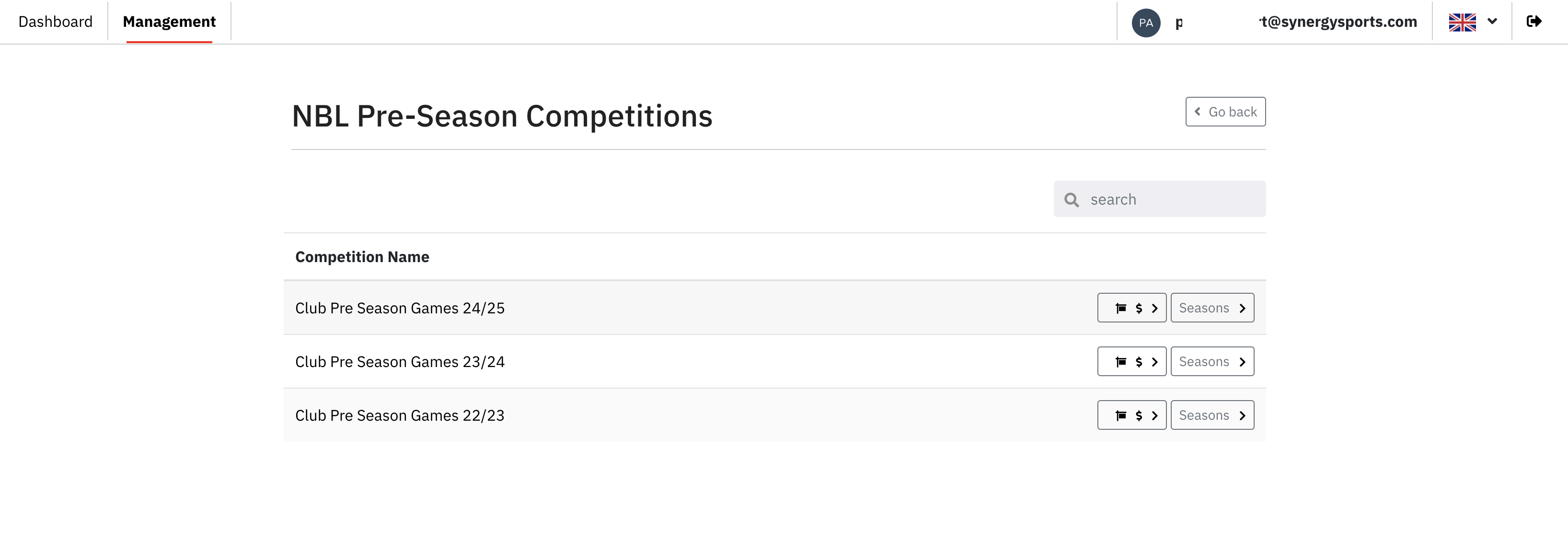
Step 2: You will now be taken to a page where all the seasons will appear. Next, you will click on the "Seasons" button which will bring you to Season Configuration Page.
Step 3: Now select the "cog" icon (green button) in order to set the theme.
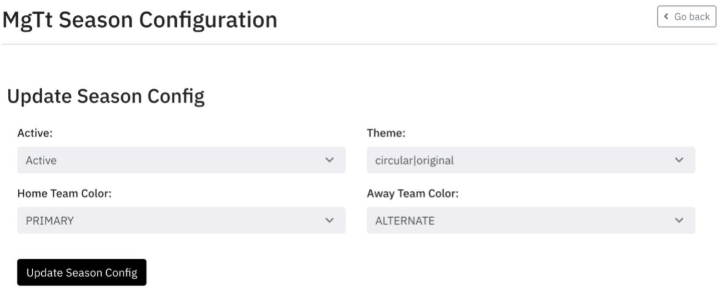
Step 4: Setup your theme using the "Update Season Config" page example, as shown below.
Section 3. Team Colors
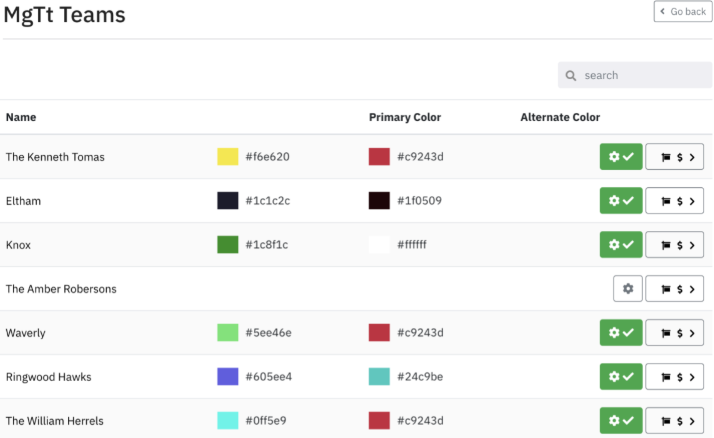
Before the start of a season, you will need to set each team's colors. For each team, you will need to set a primary color and an alternative color. Usually, these colors align with the main color for the team when they play at home (Primary Color) and play away (Alternative Color).
To set up the team colors you will need to navigate to the correct season via the competition, then click on the settings cog icon (green icon below under the Alternate Color) in order to select the colors you want. Please see this example in the image below.
Step 1: After logging into the EVO Admin page, click on the "Competitions" button (located on the far right) to navigate to the competitions list.
Step 2: You will now be taken to a page where all the seasons will appear.
Next, you will click on the "Seasons" button which will bring you to Season Configuration Page.
Step 3: Now click on the "Teams" button in order to set the team colors.
Step 4: Below you will be able to set your team colors using the example below.
Section 4. Commercial Media
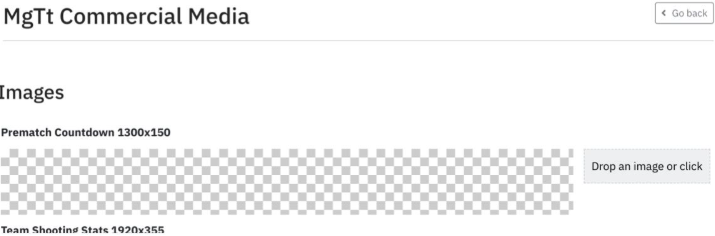
Users have the option to upload videos and images for their sponsors. This is done in the commercial media function. Guidelines for commercial media can be found in the PDF documents at the bottom of this document.
Step 1: After logging into the EVO Admin page, click on the "Competitions" button (located on the far right) to navigate to the competitions list.
Step 2: You will now be taken to a page where all the seasons will appear. Next, you will click on the "Seasons" button which will bring you to Season Configuration Page.
Step 3: Now click on the "Commercial Media" button (the icon on the far left that looks like a sign) in order to upload images and video edits.
Step 4: You will now be within the "Commercial Media" configuration page, where you will be able to upload your video and images that will display on the overlay. Please refer to the PDFs on the bottom of this article.
Troubleshooting
EVO graphics are not showing on the stream
- Check the EVO admin page to see if the theme has been configured and is active. See section 2 titled Theme/Design Configuration.
- Check your VSM (Video Stream Manager) settings to make sure that the match has been configured to encode the EVO graphics.
Logos are not showing
- EVO gets its logos from Datacore via the Competition Management System. Logos need to be uploaded into Competition Management at least 30 minutes before the match starts.
Commercial media is not playing/showing
- EVO requires the commercial media to be uploaded 30 minutes before the game starts, if it is done after that, the commercial media will not play or show.
- Videos need to be a small enough file for the encoder to load in time. Uploading large video files will mean that the videos will not play or will play later than expected due to longer loading times.
Score is updating before the basket has been scored in the video
- You will need to adjust the delay in EVO admin to slow down the data. An example of how to resolve this matter would be in Section 1.
Commercial Media Documents Below:
Was this article helpful?
That’s Great!
Thank you for your feedback
Sorry! We couldn't be helpful
Thank you for your feedback
Feedback sent
We appreciate your effort and will try to fix the article