The Stream Switcher is a legacy tool for managing multi-camera productions. Its sole function is to change which video stream is sent to the main program feed (i.e., which camera is "live").
Important Note: This tool is being phased out and has been replaced by the Control Room, which includes all of Stream Switcher's functions plus advanced audio and camera framing controls. We recommend using the Control Room for all new productions.
How to Access Stream Switcher
1. Navigate to the Studio platform.
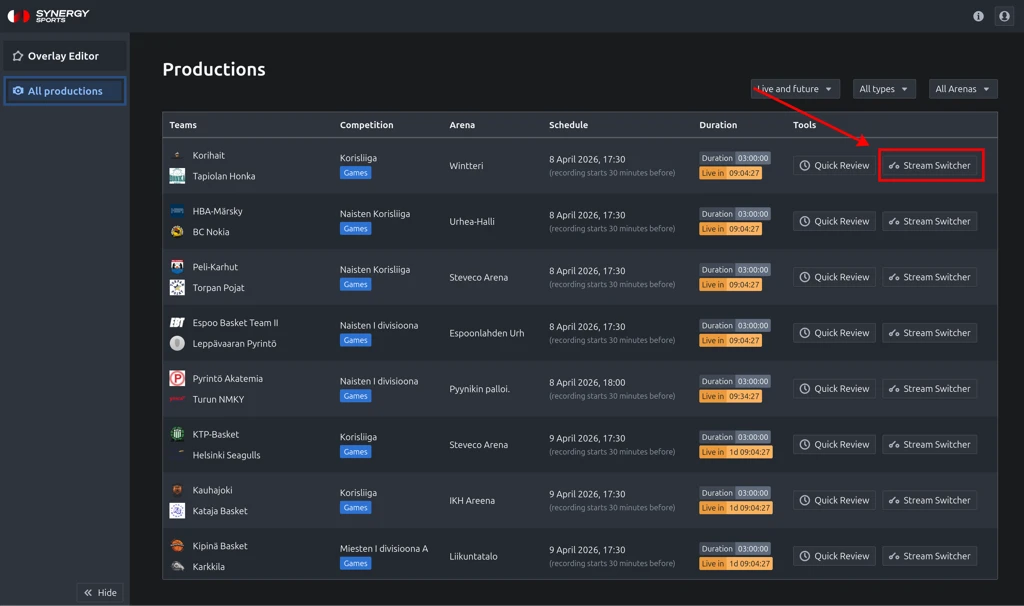
2. From the Productions list, find the one you want to manage. You can use the filters to narrow your search.
3. In the "Tools" column for that production, select "Stream Switcher".
- Access is permission-based and may not be available for all users.
Understanding the Interface
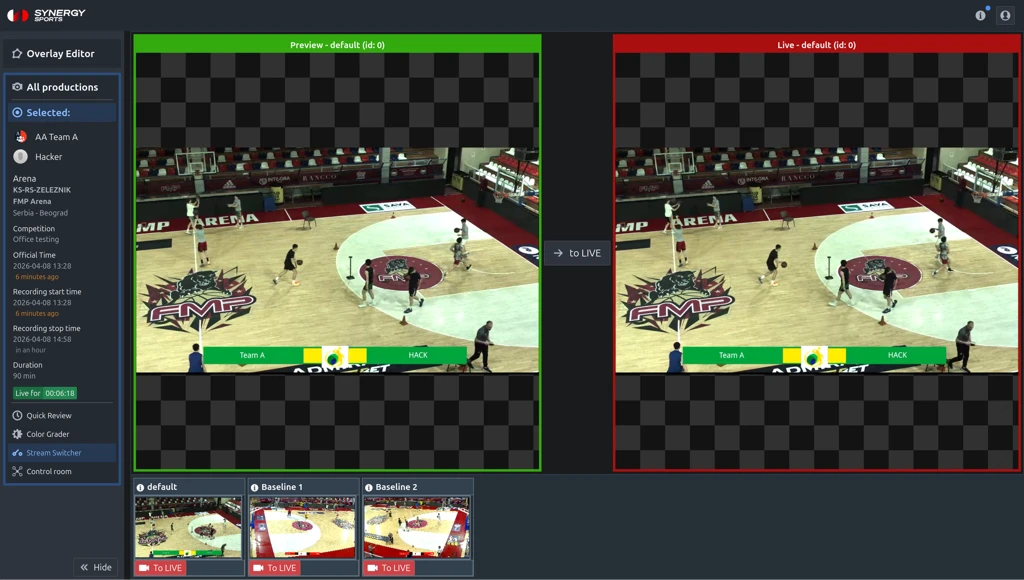
The Stream Switcher interface is divided into three main areas:
- Stream Sources: This section at the bottom lists all available camera feeds for your production.
- Preview (Green Border): This window displays the video source that is cued up and ready to be made live. This allows you to check a camera angle before switching to it.
- Live/Program (Red Border): This window shows the video source that is currently live and being broadcast to your viewers.
How to Switch Streams
There are two ways to change the live feed:
1. Standard Switching (Recommended):
This is the safest method, allowing you to preview a source before it goes live.
- Step 1: In the Stream Sources list, click on the camera feed you want to prepare. It will immediately appear in the Preview window.
- Step 2: When you are ready for it to go live, click the "To Live" button located between the Preview and Live windows. The source from Preview will move to the Live window.
2. Direct-to-Live Switching:
This method bypasses the preview step and sends a source directly to the live feed.
- In the Stream Sources list, find the source you want to make live and click the small "To Live" button located directly on that source's thumbnail.
Further Assistance: If you need any help, please feel free to contact us at support@synergysports.com.
Was this article helpful?
That’s Great!
Thank you for your feedback
Sorry! We couldn't be helpful
Thank you for your feedback
Feedback sent
We appreciate your effort and will try to fix the article