What is Quick Review?
Quick Review is a module in Studio designed for two key purposes:
- Live Instant Review: Connect to the live feed of an active production to review instant replays of key moments. The replays generated are for review purposes only and cannot be ingested into the live program feed. This tool is ideal for officials or on-site staff who need to analyze a play that just happened.
- Post-Game Analysis: Access the full recording of a past production to easily navigate, view and analyze the entire event.
How to Access Quick Review
Follow these steps below to open the Quick Review tool for a specific production.
Important Prerequisite: To use Quick Review in the live mode, you must be connected to the same local network as the arena's Synergy Automated Camera System.
If you have trouble accessing Quick Review and you believe you are on the local network, please see the following article: Modify Network Settings to Access the Quick Review App
1.) Navigate to Studio
2.) From your list of productions, locate the one you wish to review. You can use the arena and recording type filters to quickly find a specific production.
3.) Select the "Quick Review" option for that production.
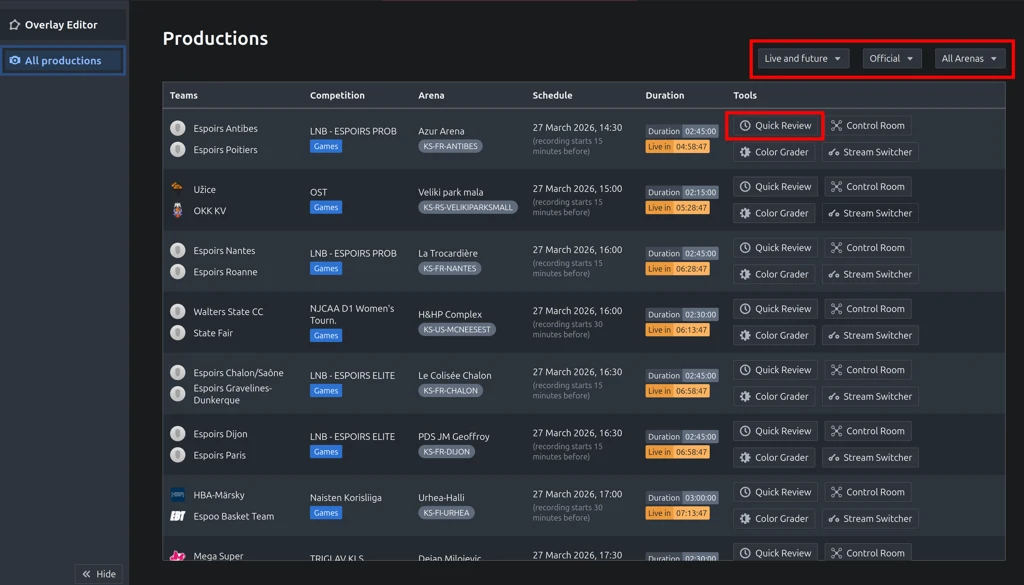
If you have the correct network connection, Quick Review will launch, giving you access to the production's video feed for replay and analysis.
How to use the Quick Review Controls
Using the Quick Review Toolbar
Below is an image showing what the Quick Review Toolbar looks like. Here you will be able to do different actions to navigate the video playback for replay and referee review.

Playback Controls
The playback control toolkit is split into 4 sections: Clipping, Mode, VCR and Speed.
1.) Clipping: This section allows you to set the "In" and "Out" points on a section of video which are represented by the grey brackets on the playback bar. Clipping helps you define start and end points of a sequence within the video you are reviewing, hence creating a clip. You can then navigate within the clip using the other sections of the playback controls or you can export it as a dedicated video file.
Please see the image below to view what the playback bar and clipping buttons looks like.
2.) Mode: This section controls the different methods of video playback.

This button will play the video and stop the video when it reaches the end.
This button will replay back the video from the beginning, once the video has ended.

This button will playback the video in reverse once the video reaches the end.

3.) VCR: This section will house the basic playback controls of your video.ote:
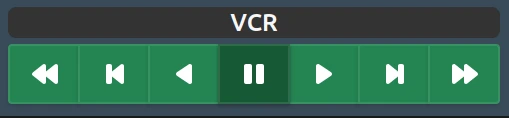
Press and hold one of these buttons to rewind or fast forward the video.


Press one of the buttons below to move the video by one frame backwards/forwards.


Use one of these buttons to play the video in reverse, stop or play the video in the standard way.

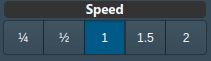
4.) Speed: This section toggles the speed at which the video plays when using the play in reverse and standard play button in the VCR control section.
Zoom Feature
The zoom tool will open up a window on the video player that will show your level of zoom which can be adjusted using the plus and minus bar. The level of zoom will be reflected by the highlighted blue area in the window, which will open up once you click on this button. The blue area can be dragged with a mouse click around the window to adjust the location of the zoom.
This button opens up the zoom.

This button resets the zoom.

Export Feature
The export feature is closely linked to the clipping options explained above in this article. Once you’ve defined a clip you will then be able to export it to you computer using the export video button.
If you were to click on the icon below, it will export the film between the bracket location that you have set with a maximum of 15 mins of video.

You can also export a screenshot of the current frame you are viewing using the export screenshot button below.

Streams Feature
This feature is only used when you have additional camera angles connected to the Synergy Automated Camera System. The feature will allow you to toggle between the different camera angles.

Scoreboard Feature
This
This feature is only available if you have a system with an OCR scoreboard camera and not the scorebot that is connected to your scoreboard controller. If you have this feature you will have a checkbox that will enable a Picture in Picture display of the shot clock.

Need a hand? If you run into any issues or have further questions, please feel free to contact our support team, and we'll be happy to assist you.
Was this article helpful?
That’s Great!
Thank you for your feedback
Sorry! We couldn't be helpful
Thank you for your feedback
Feedback sent
We appreciate your effort and will try to fix the article