What is the Quick Review application?
Quick Review is a module in Studio designed for two key purposes:
- Live Instant Review: Connect to the live feed of an active production to review instant replays of key moments. The replays generated are for review purposes only and cannot be ingested into the live program feed. This tool is ideal for officials or on-site staff who need to analyze a play that just happened.
- Post-Game Analysis: Access the full recording of a past production to easily navigate, view and analyze the entire event.
How to Access Quick Review
Follow the steps below to open the Quick Review tool for a specific production.
1. Navigate to Studio
2. From your list of productions, locate the one you wish to review. You can use the arena and recording type filters to quickly find a specific production.
3. Select the "Quick Review" option for that production.
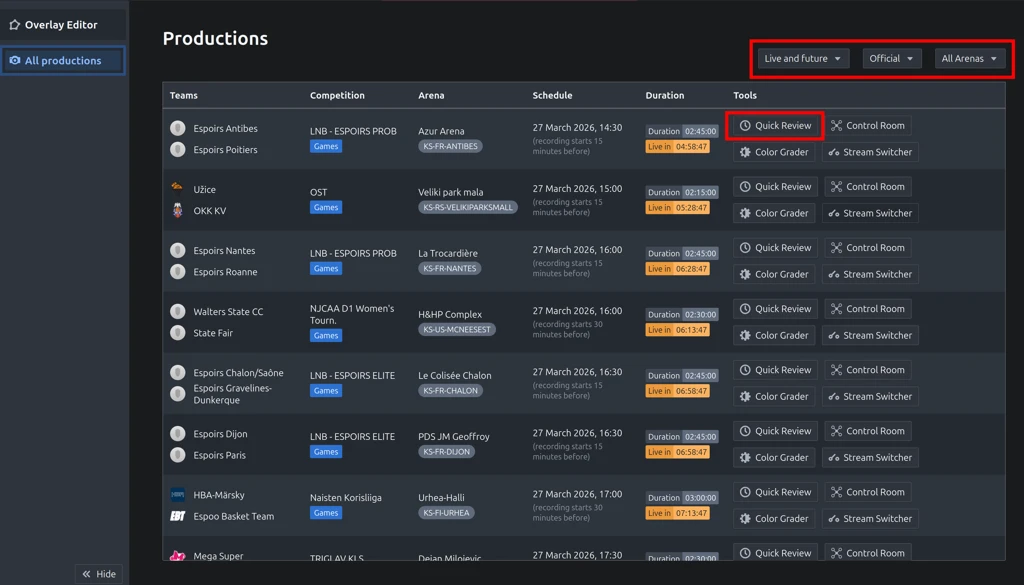
Quick Review will launch, giving you access to the production's video feed for replay and analysis.
Note: Everyone who can view the produced video for a given game in SportsHub can also access the Quick Review for that game from Studio.
Navigating Quick Review
Live and Review
If you are using the application for a live recording, you will first reach the LIVE mode. This mode plays the video live as it is produced, always providing a view to the latest action on the court.
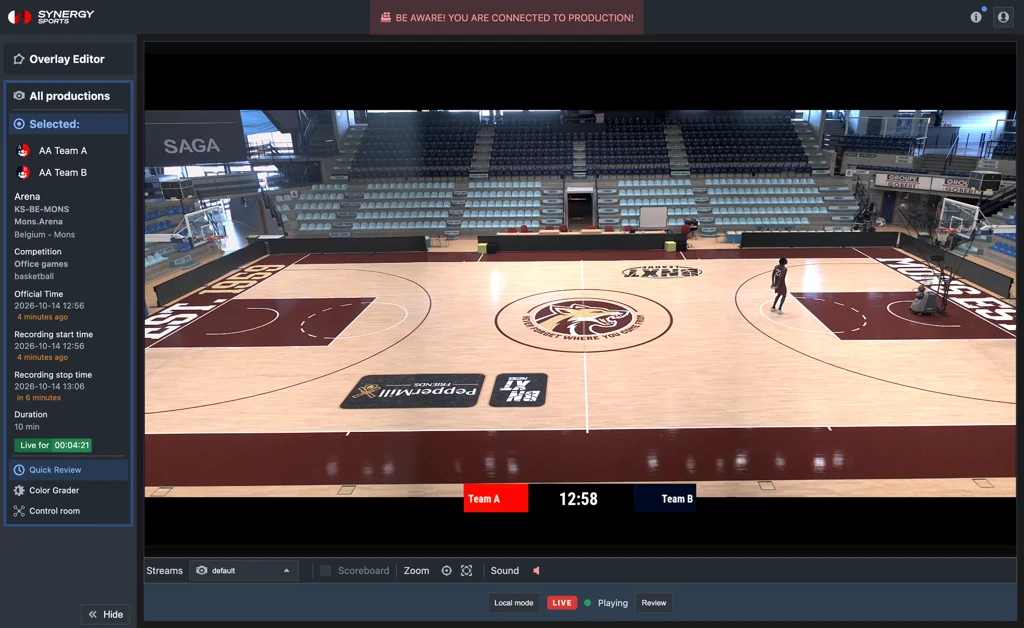
From the LIVE mode you can jump into REVIEW mode, which allows to navigate the details within the video around an action you want to review. The app fetches the last 2 minutes by default but you can load more content by adjusting the window on the bottom right of the video feed and clicking the arrow.
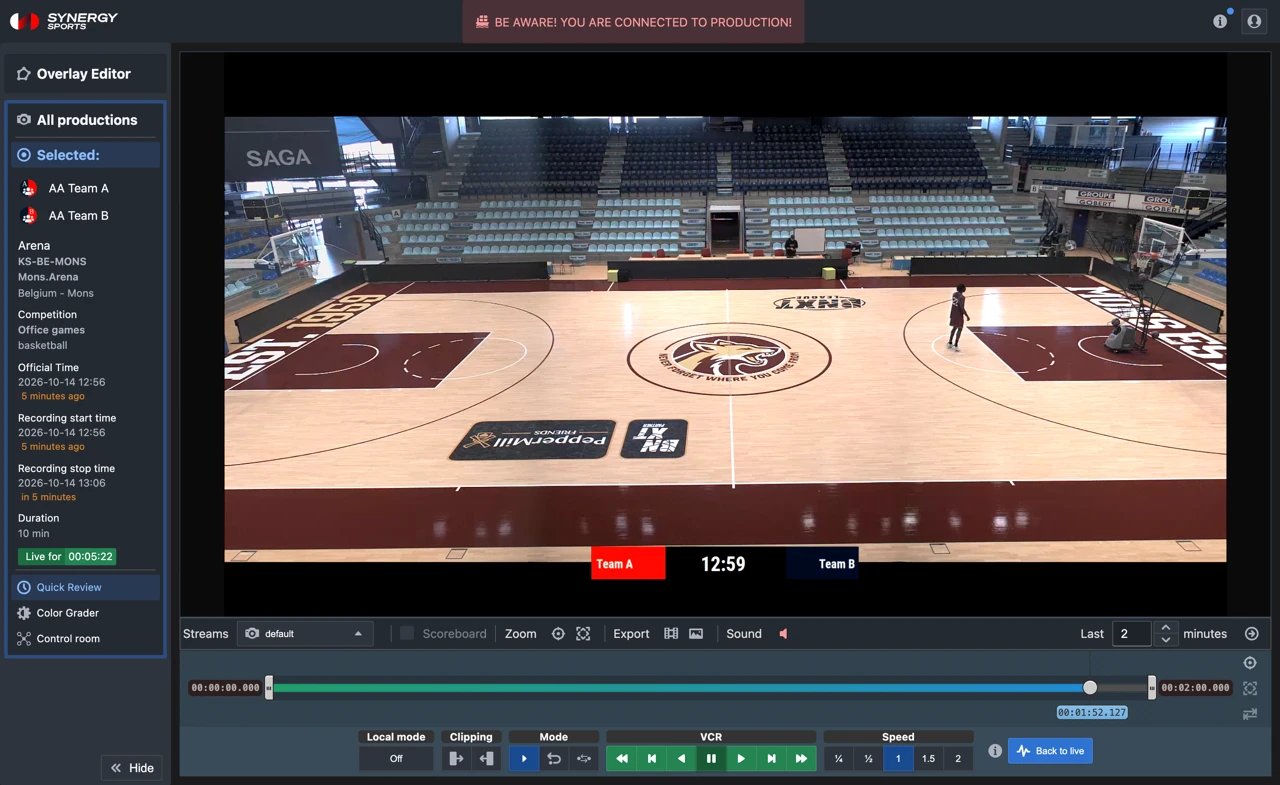
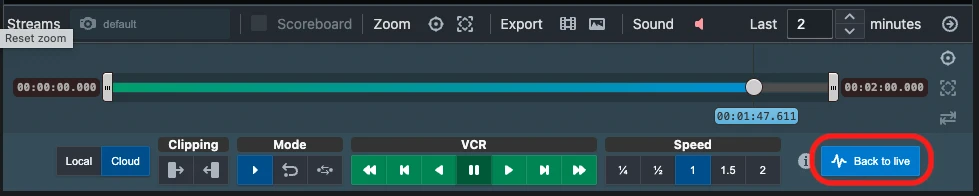
You can switch between both modes using “Review” and “Back to live” buttons:

Note: When accessing a game that is already finished, you can only access the review mode.
Cloud and Local modes
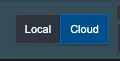
By default, the Quick Review application fetches the video streams from the Sportradar cloud. This means you only need a reliable Internet connection to access the application.
If the device through which you are accessing the Quick Review is on the same network as the Sportradar Automated Video Production server installed in your arena, a local mode is also available.
Using the local mode provides multiple benefits compared to the cloud mode:
- Lower latency compared to live.
- The video remains available in the Quick Review, even if your Internet connection drops during the game.
Note: The recommendation is to use Quick Review in local mode if you can set your device on the same network as the Sportradar Automated Video Production server.
Friendly Reminder: Even if your device is on the same network as the Sportradar Automated Video Production server, you may not be able to use local mode due to specific network settings in your arena. You can troubleshoot this with your network administrator and use the Cloud mode instead.
Multi-camera streams navigation
If the Sportradar Automated Video Production system produces multiple camera streams for the event you are reviewing through the Quick Review app. The streams toggle allows you to navigate between the different camera angles.

How to use the Review Controls
Using the Quick Review Toolbar
Below is an image of the Review mode Toolbar. You’ll find multiple options to navigate and assist your review of the video.

Clipping and exporting: The clipping tools allow to set the "In" and "Out" points on a section of the video. These points are represented by the grey brackets on the playback bar (see below).

Clipping helps you define start and end points of a sequence within the video you are reviewing, hence creating a clip. You can then navigate within the clip using the other sections of the playback controls or you can export it as a dedicated video file. The film icon allows you to export the video section between the “In” and “Out” points as an mp4 file. The Image icon exports the current frame only.
Mode: Mode tools determine how a clip or video sequence is played in the application.
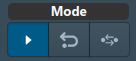
From left to right, you can choose between:
- Play the video until it reaches its end and stop.
- Play the video on a loop: Replay back the video from the beginning once you reach the endpoint.
- Play the video back and forth: Play the video in reverse once you reach the endpoint.
VCR: The VCR tools allow basic navigation in the video. This includes using forwards and backwards and either fast, frame-by-frame or playing at normal speed.
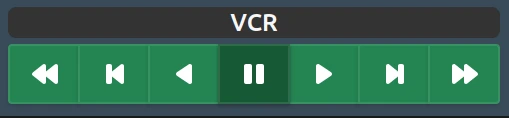
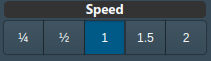
Speed: This section toggles the speed at which the video plays when using the play in reverse and standard play button in the VCR control section.
Need a hand? If you run into any issues or have further questions, please feel free to contact our support team, and we'll be happy to assist you.
Was this article helpful?
That’s Great!
Thank you for your feedback
Sorry! We couldn't be helpful
Thank you for your feedback
Feedback sent
We appreciate your effort and will try to fix the article