Clip Messaging allows collaborators to communicate directly on individual clips within an edit, keeping feedback and discussions contextual and easy to follow.
Sending a Clip Message
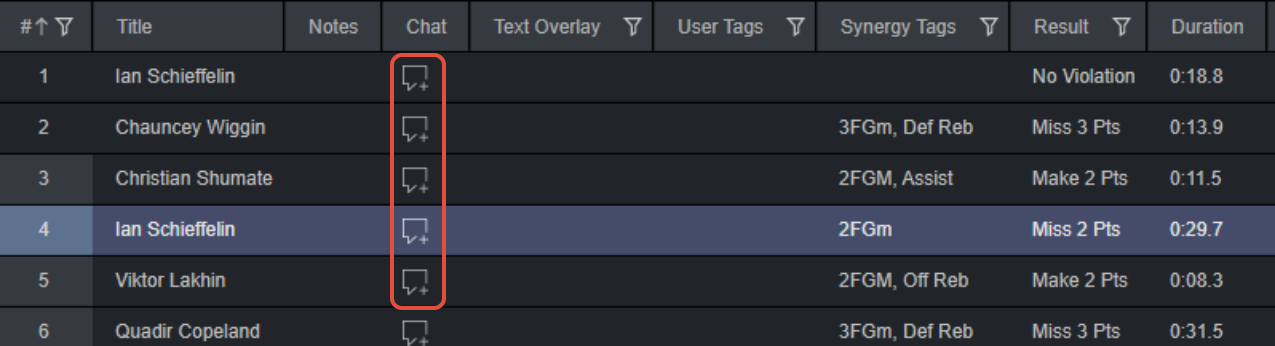
In Playlist view, each clip has a message icon under the Chat column.
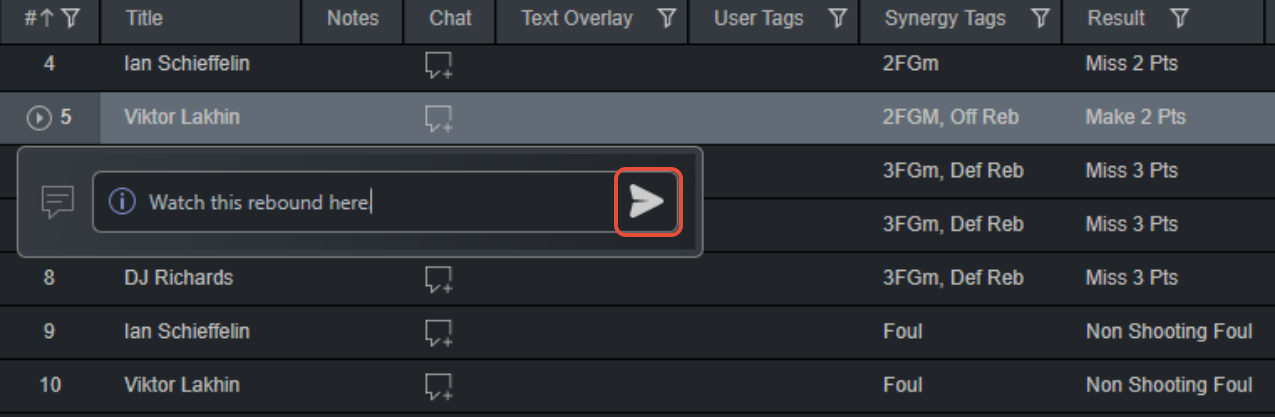
- Click the message icon to open the chat window for that clip.
- Type your message and click Send to post it.
Message Status Indication
The message icon reflects the status of messages on a clip:
- Empty message bubble: No messages exist for this clip.

- Message bubble with lines: Messages exist and have been read.

- Filled message bubble: There are unread messages on the clip.

Chat Window
When the chat window is open, an Info button appears to the left of the message entry field. Clicking Info displays:

- The total number of users who have access to the edit.
- A dropdown list showing the names of those users.
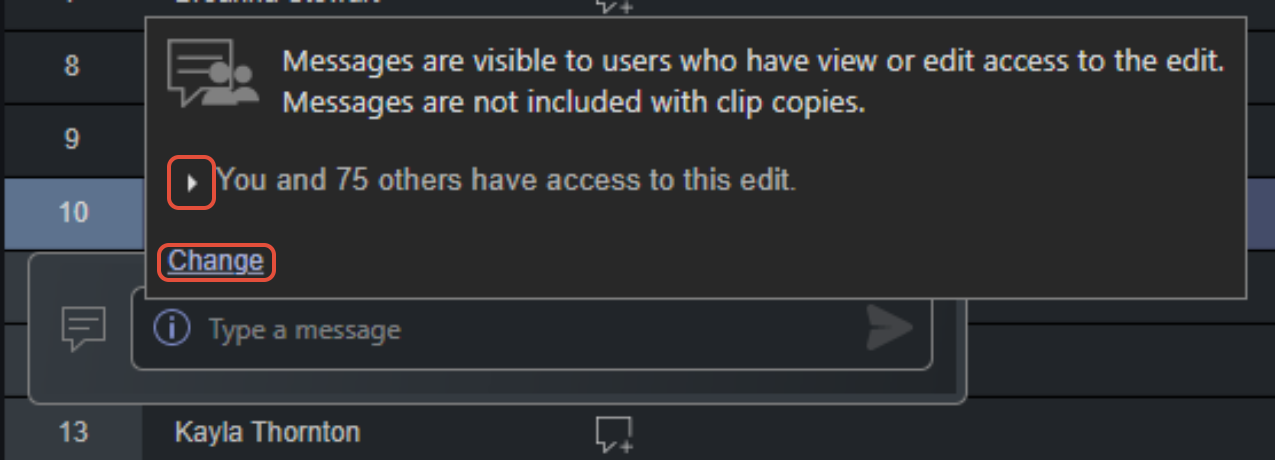
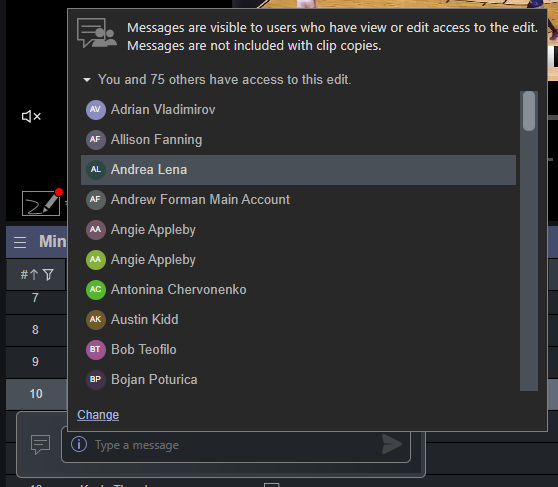
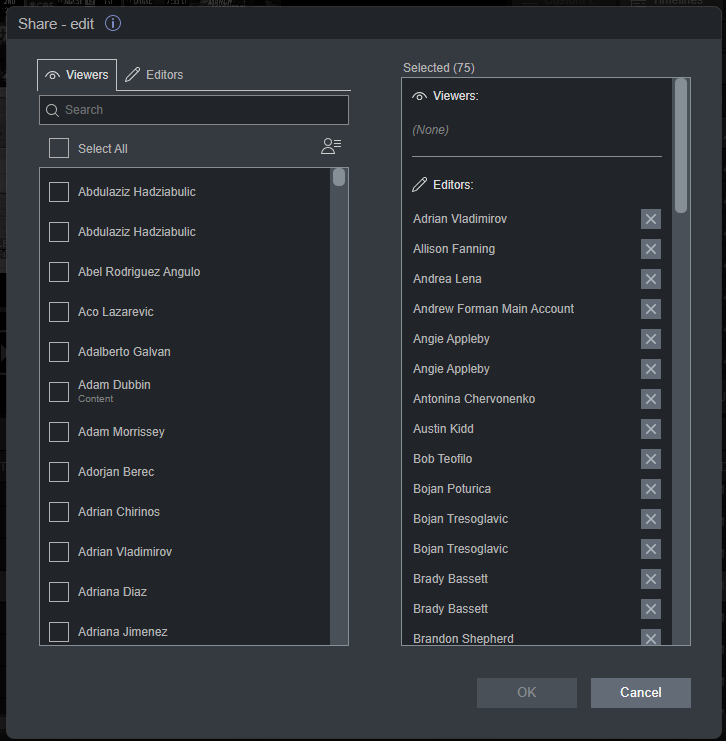
Select Change to open the Share window, where you can add or remove users from the edit.
Modifying Messages
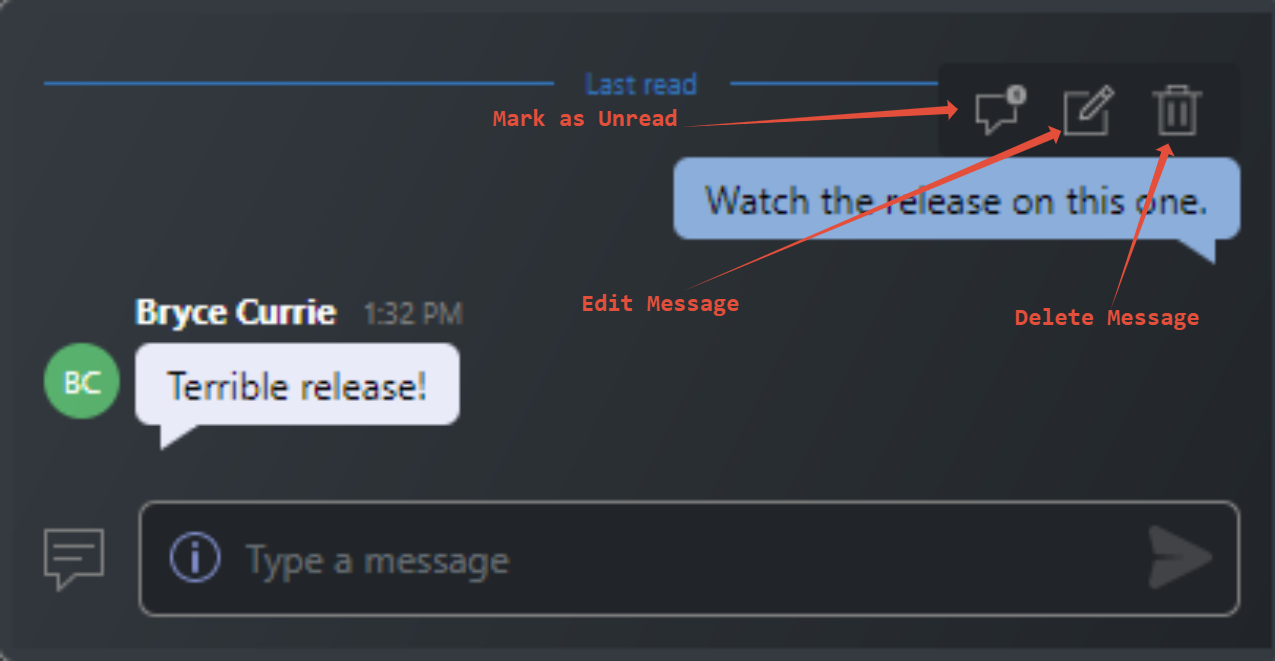
When hovering over a message in the chat window, you can mark the message as unread, edit the message, or delete the message. If a message has been deleted, a notification will be displayed in the chat.
Visibility and Access
Clip messages are visible to all users the edit has been shared with, including both Viewers and Editors. Messages always appear in the Chat column, regardless of user role.
Note: Clip messages do not transfer when a clip is copied. Messages remain associated with the original edit that was shared.
Viewing All Conversations
Click the message icon in the bottom-right corner of the app to view all conversations. Unread conversations are displayed first in a pop-up.
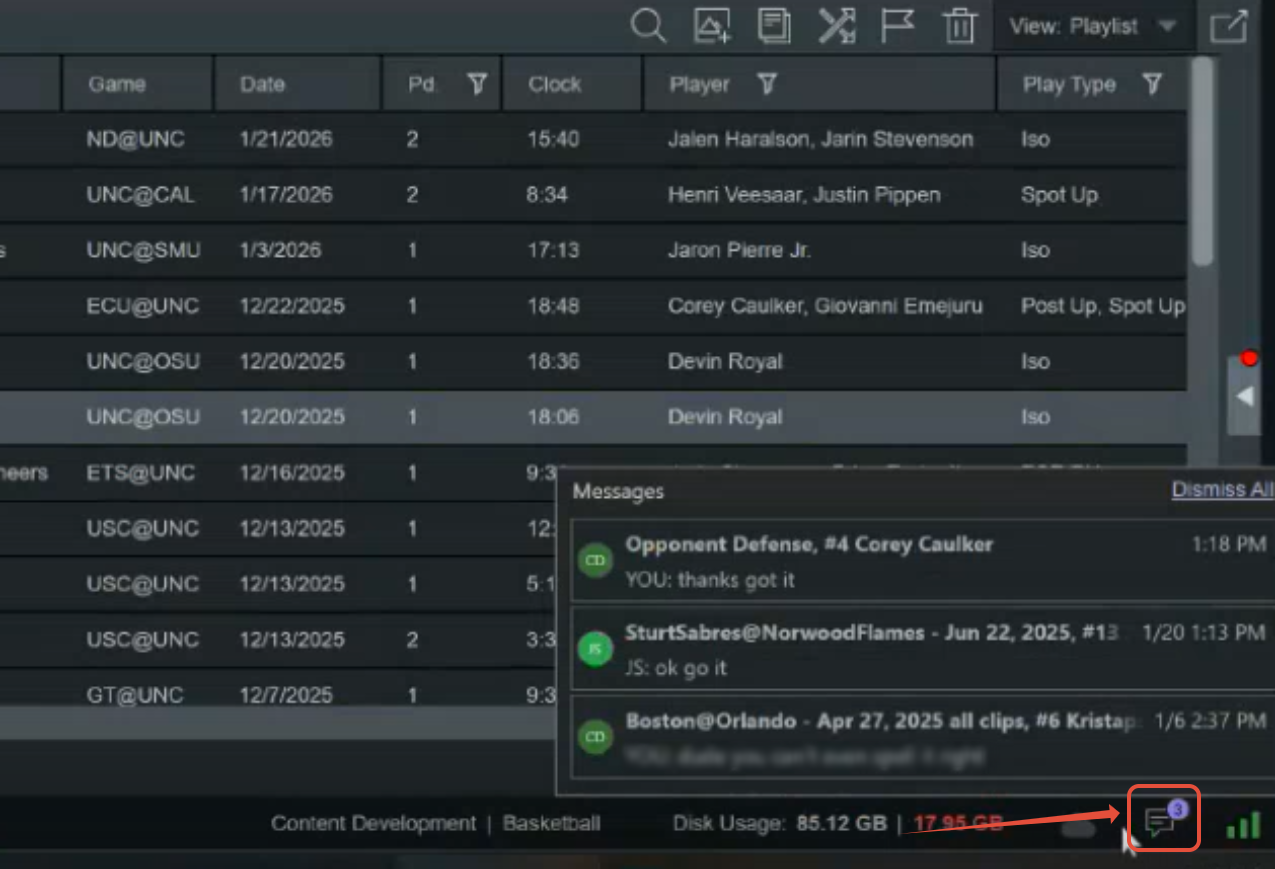
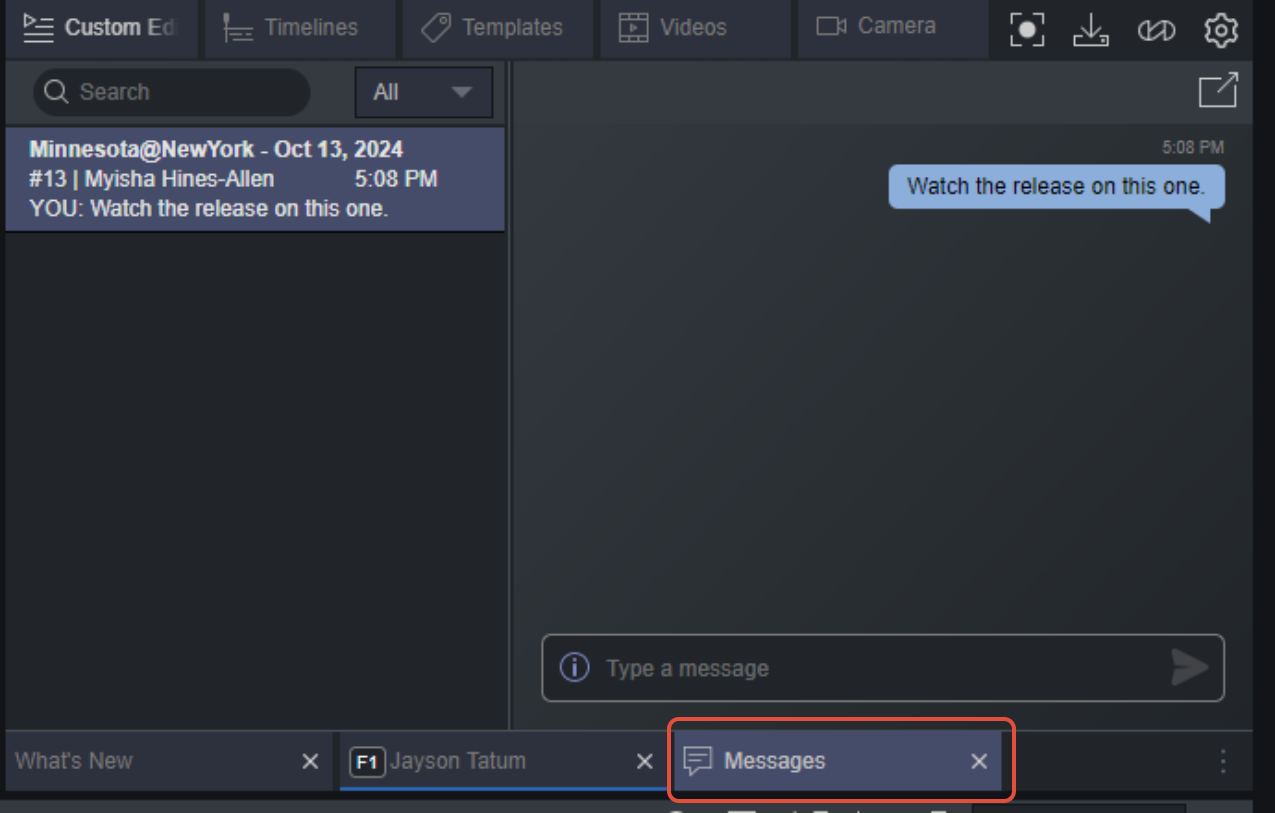
Selecting a conversation will open the message panel, showing messages from newest to oldest. If there are no unread messages, clicking the message icon opens the message panel directly.
Jumping to a Clip from Messages
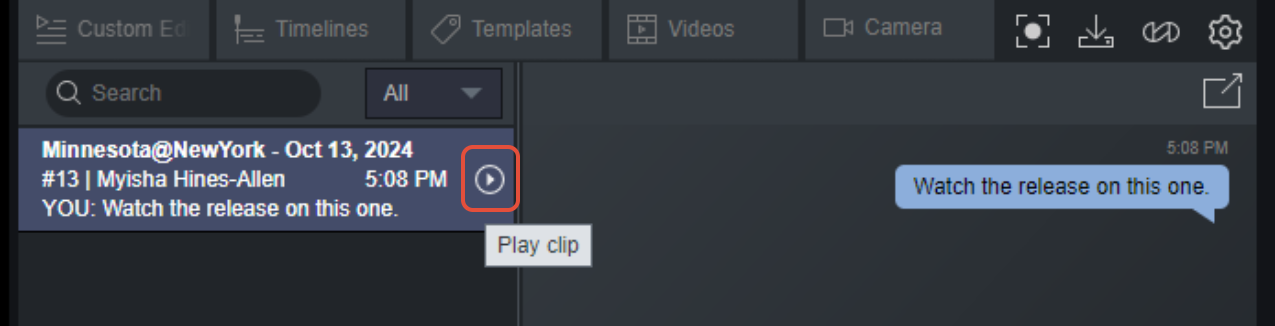
Each message in the message panel will display a Play icon when hovered over. Click the Play icon to jump directly to the associated clip. The related edit will load in the lower panel, providing immediate context.
Was this article helpful?
That’s Great!
Thank you for your feedback
Sorry! We couldn't be helpful
Thank you for your feedback
Feedback sent
We appreciate your effort and will try to fix the article