Overview
Synergy Editor supports wireless presentation remotes, giving coaches and staff hands-free video control during film sessions and team meetings.
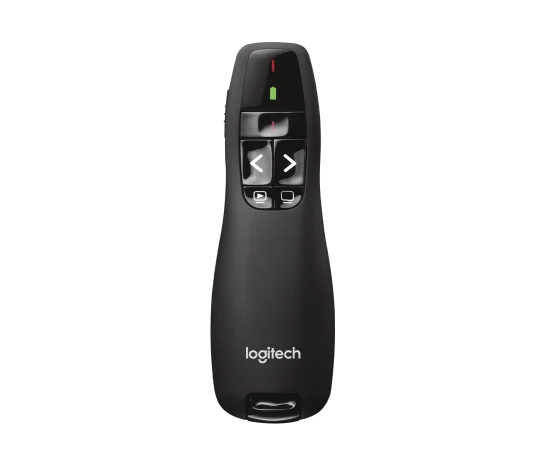
Hardware Compatibility Optimized for Logitech R400 Wireless Presenter
(USB-A, list price: $39.99). We strongly recommend having your program or organization purchase one for your film room setup.
Controls
Remote Button | Gesture | Default Action | Function Details |
Laser | Single Tap | Laser Pointer | Flashes the physical red laser beam. |
Press & Hold (>0.3s) | Laser Pointer | Fires the physical red laser beam. | |
Left ( ◀ ) Page Up | Single Tap | Previous Clip | Skips to the beginning of the previous clip. |
Press & Hold (>0.3s) | Rewind (REW) | Rewinds video at 2x speed while held. This increases to 3x speed if held for 2.5 seconds. Release to resume. | |
Right ( ▶ ) Page Down | Single Tap | Next Clip | Advances to the next clip in the playlist. |
Press & Hold (>0.3s) | Fast Forward (FF) | Advances video at 2x speed while held. This increases to 3x speed if held for 2.5 seconds. Release to resume. | |
| Slideshow F5 / Esc | Single Tap | Full Screen / Windowed | Toggles presentation full-screen mode (press again if cycling between states). |
| Black Screen . (Period) | Single Tap | Play / Pause | Toggles playback instantly with zero delay. |
Activating & Customizing Your Hotkeys
Reset Hotkeys After Updating (Required)
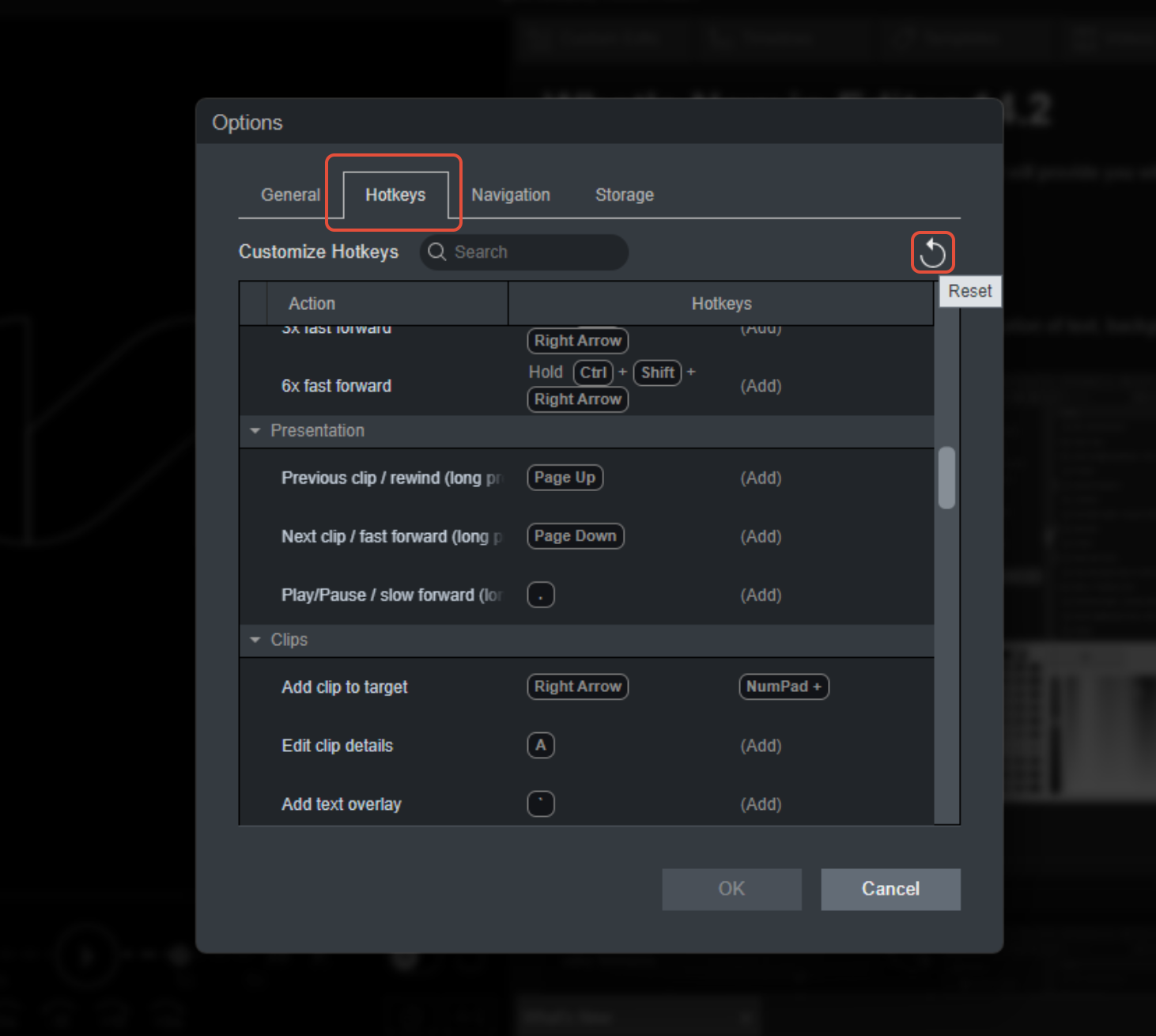
To enable remote compatibility after downloading the updated Editor, you must reset your hotkey profile to load the new defaults:
- Open the Hotkeys menu in Synergy Editor.
- Select Reset
Note: If you previously configured custom keyboard shortcuts, resetting will clear them. Re-enter your personal hotkeys after performing the reset. You can cancel the hotkey reset instead of confirming if you need to note your previous hotkey assignments.
Customizing Button Mappings
You can remap remote buttons to any action you prefer in the Hotkeys menu. While the default profile has multiple function buttons using tap vs. hold gestures, custom assignments through the Hotkeys UI currently support one function per button. If you reassign a remote button manually, it will execute only that single assigned action.
Quick Setup
- Plug & Play: Insert the USB-A receiver into your computer and turn the remote power switch to ON.
- Focus the Editor: Click anywhere inside the Editor video window to ensure it has active keyboard focus.
- Scrubbing vs. Skipping: Tap the directional buttons for Previous/Next Clip; hold for more than 0.3 seconds for 2x Rewind/Fast Forward. After holding for 2.5 seconds, it increases to 3x speed.
Other Remotes
Many other presentation remotes work as well. Because button layouts and keystrokes vary, other models simply require mapping your preferred functions in the Hotkeys menu. Contact Synergy Support if you have questions about specific third-party devices.
Was this article helpful?
That’s Great!
Thank you for your feedback
Sorry! We couldn't be helpful
Thank you for your feedback
Feedback sent
We appreciate your effort and will try to fix the article