Import the Edits Video
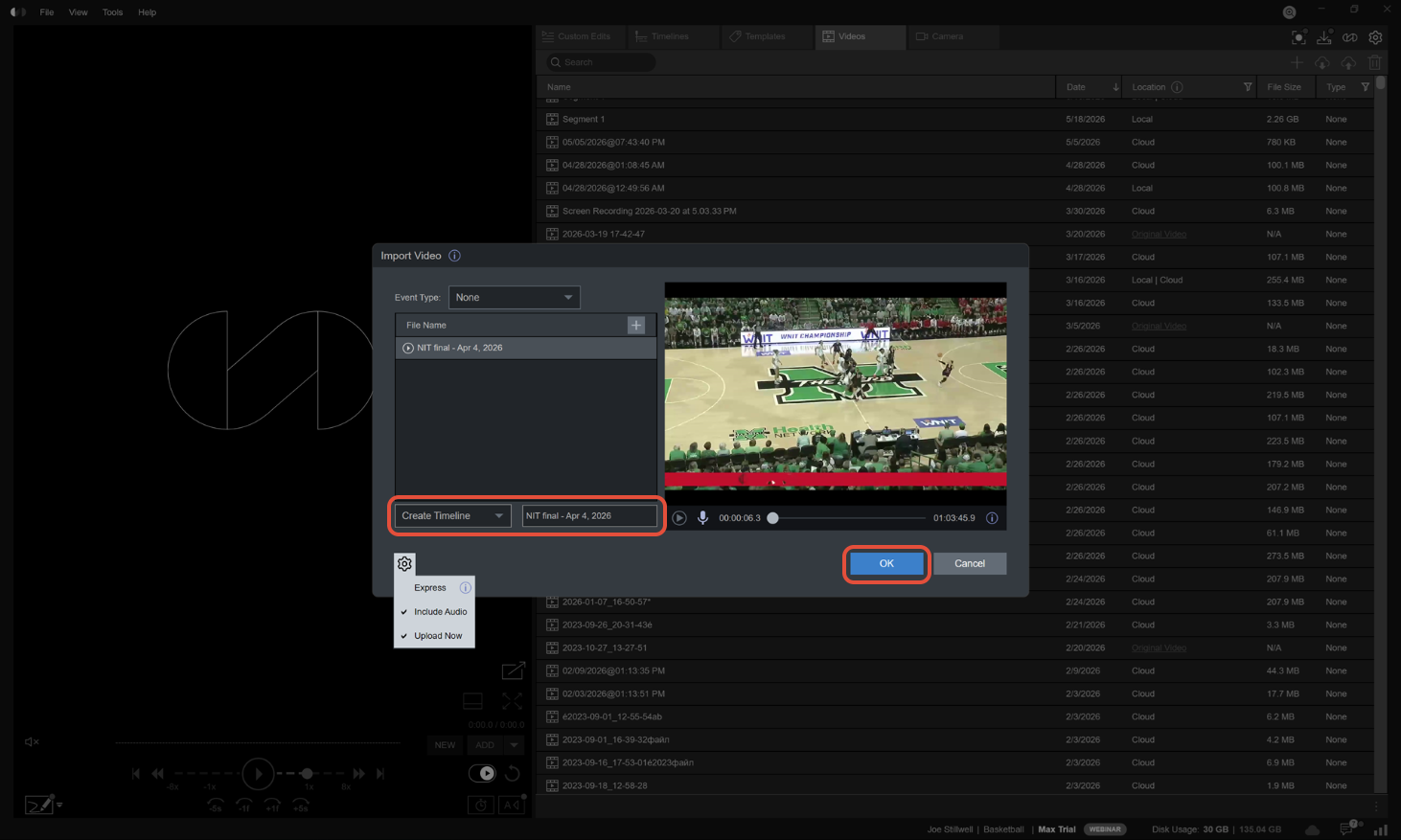
Locate the video file on your local machine, then drag and drop the file directly into the Synergy Editor application. An Import Video popup will appear.
- Ensure the dropdown is set to Create Timeline.
- Name your edit (the edit name will default to the file name).
- Click OK to begin the import.
Import Clips XML
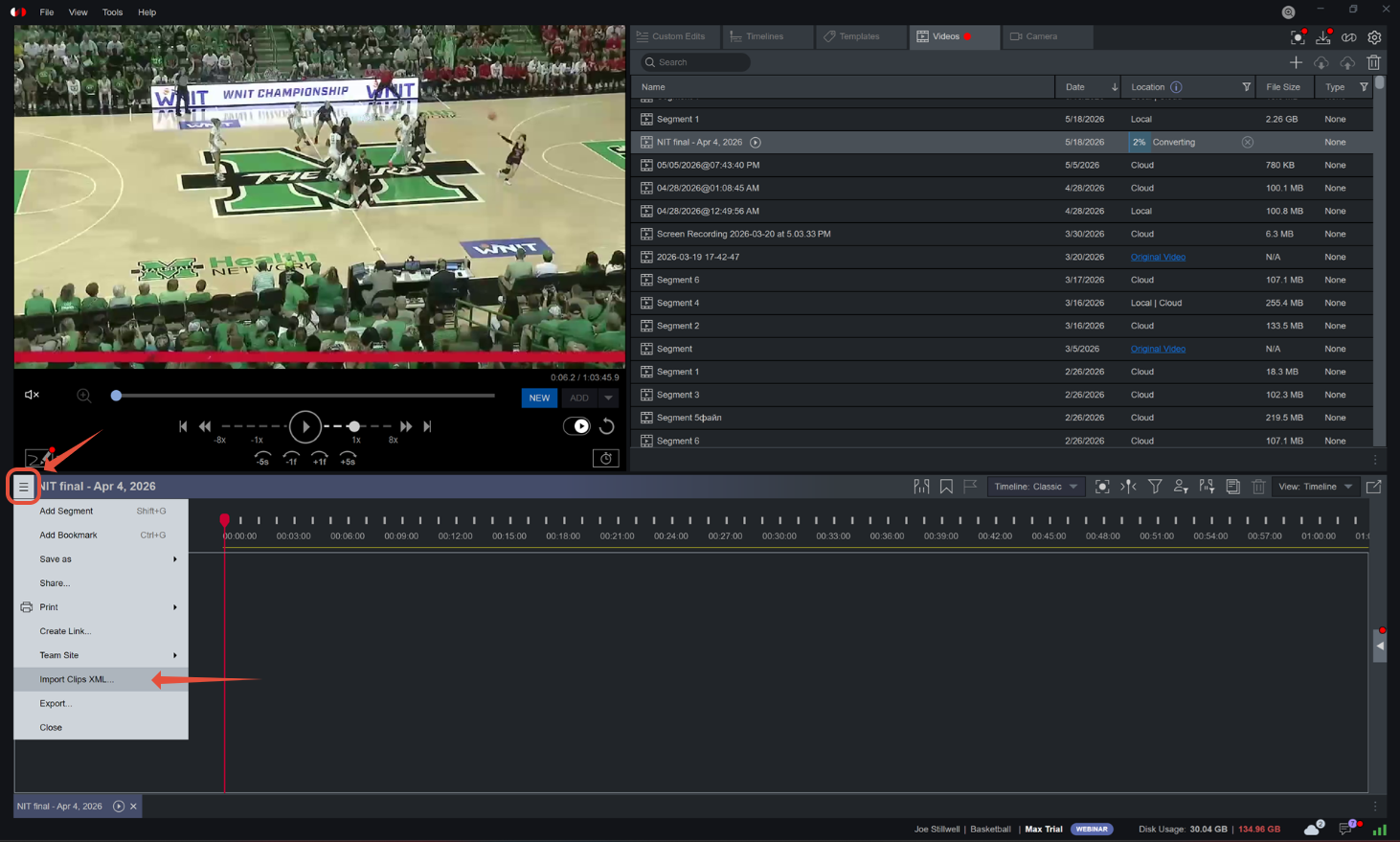
Once the video has finished importing and the edit is open, click the three-line menu (hamburger menu) located at the top-left corner of the edit window. Select Import Clips XML... from the dropdown menu.
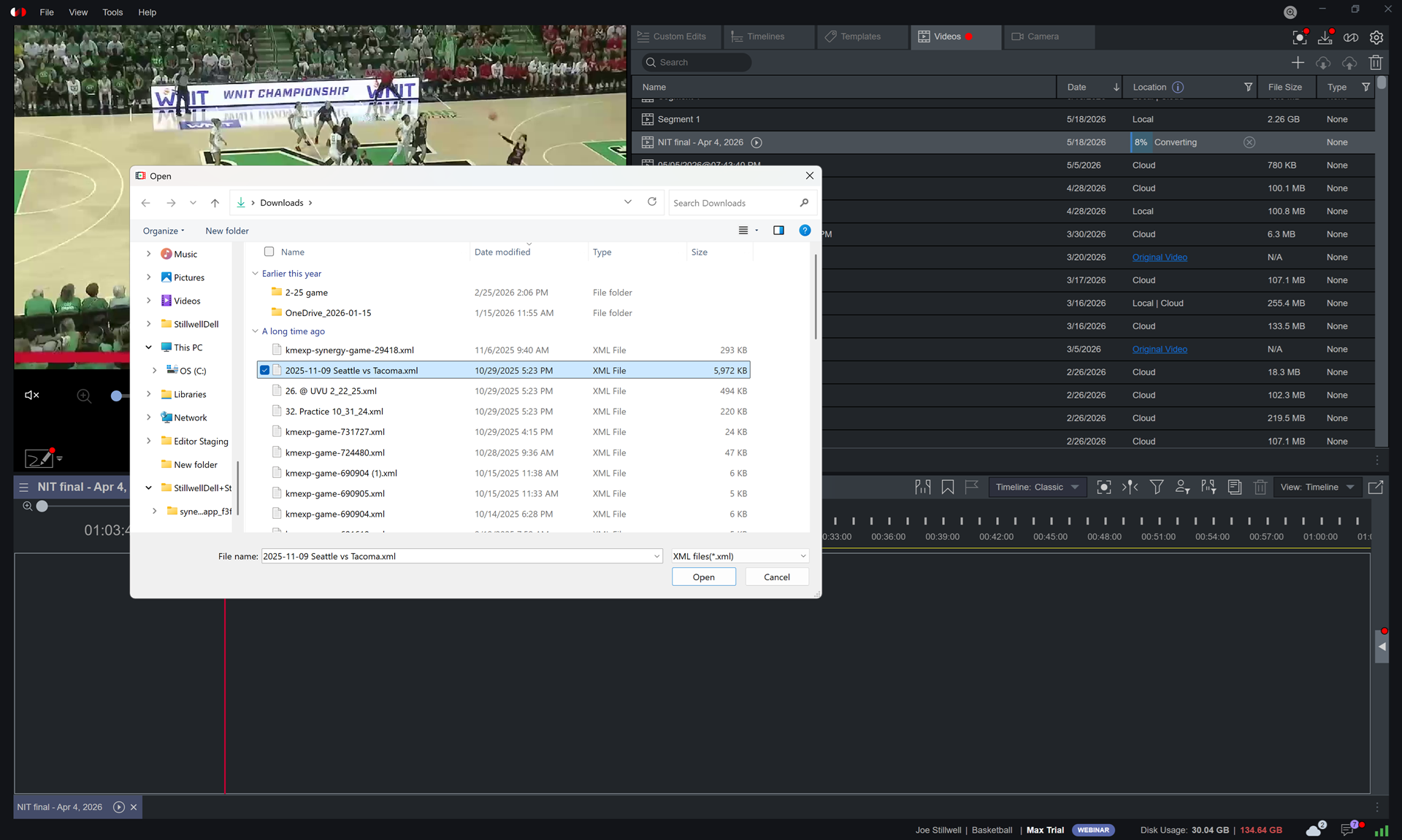
A file explorer window will open. Select your desired .xml file and click Open.
Finalize
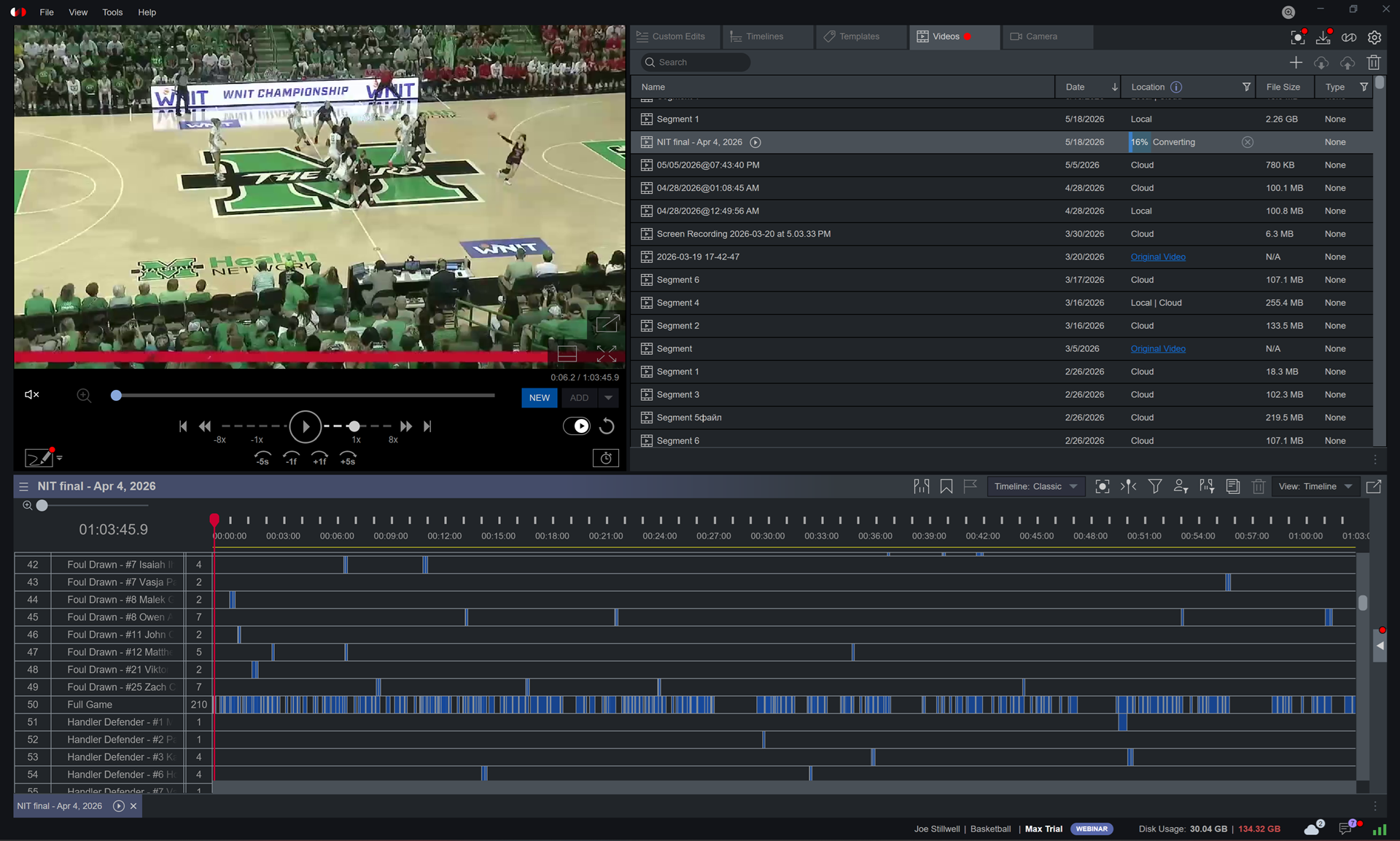
The Editor will display an "Importing edit from XML" status bar. Once complete, the clips will be automatically placed on the timeline above your video.
Was this article helpful?
That’s Great!
Thank you for your feedback
Sorry! We couldn't be helpful
Thank you for your feedback
Feedback sent
We appreciate your effort and will try to fix the article