Article Purpose: This article will help you navigate and implement an overlay for your streams.
Accessing Overlay Settings
Overlays can be managed either for a specific arena or for an entire competition.
For a specific arena, overlays are managed from the stream configurations pages. This is where you can select which overlay should be used by a specific stream. To access stream configurations, follow the steps using the following link: How to Edit a Stream.
For an entire competition, overlays are managed from the Competition Management module. To access competition management, follow the steps using the following link: Competition Management Overview.
Note: The competition management is only available if you have the appropriate permissions for the competition (more in the overview article).
Competition Overlay vs Arena Stream Overlay
A competition-level overlay applies to all recordings prodcued within a competition, for all arenas. When a competition-level overlay is configured, streams for that competition can inherit and use that overlay.
An arena stream overlay applies only to the streams produced from that arena and that competition. Use this option when a specific arena stream needs a different overlay from the competition-level overlay.
The following options are available when selecting an overlay for a stream on the arena level:
Inherit from competition: use the overlay configured at competition level.
None: do not use an overlay for this stream.
Default: use the default overlay.
Customer Overlay: options: use one of the available customer-specific overlays.
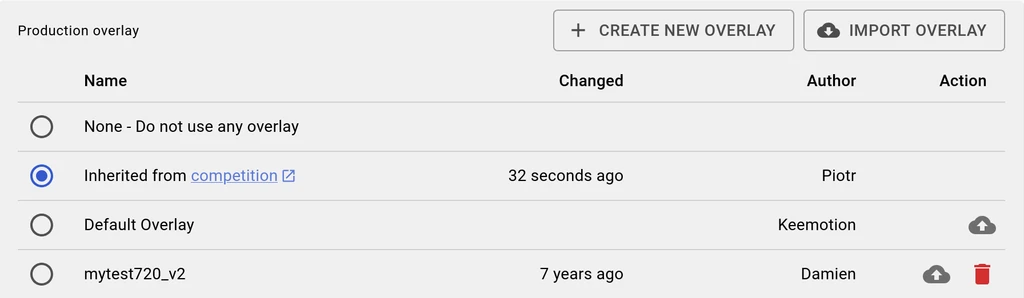
Note: When competition-level overlay is set it is automatically applied to all the arenas. You can override it in the stream-configuration.
Note: The Inherit from competition option is available when an overlay has been configured at competition level.
Note: Newly created or newly activated streams will inherit the competition-level overlay when one is configured for the competition.
Pro Tip 1: Use a competition-level overlay when the same scorebug or branding should apply across all streams in a competition.
Pro Tip 2: Use an arena stream overlay when one stream needs different branding, layout, or scorebug behavior than the rest of the competition.
Implementing an overlay
Note: The workflow to create, import, select, duplicate, delete, or re-import an overlay is the same whether you are working from competition level or arena stream level.
Create New Overlay
To create a new overlay, click Create New Overlay or follow the steps using this article:
Studio: How to use the Overlay Editor.
Friendly Reminder: After your overlay is ready to be used, remember to export the overlay to the cloud so it can be imported to the stream configuration or competition settings.
Importing Overlay
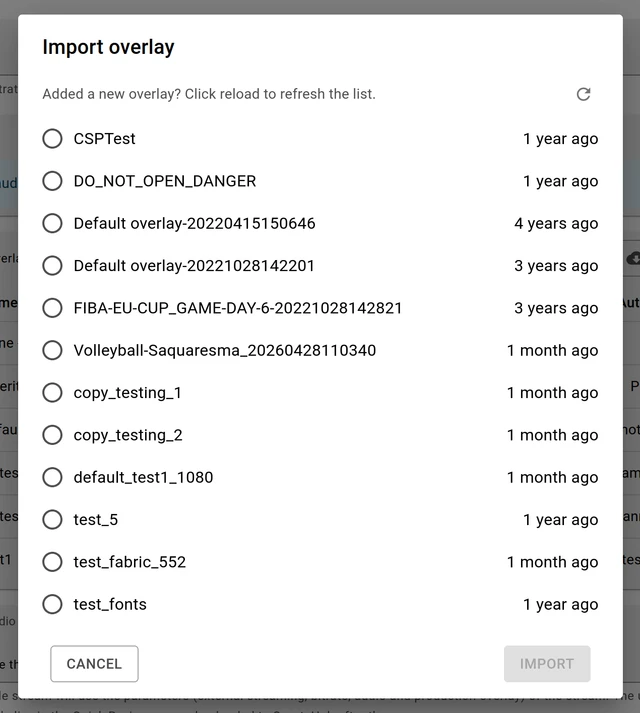
To choose an overlay stored in the cloud, you first need to import it.
Click Import Overlay, choose the overlay to import, then click Import.
Setting the Overlay to a Stream
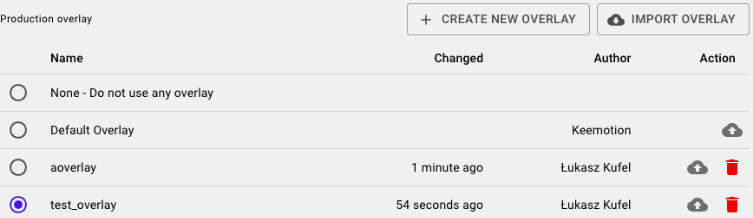
After you import the overlay from the cloud, you can set the appropriate overlay in the stream configuration.
Choose an overlay by clicking on the name or radio button next to the overlay, then save your configuration.
Duplicate the Overlay to your cloud
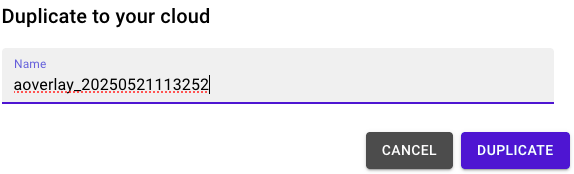
If you would like to edit an overlay that you did not create, you can duplicate the overlay to your cloud by clicking the Duplicate to your cloud icon on the right.
Give the overlay an appropriate name and click Duplicate.
Duplicate the overlay from the Stream
When you set a new overlay to the stream, you may want to remove the old overlay by clicking the Delete overlay icon on the right side.
You will then be prompted with the option to delete the overlay. Click Delete to confirm.
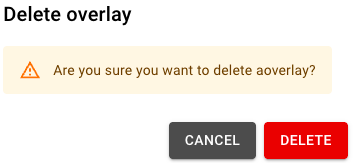
Note: Deleting an overlay from a stream removes it from that stream configuration. It does not remove the competition-level overlay selection.
Re-Importing the Overlay
Friendly Reminder: If you make any changes to an overlay and export it to the cloud, you will need to re-import the overlay to the stream or competition settings.
Just as during the import overlay process, you will be making a copy of the overlay which is not synchronized with your cloud.
If you need any further assistance, please contact us by using the following e-mail address:
Was this article helpful?
That’s Great!
Thank you for your feedback
Sorry! We couldn't be helpful
Thank you for your feedback
Feedback sent
We appreciate your effort and will try to fix the article