Sim Game provides full game-style logging with additional options suited for practice scenarios, such as same-team scrimmages, Coach or Machine assigned pitching, and placement of Ghost Runners.
Creating a Sim Game
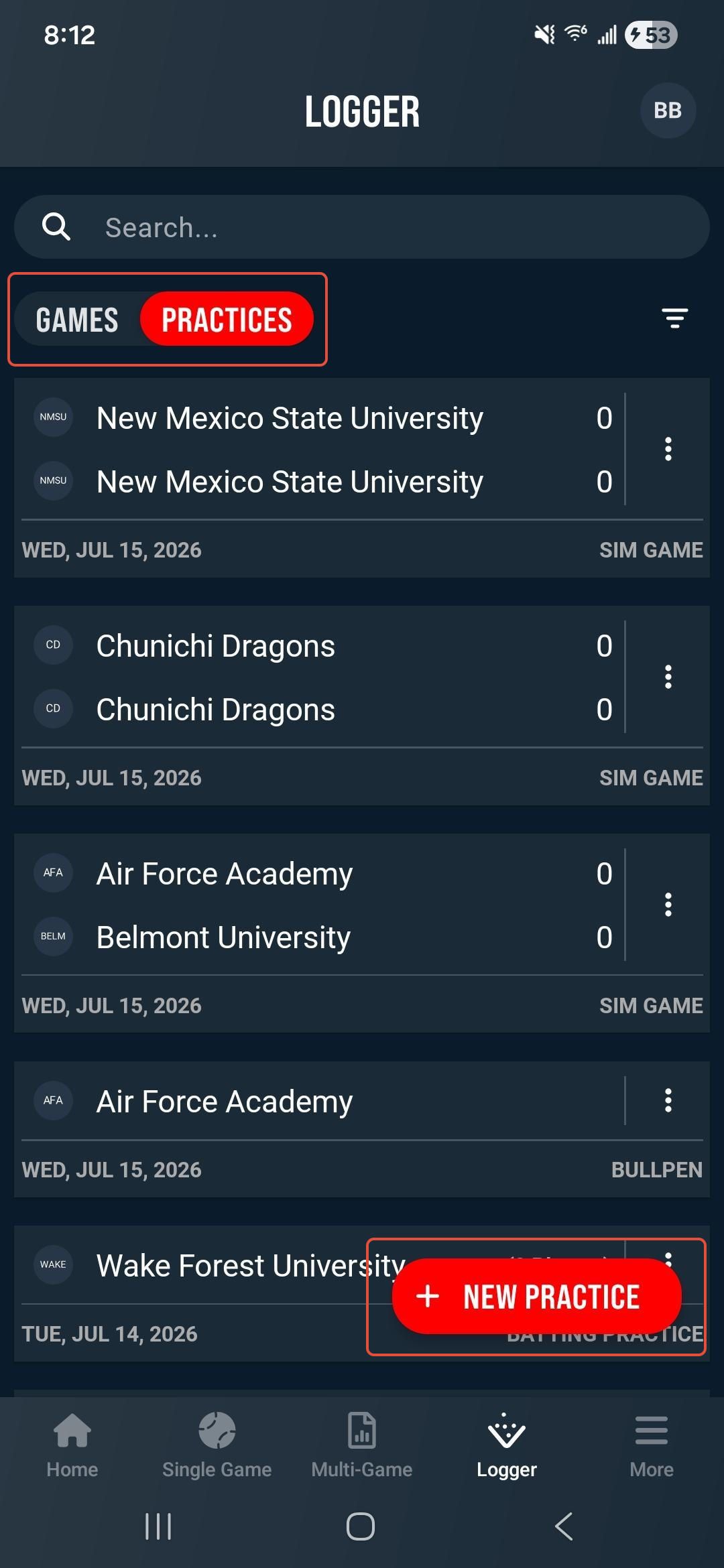
To create a new Sim Game session, navigate to the Logger page and use the pill button to toggle to Practices. This will display your existing practice sessions. Tap the + New Practice button to create a new session.
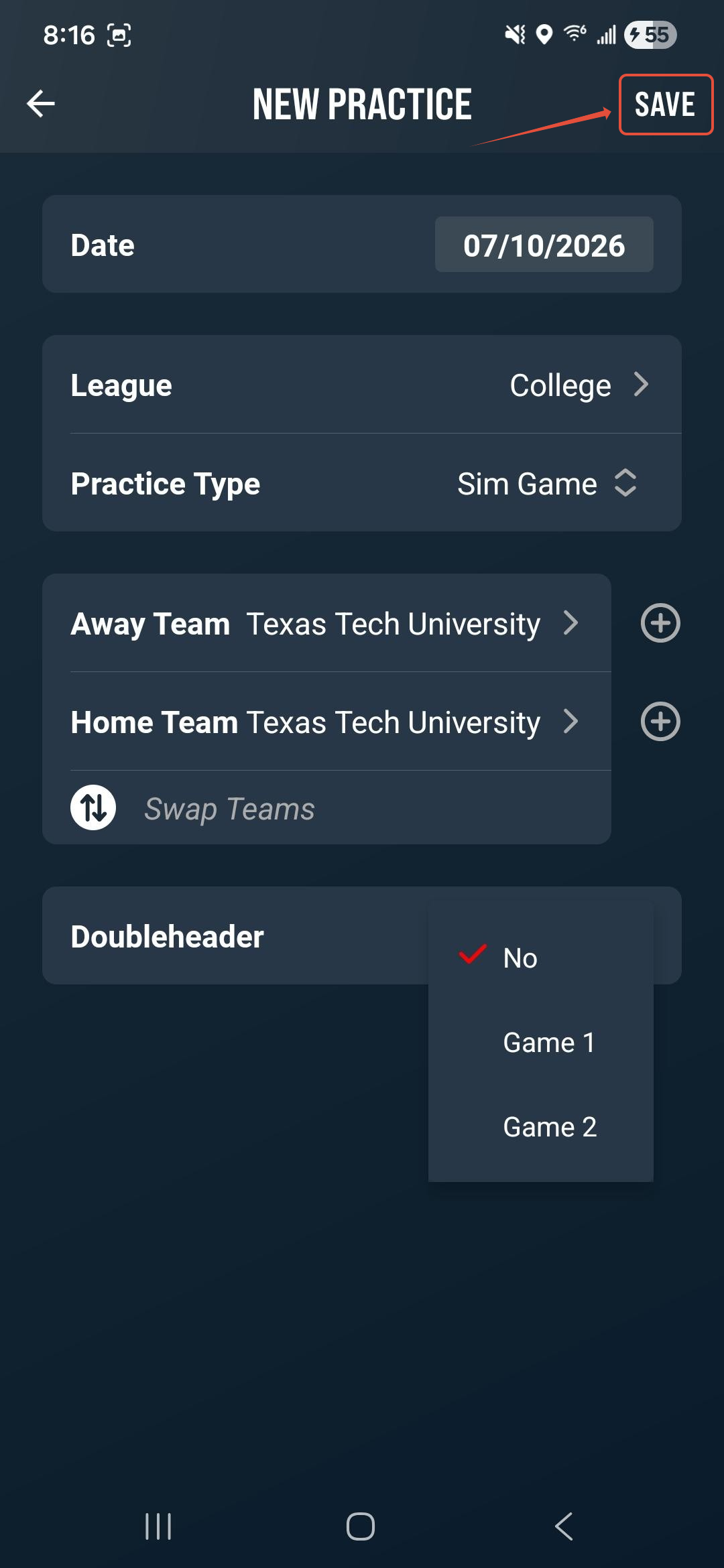
Select the Date and League, then choose Sim Game as the Practice Type.
Select the Home and Away teams. The same team may be selected for both sides. Indicate whether the session is a Doubleheader. Tap Save to continue to the Lineups and Rosters screen.
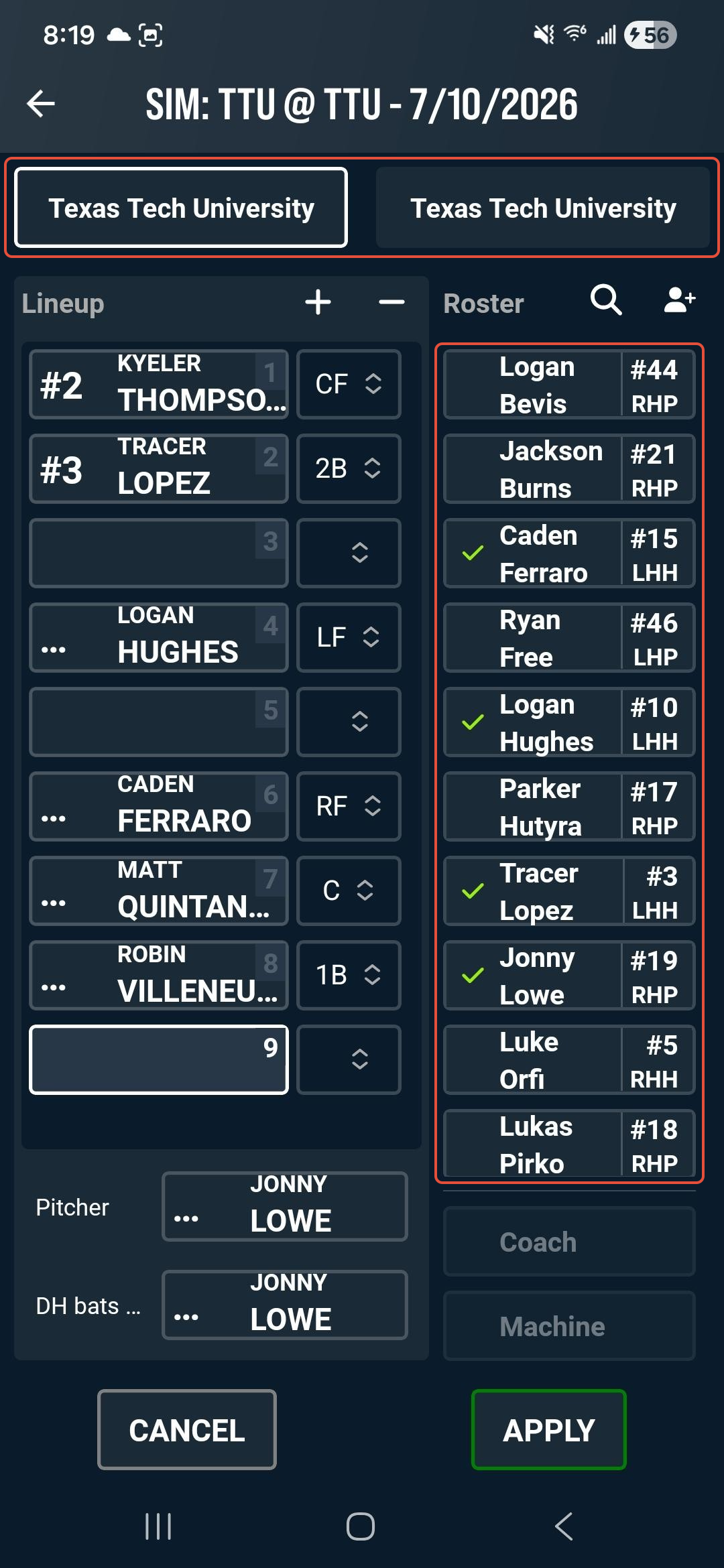
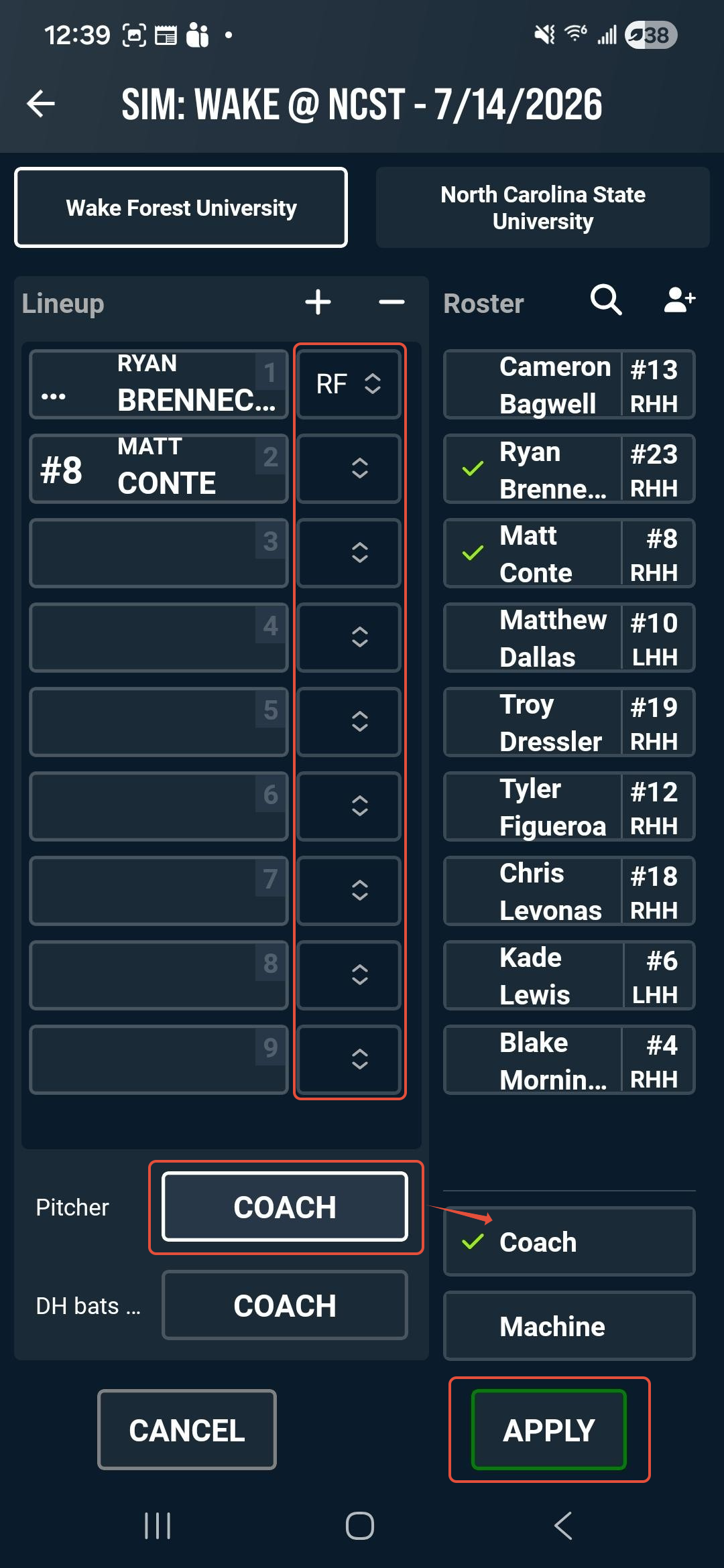
Set your team lineups on the Lineups screen. You can switch between home and away teams using the team's name buttons at the top. Tap players from the roster to add them to the lineup.
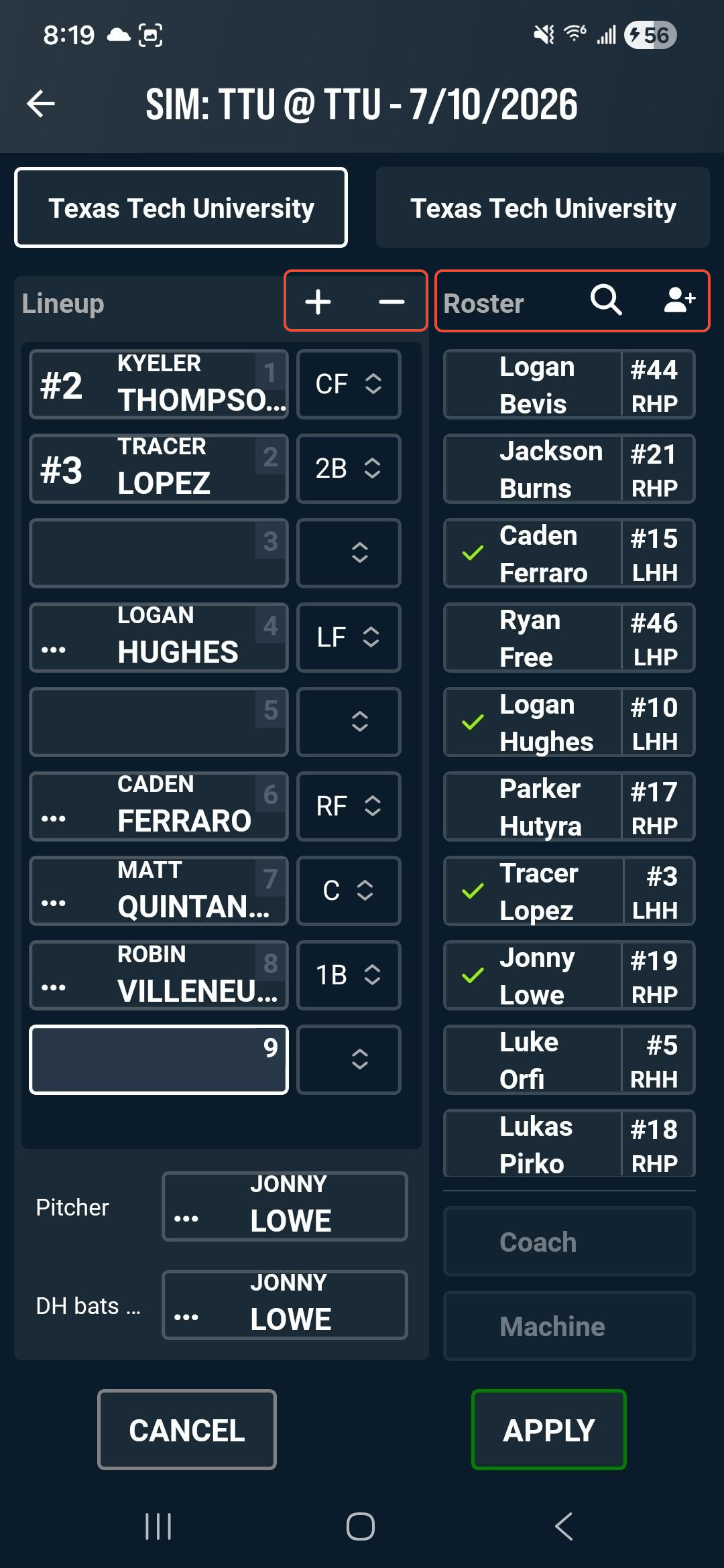
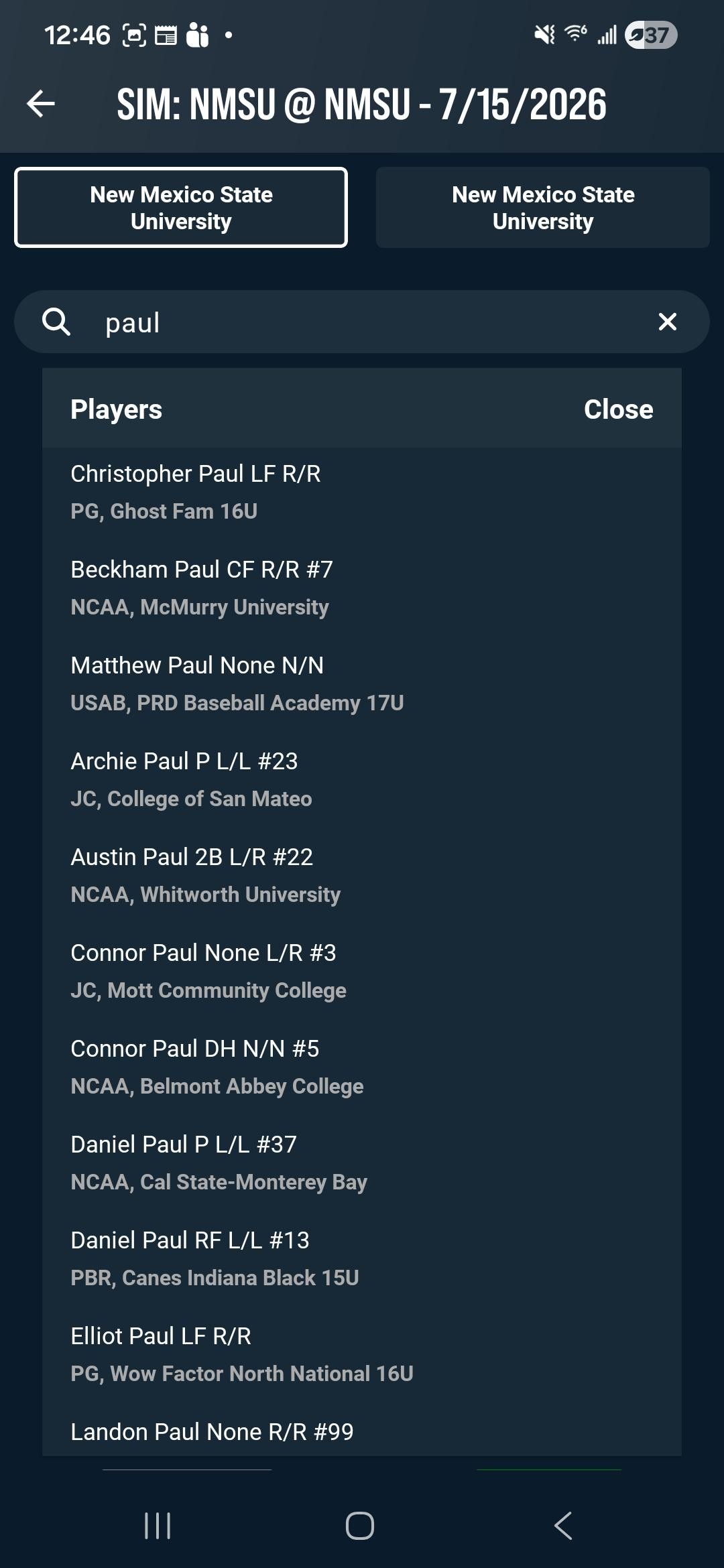
You can add any additional or missing players to the roster using the Player Search tool or the Add Player+ button. Players can be duplicated and assigned to both teams' rosters and lineups. Unlike Game logging, identical players may exist on both teams simultaneously. Add or remove lineup spots with the + and – buttons.
You may assign defensive positions using the dropdown next to the players name in the lineup (not required in Sim Game mode). Pitcher options include Player, Coach, or Machine. Once lineups are complete, tap Apply.
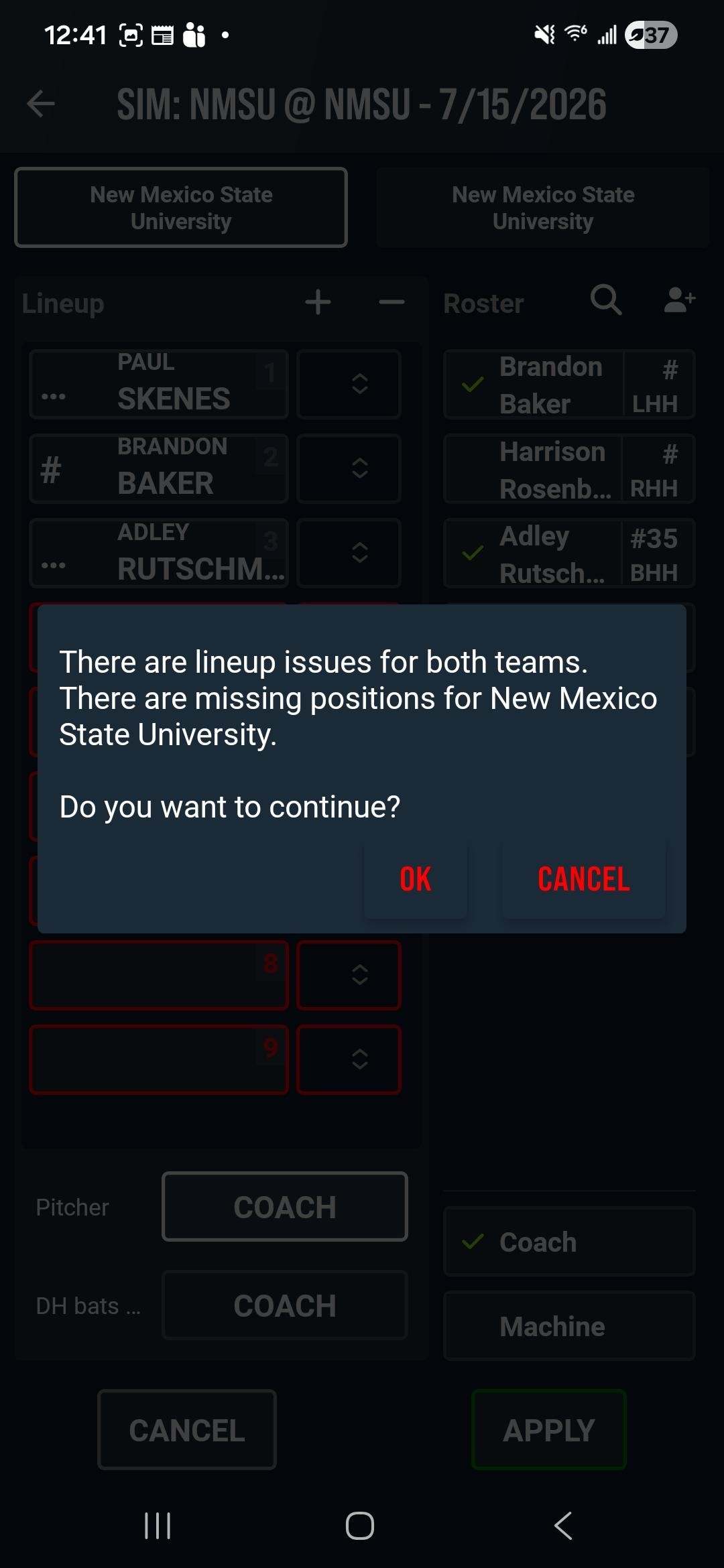
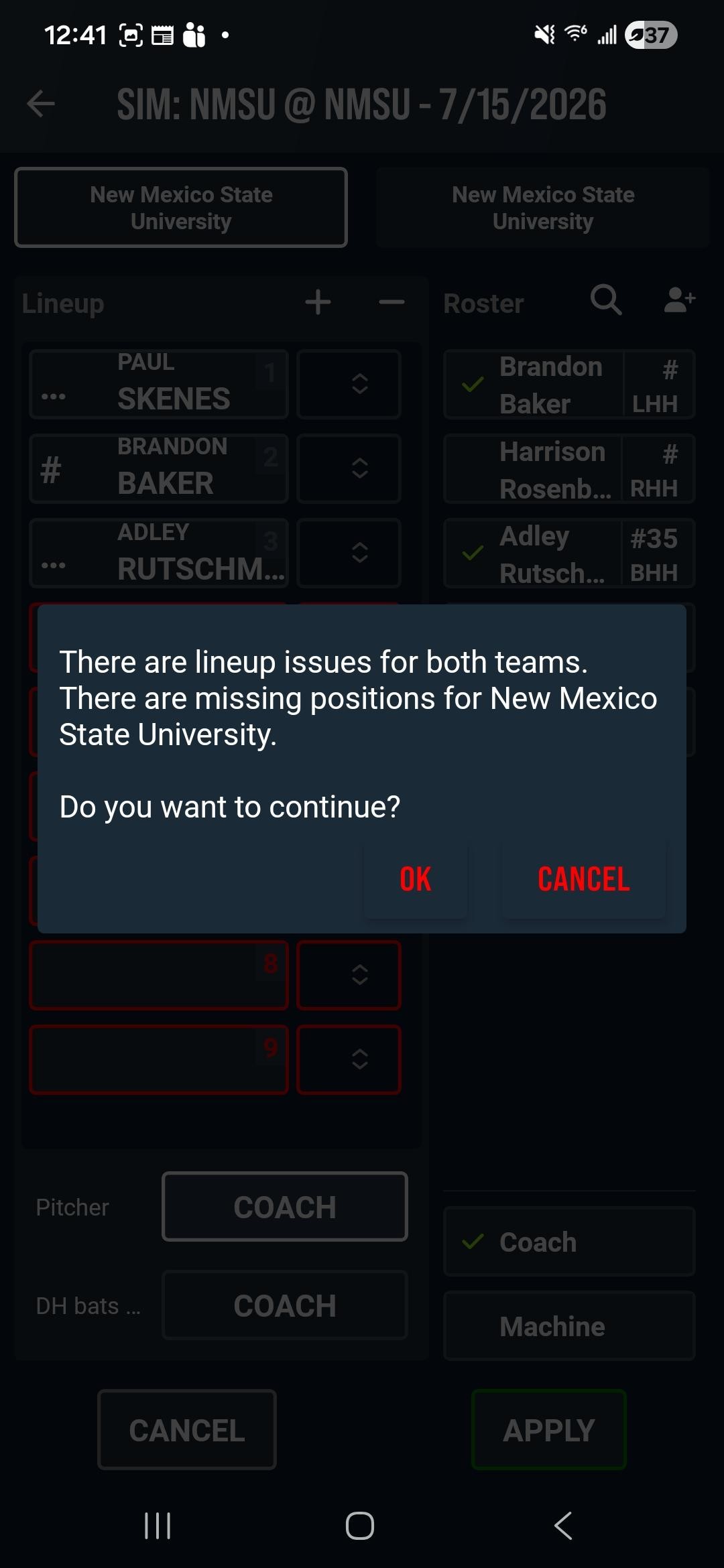
Note: If the lineup is incomplete, a warning appears but does not prevent creation of the session.
Logging Events
Sim Game logging follows the same workflow as a regular game. Tap New Pitch at the bottom of the screen to begin a timestamp. A rolling clock and recording indicator appear. Tap the button again to end the timestamp.
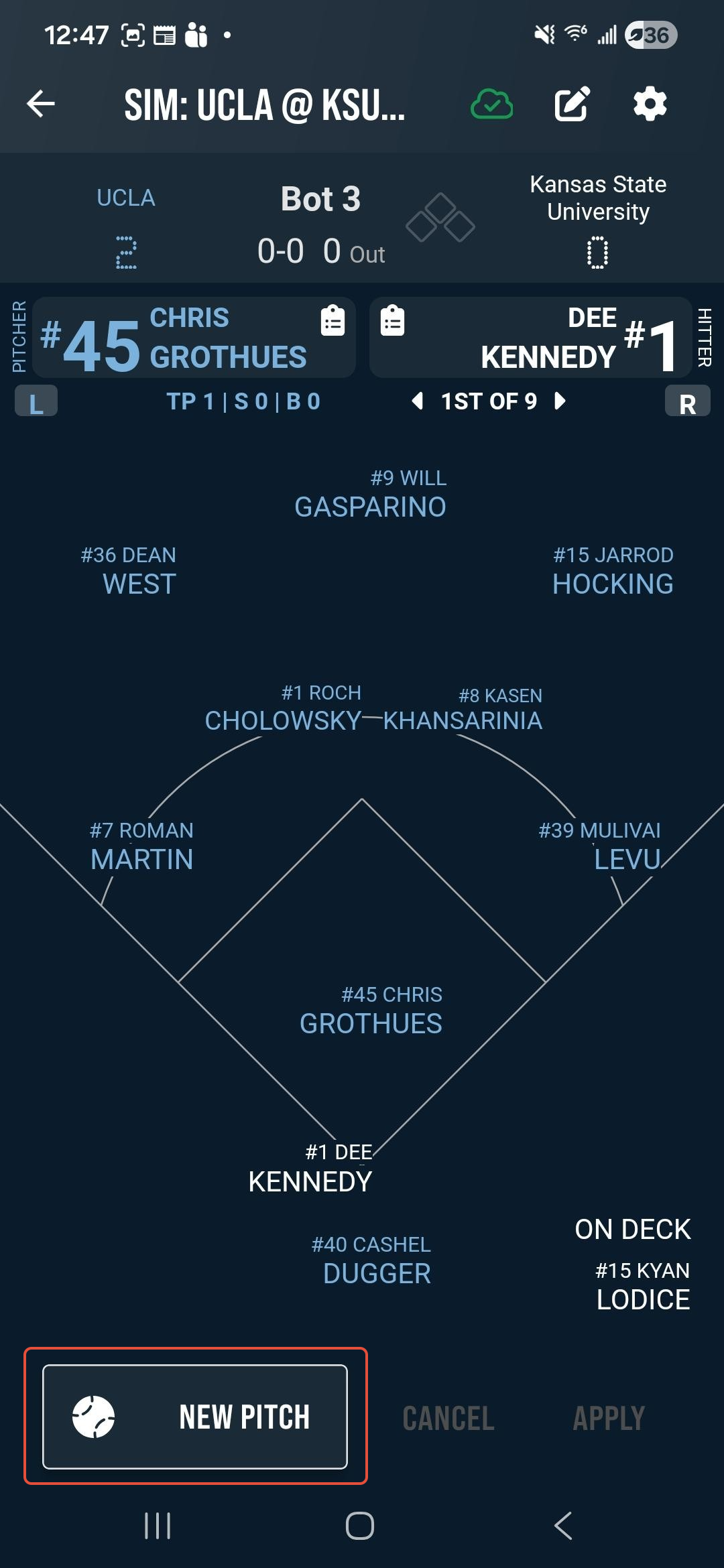
Available data fields include:
- Event - Tag event type
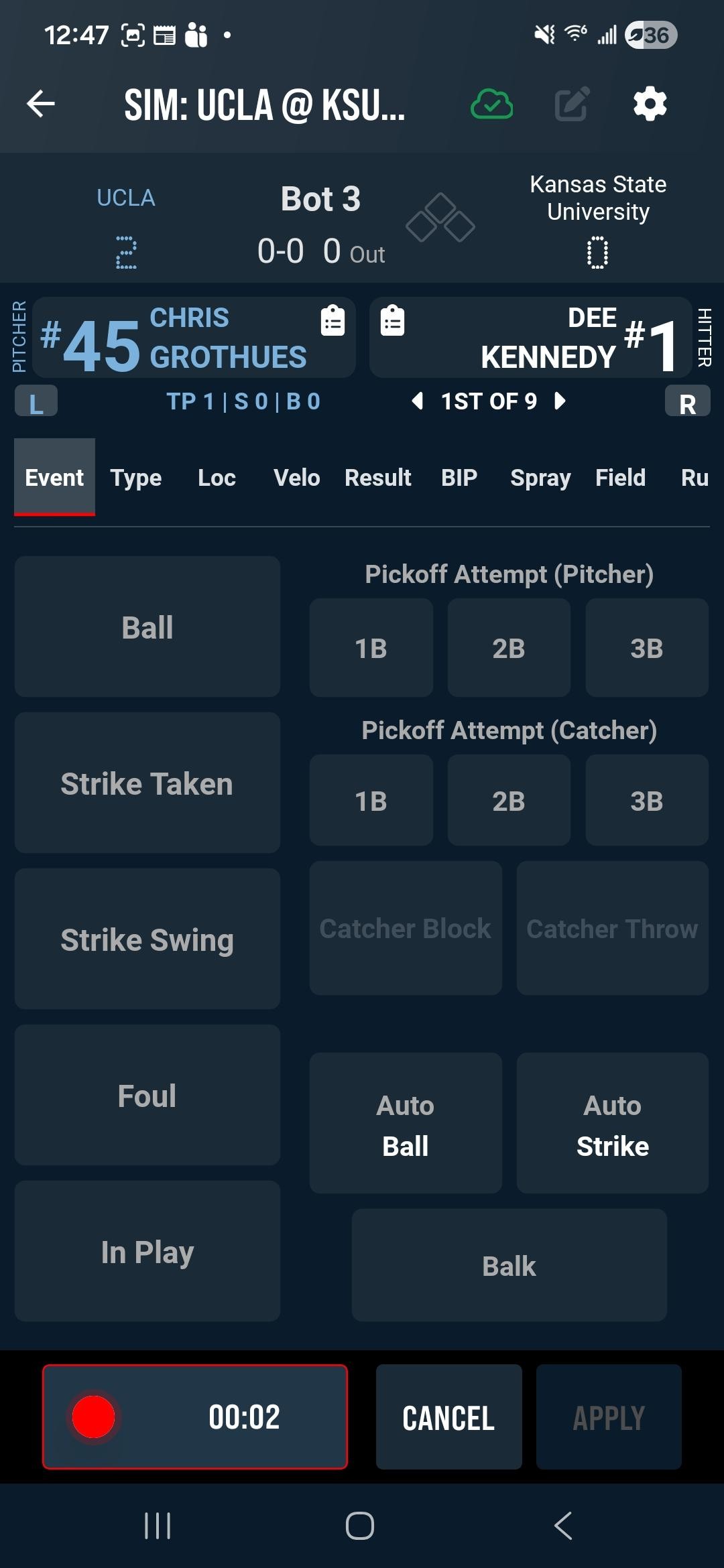
- Type - Tag the Pitch Type
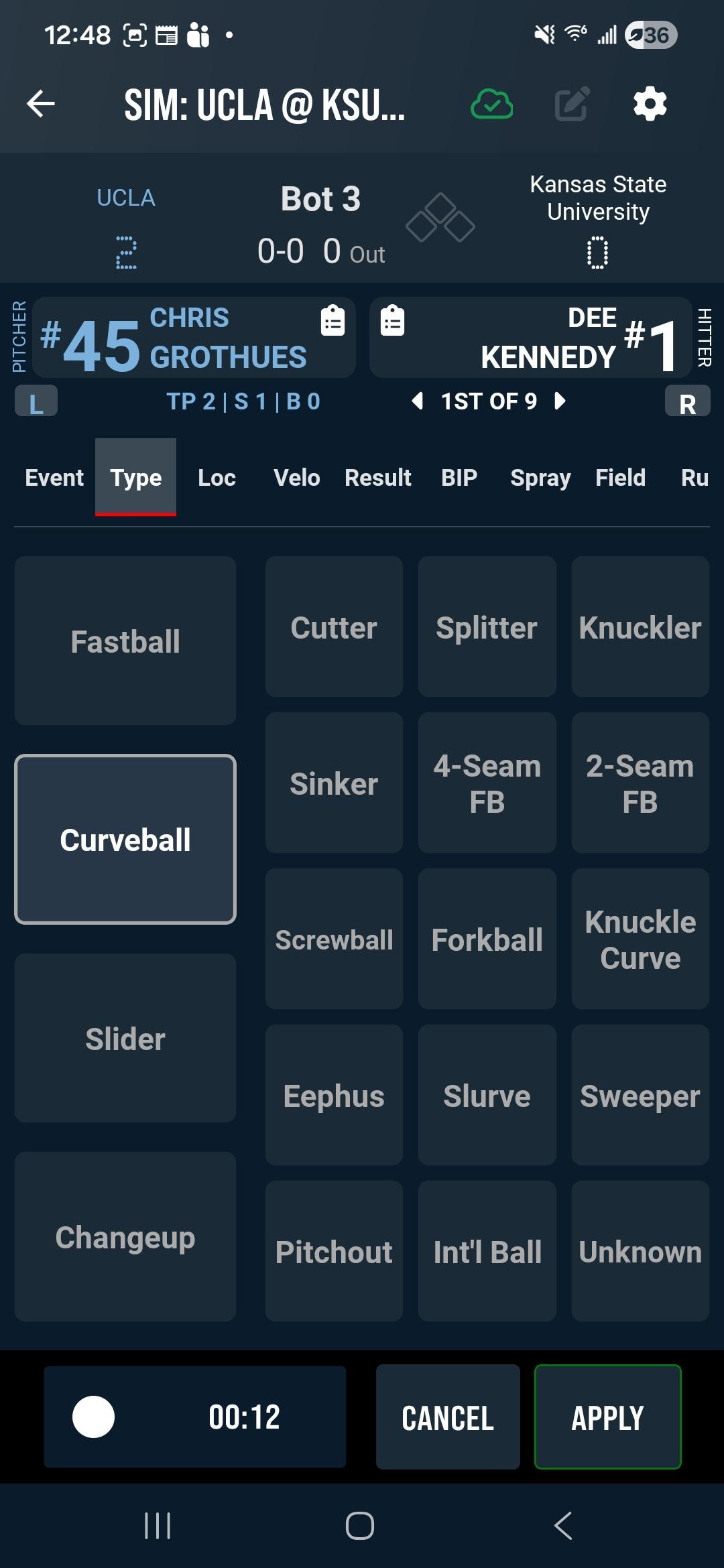
- Location - Tag the Pitch Location
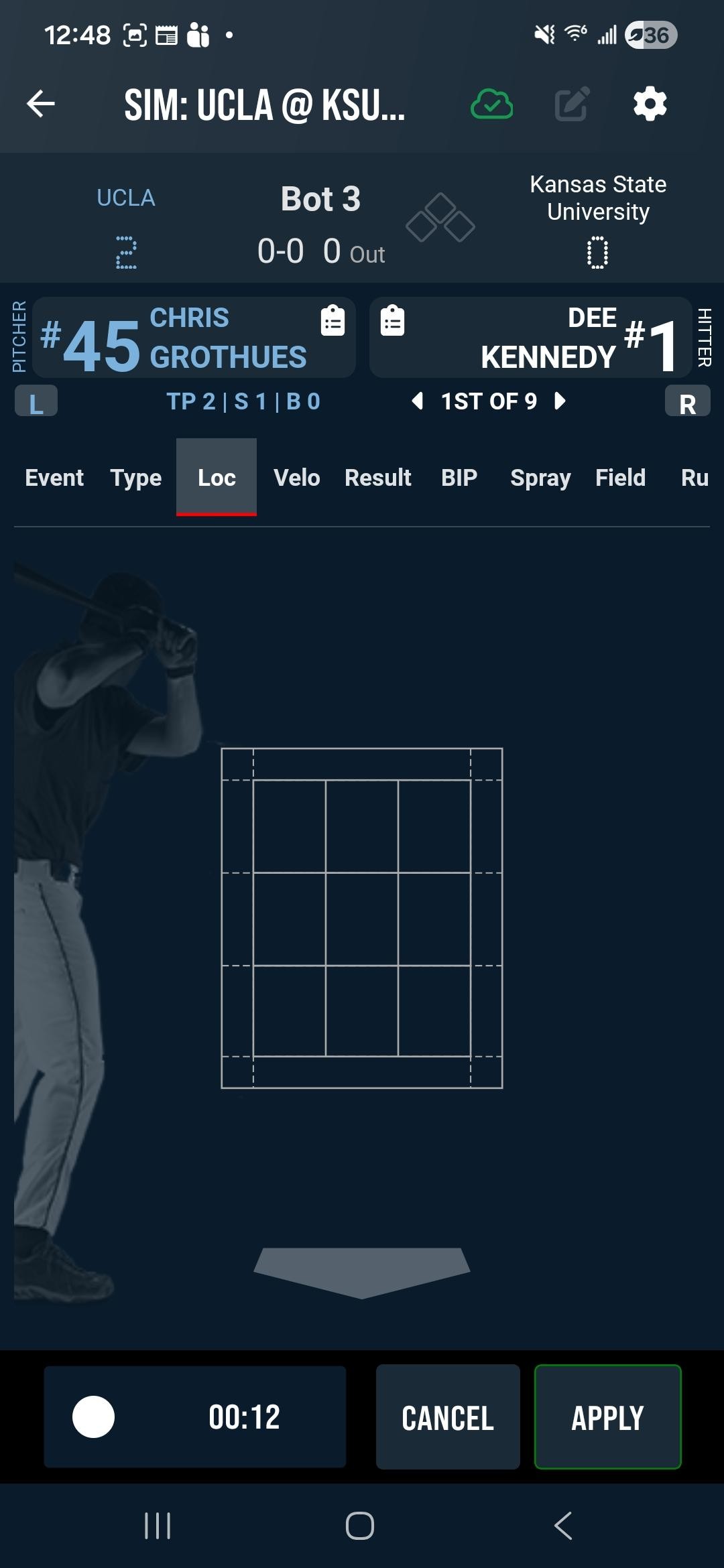
- Velocity - Tag the Pitch Velocity
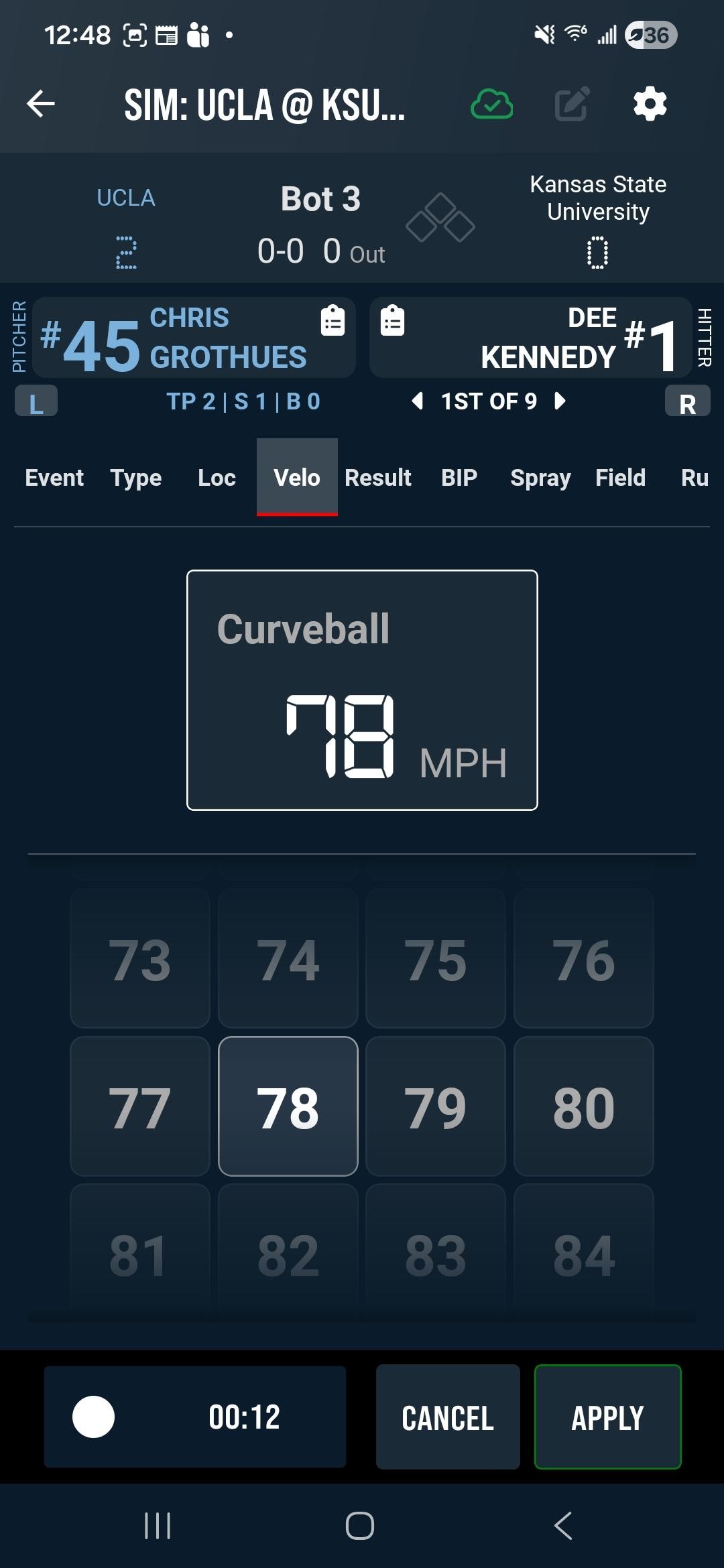
- Result - Tag Non-BIP Result
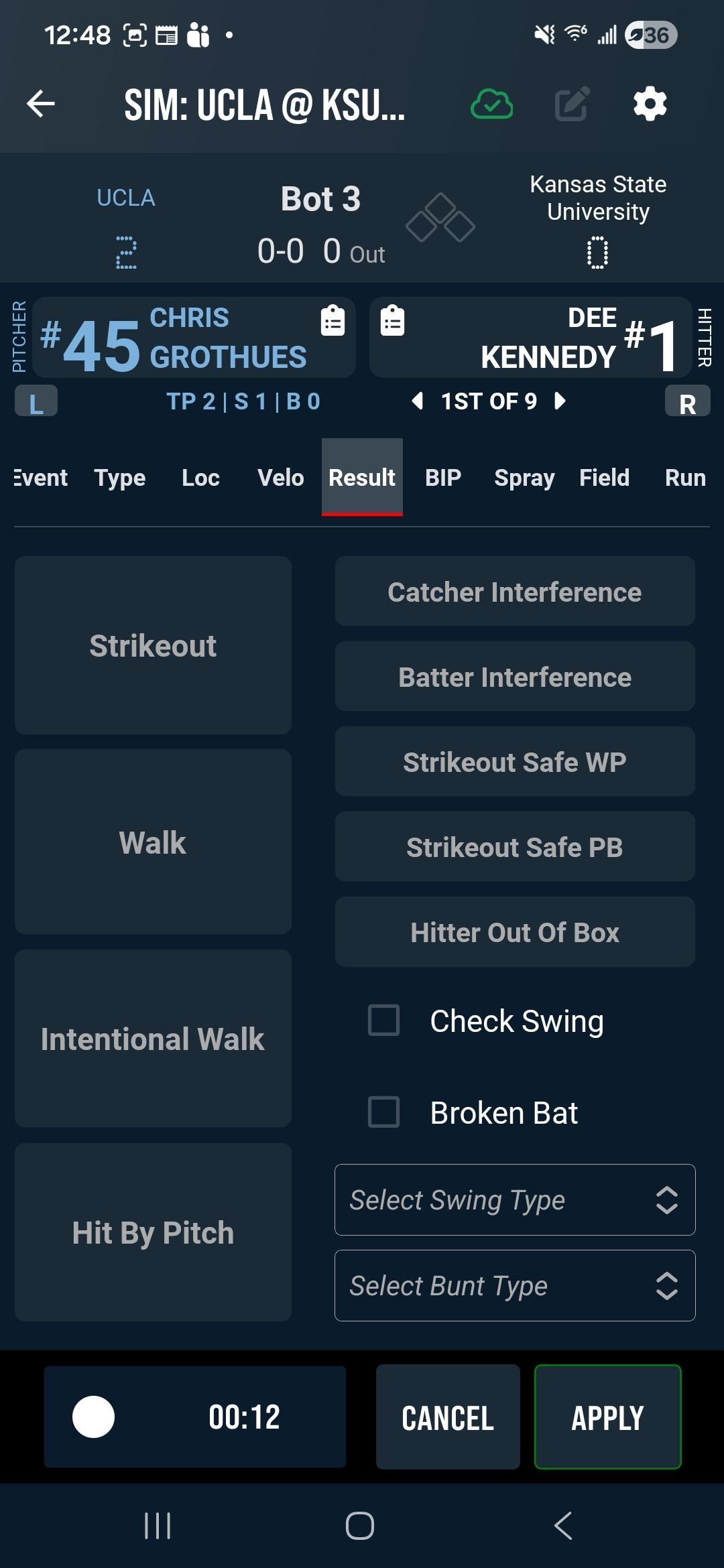
- BIP - Tag BIP Result
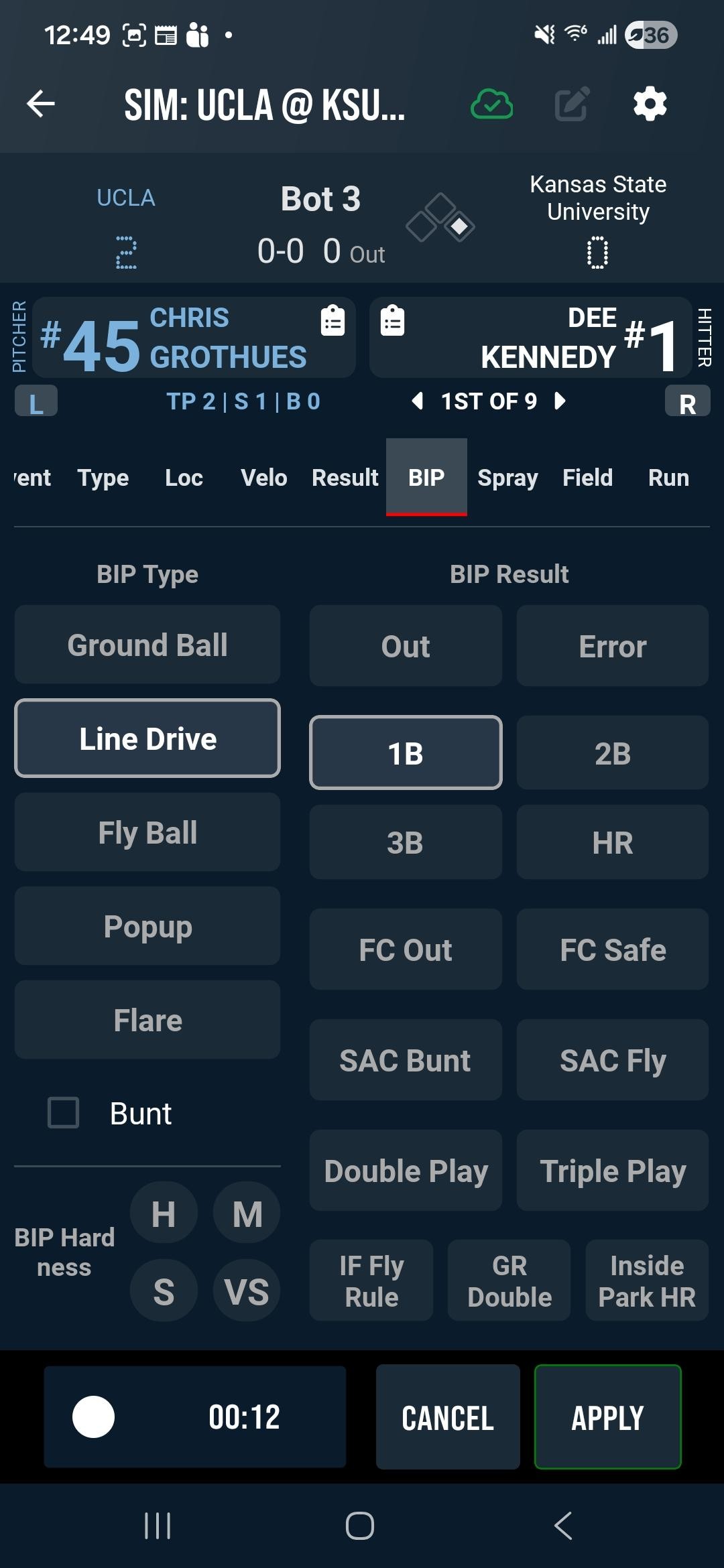
- Spray - Tag the Hit Location with the Spray Chart
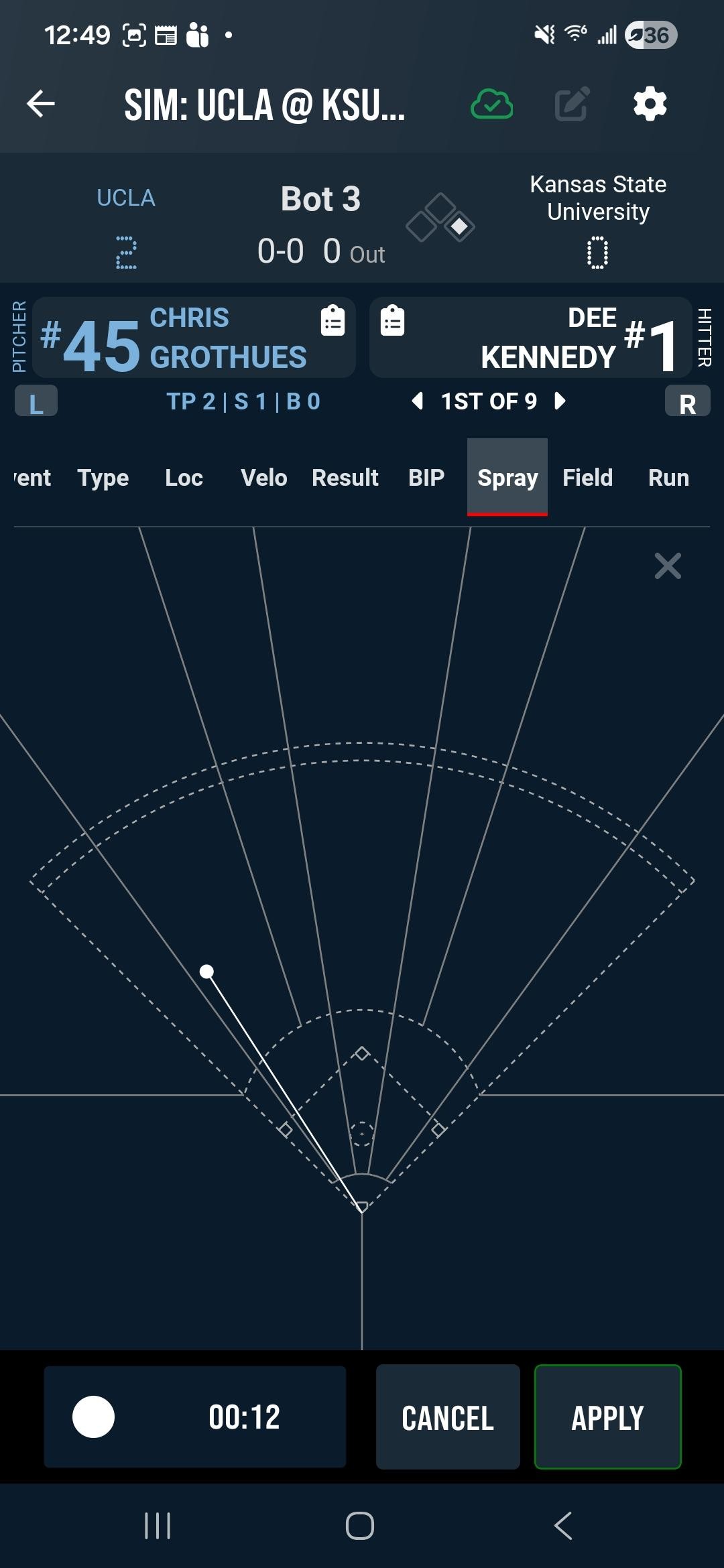
- Field - Tag Defensive Fielding sequence.
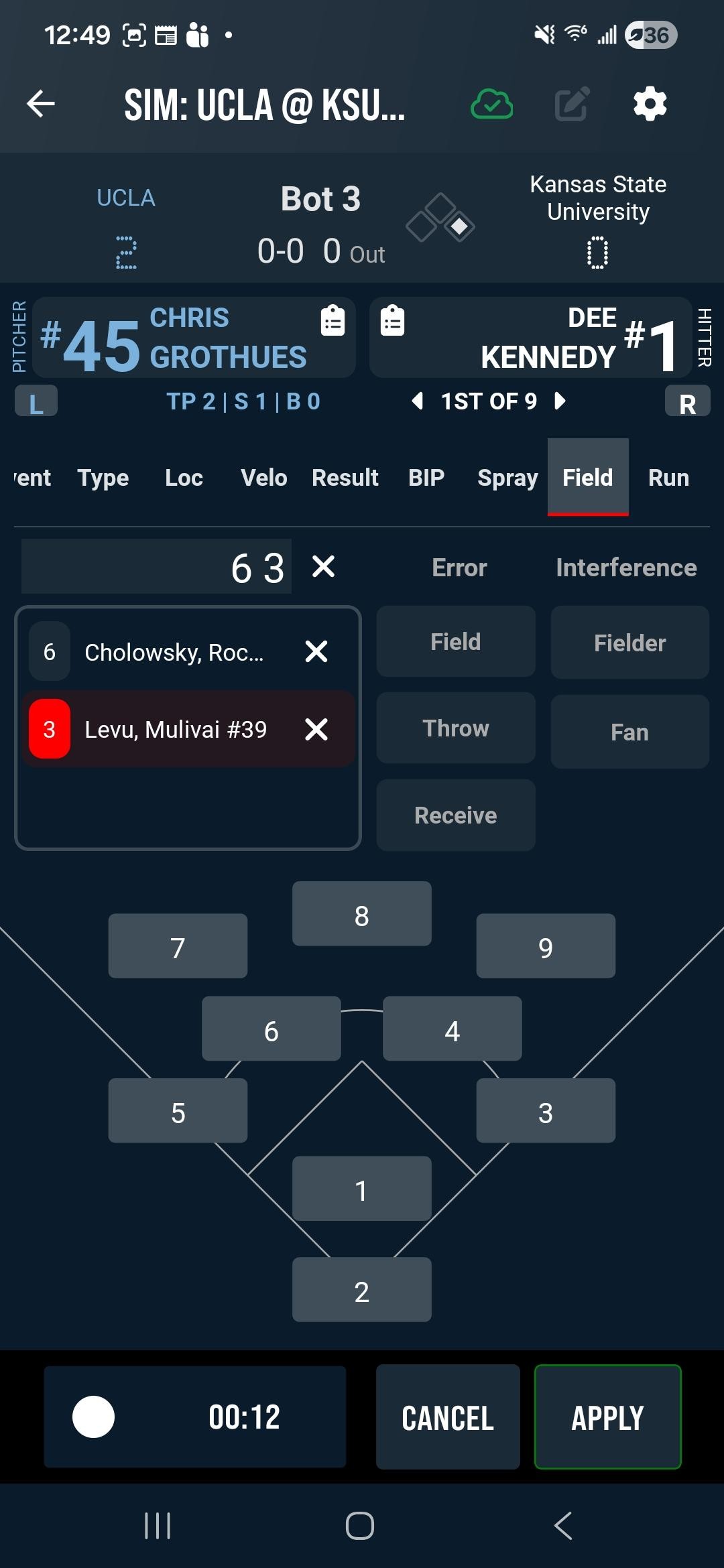
- Run - Add, remove, or advance runners to any base
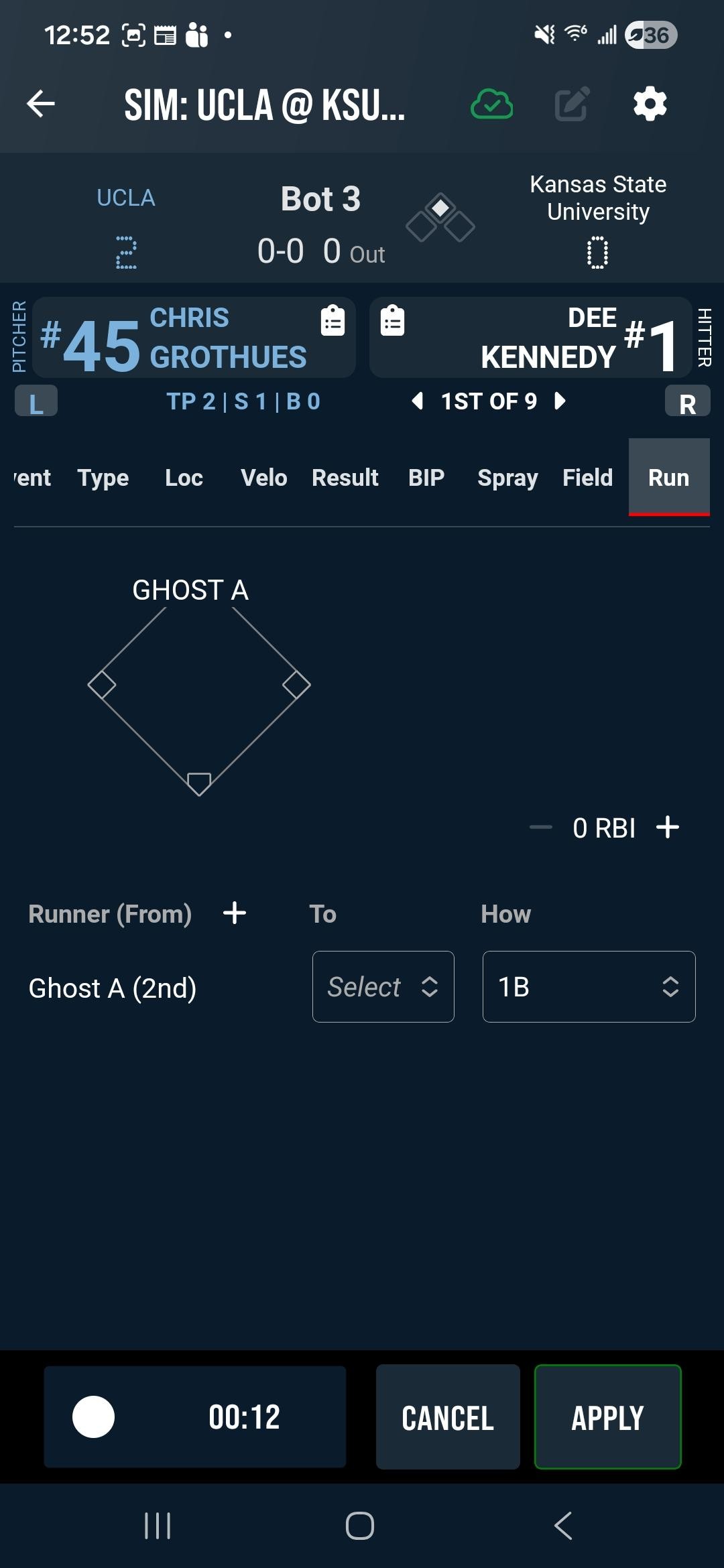
Ghost Runners
On the Run tab, tap the display to add runners to any base. Both lineup players and Ghost Runners may be used.
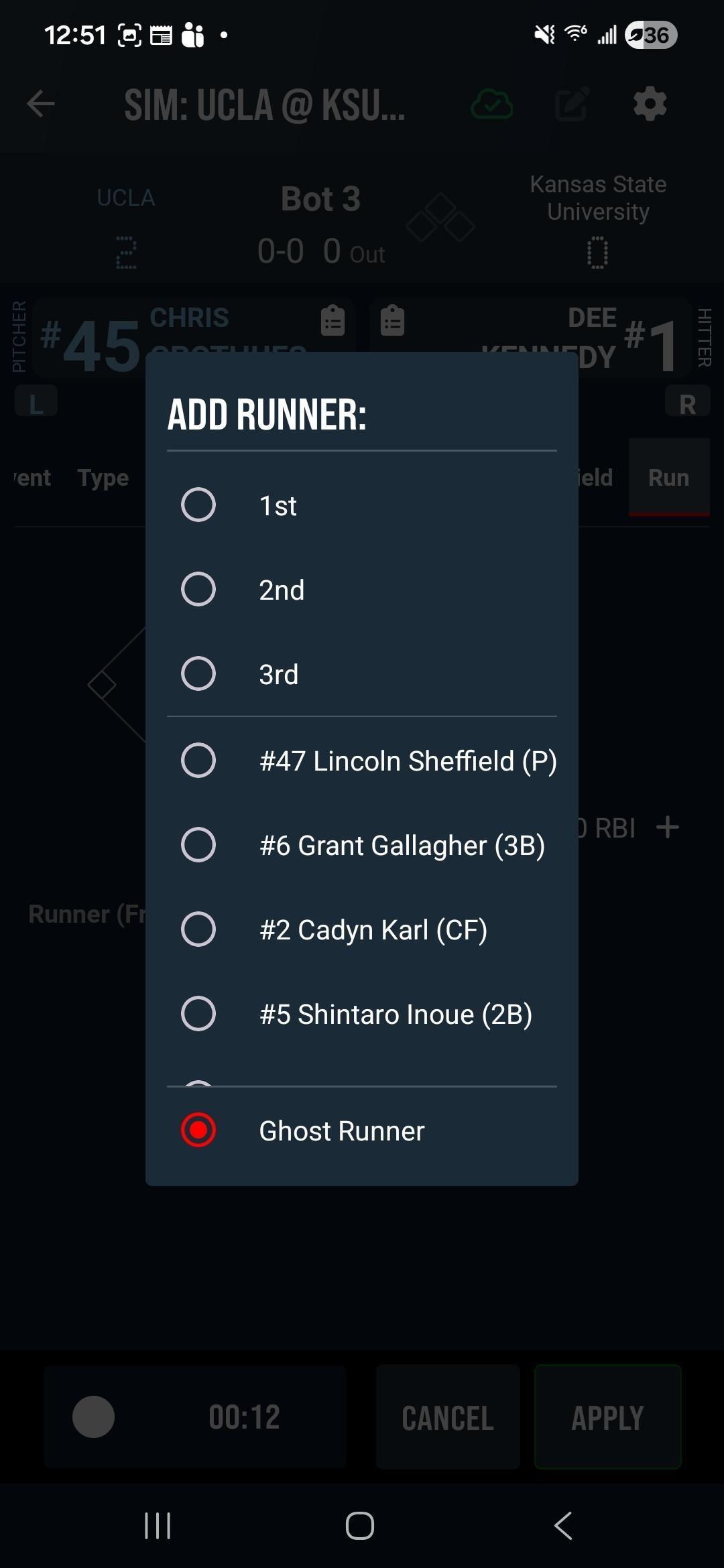
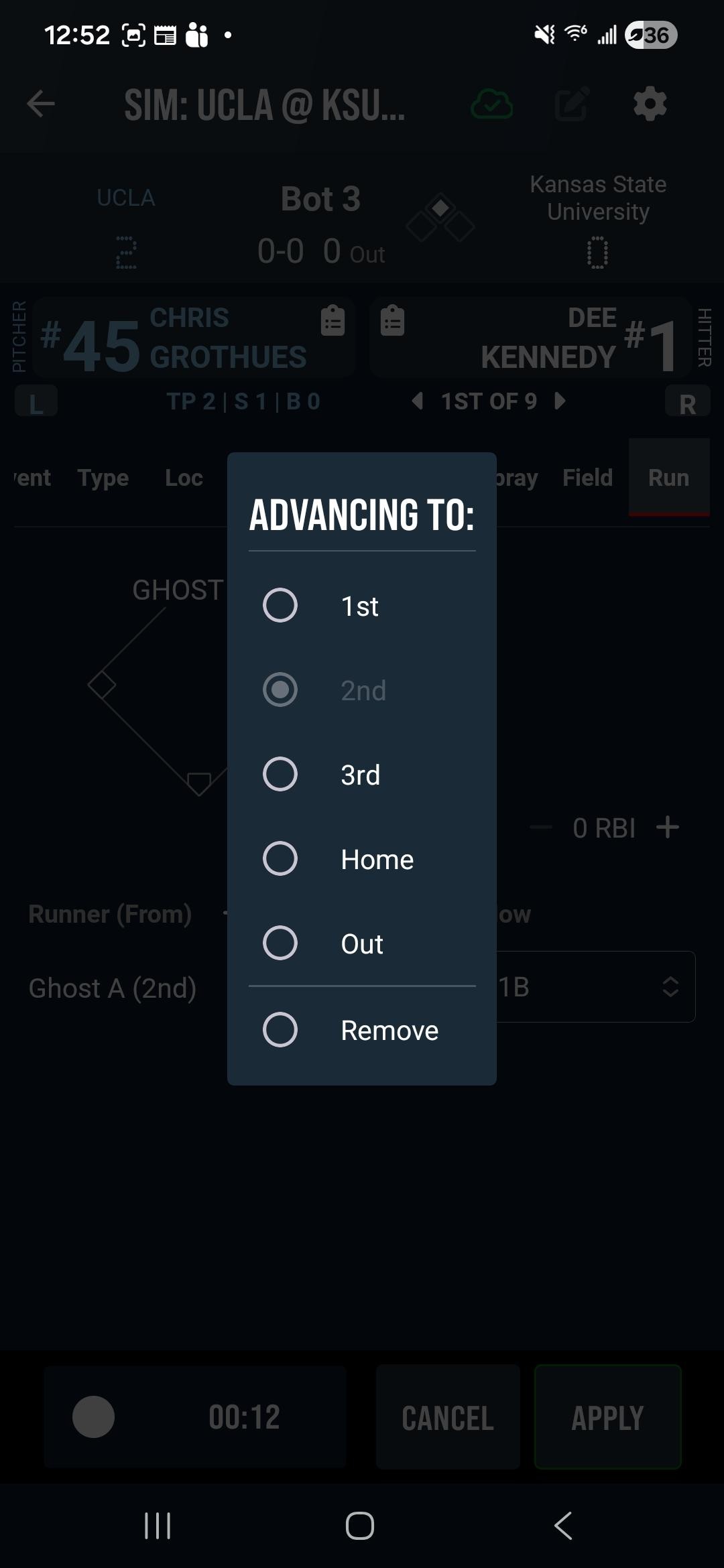
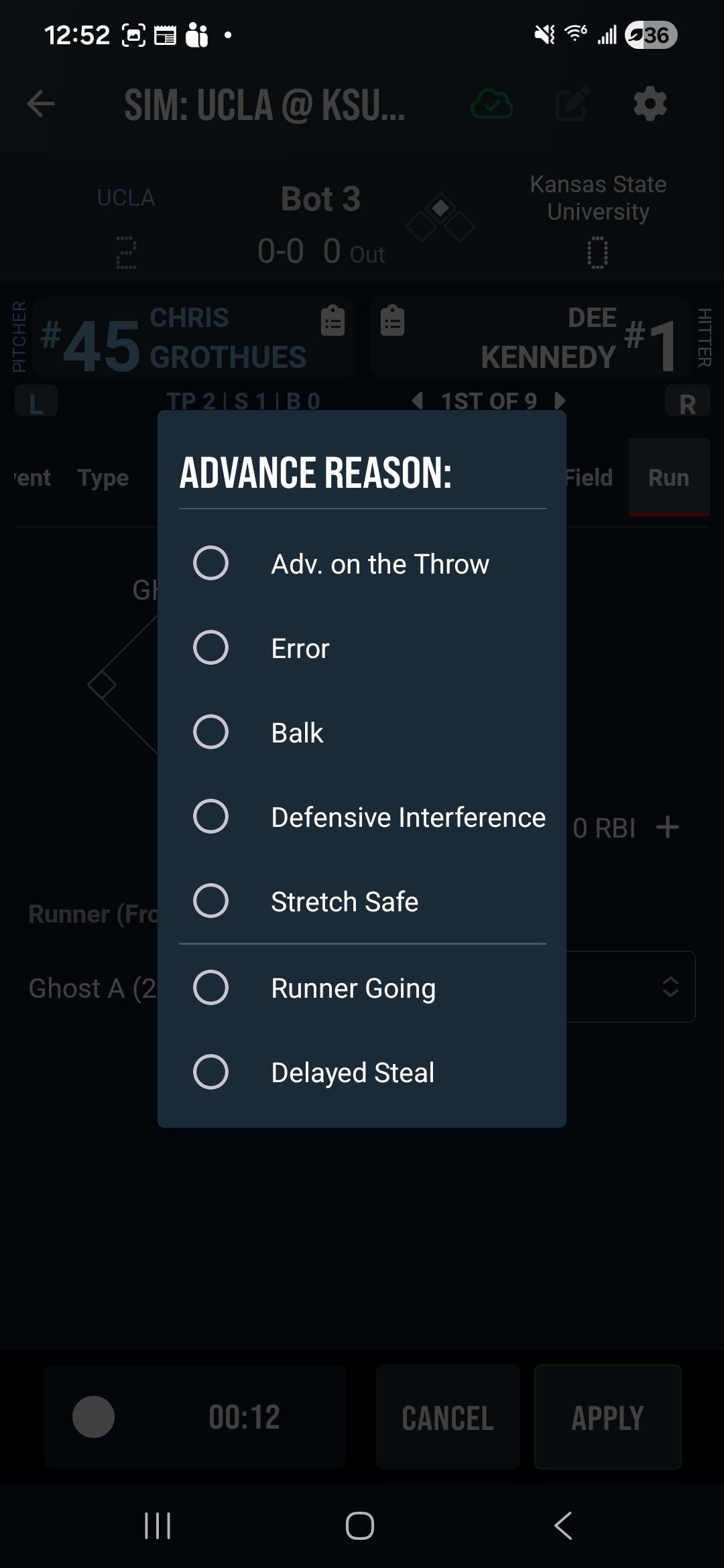
Ghost Runners allow you to create desired scenarios like starting with runners on base, build situational practice scenarios and practice specific game situations.
When you have finished tagging data for the event, tap Apply to save your entry.
Reviewing Your Session
Once you have logged events in your Sim Game session, the practice can be retrieved in Practice view with your other existing practices.
Was this article helpful?
That’s Great!
Thank you for your feedback
Sorry! We couldn't be helpful
Thank you for your feedback
Feedback sent
We appreciate your effort and will try to fix the article