Batting Practice is designed as a simplified, hitter-focused logging workflow with support for multiple batting groups.
Creating a Batting Practice Session
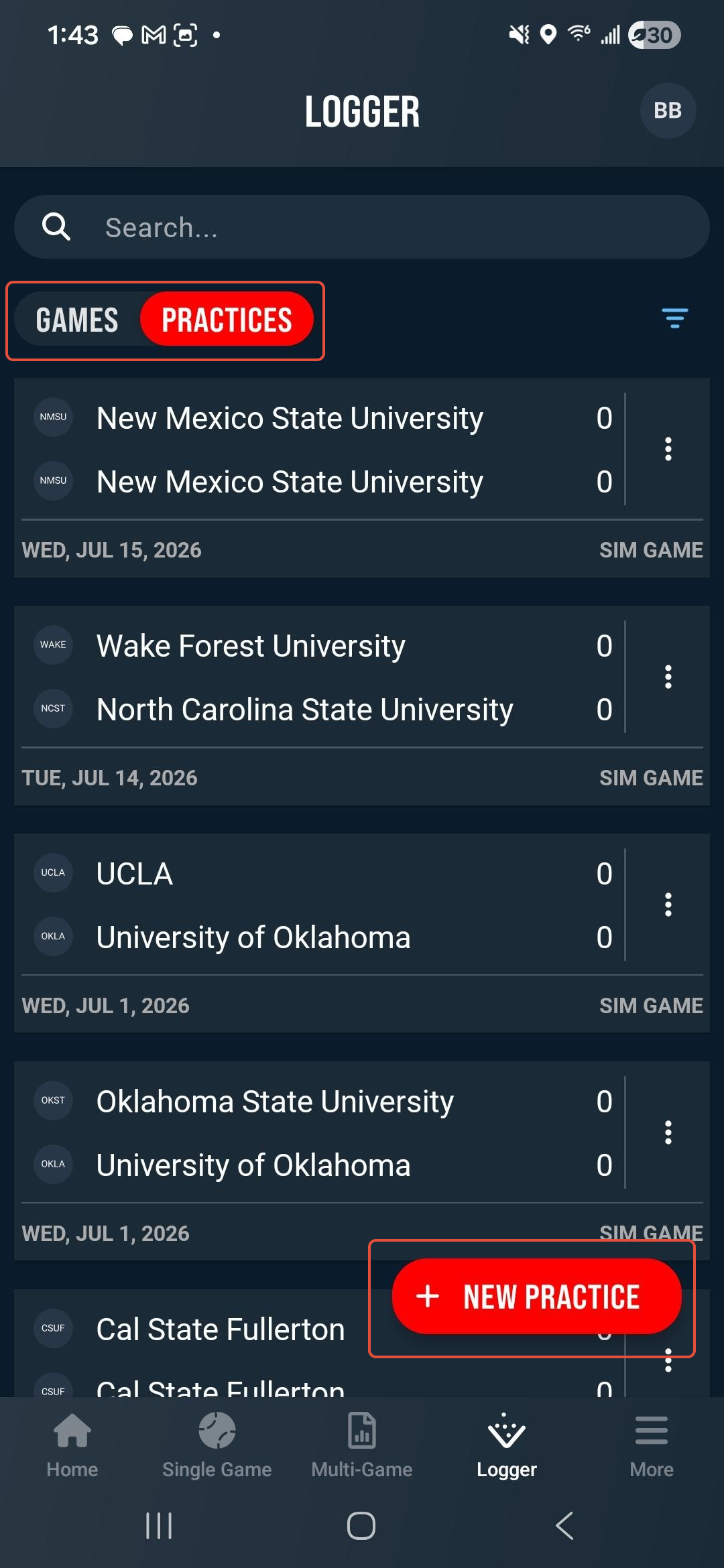
To create a new Batting Practice session, navigate to the Logger page and use the pill button to toggle to Practices. This will display your existing practice sessions. Tap the + New Practice button to create a new session.
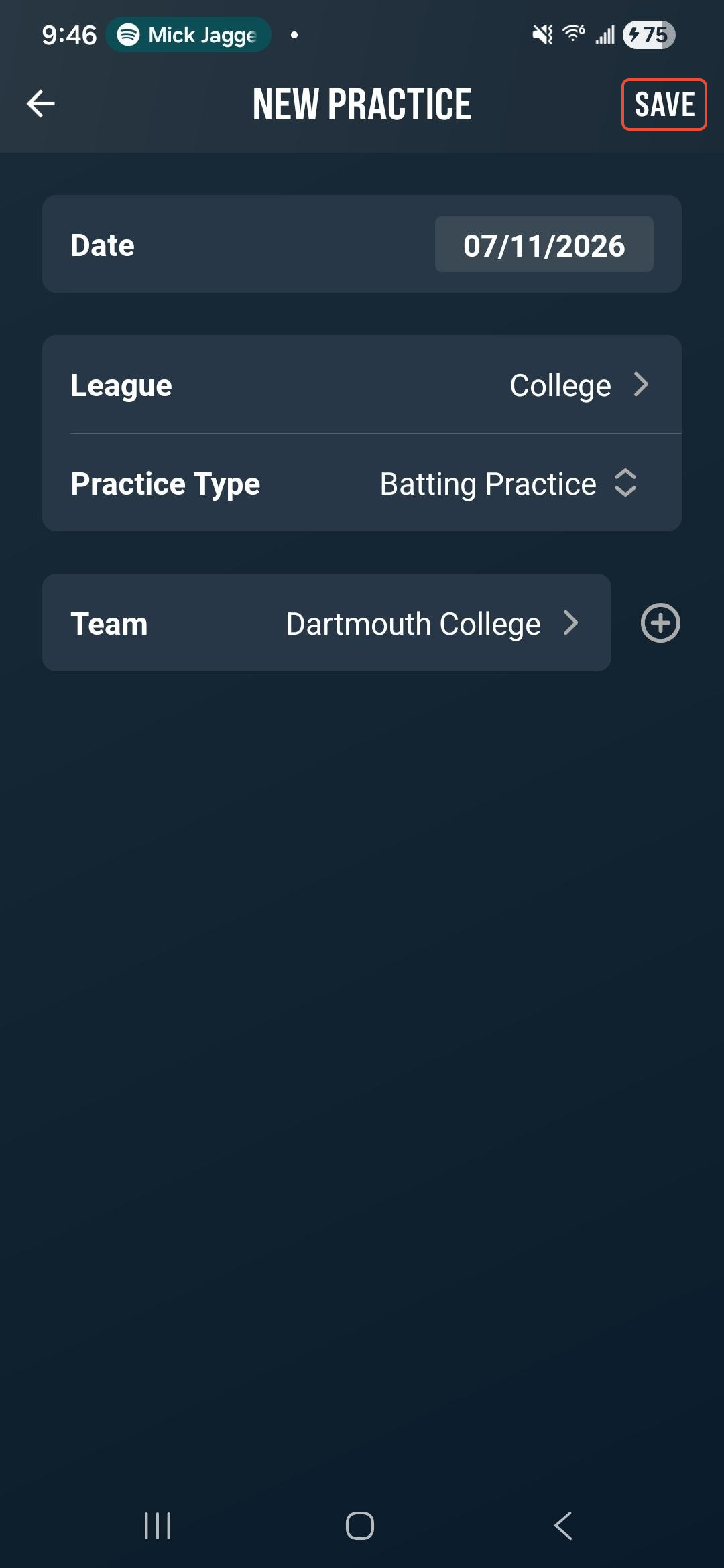
Select the Date, League, choose Batting Practice as the Practice Type, then select your Team. Once your selections have been made, tap Save in the upper right to create the new batting practice.
Set your team lineups on the Lineups screen. You can create multiple hitter groups by tapping the + icon above the lineup. Select your desired group and tap players from the roster to add them to the group lineup.
You can add any additional or missing players to the roster using the Player Search tool or the Add Player+ button. Players may appear in more than one group within the same session, and you can add an unlimited number of hitters to any group.
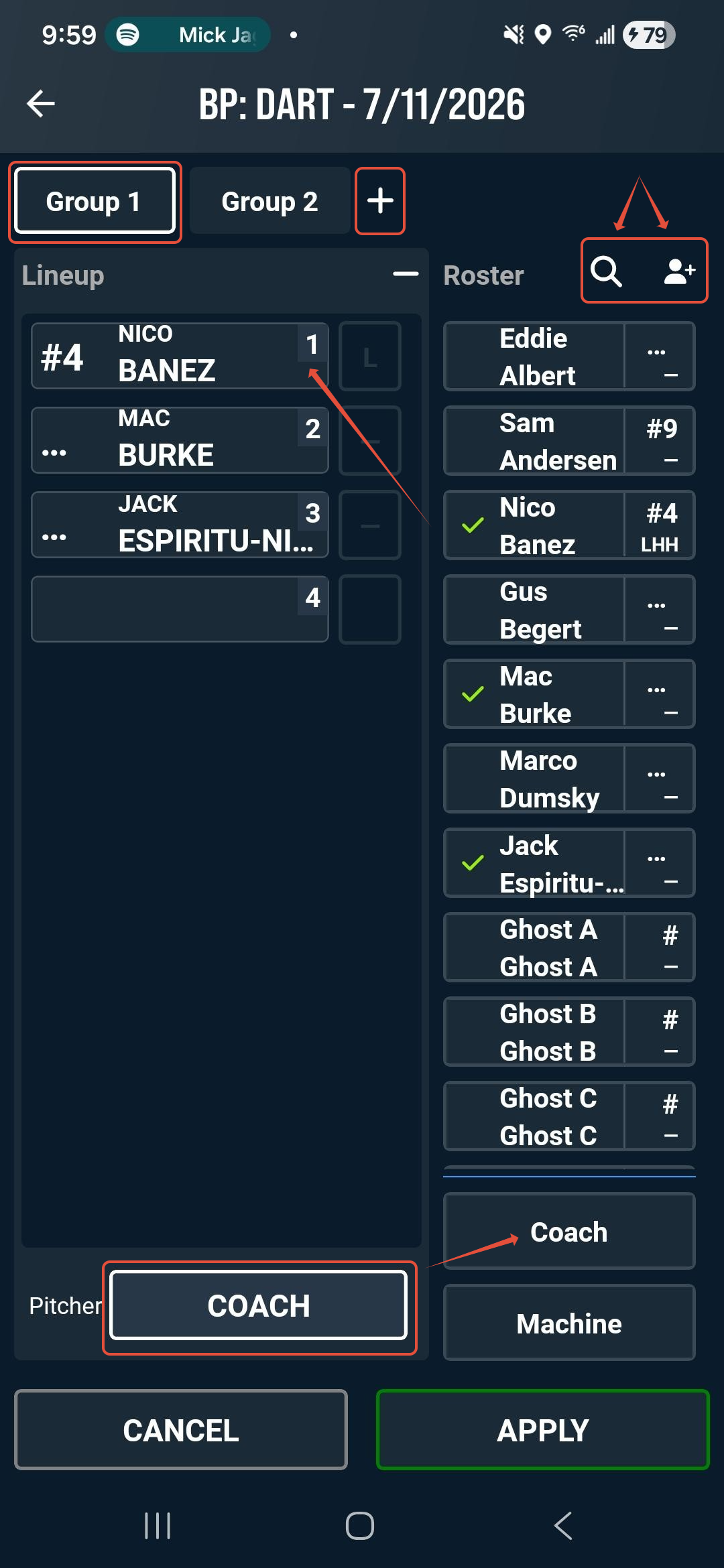
Select the Pitcher cell and assign a Player, Coach, or Machine as the pitcher by tapping the name on the roster. Tap Apply to proceed to the logging screen.
Logging
The primary focus of logging a Batting Practice is rapid clip creation. The current group is shown in the upper left, with hitters listed to the right. Switch groups using the Group dropdown. Change the active hitter by tapping the player’s tile or the Hitter box.
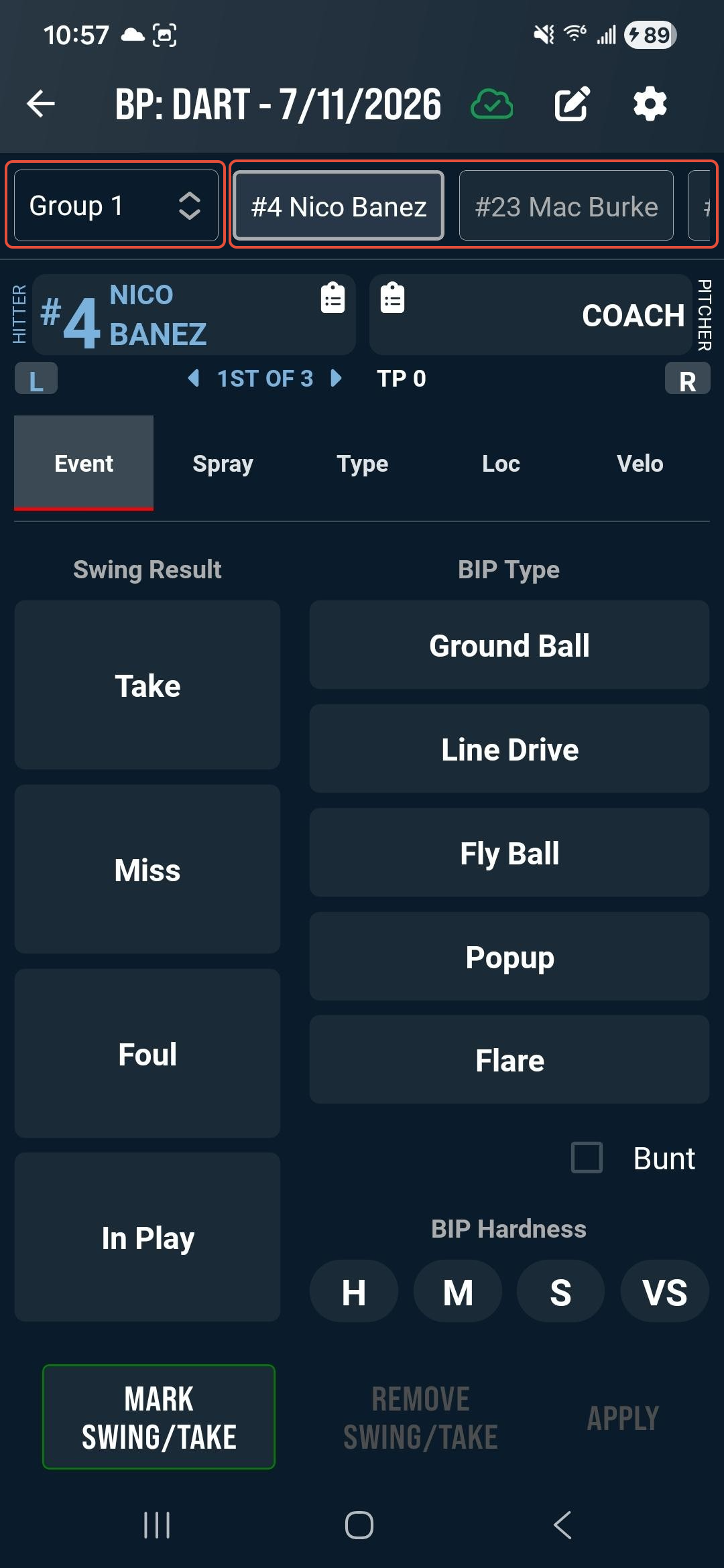
To log the BP, tap Mark Swing/Take a single time to create a timestamp. This timestamp will apply a default 3 second lead and lag, generating a 6 second clip. You can adjust the clip timing in the Display Settings. After marking, you may:
- Enter data for the swing
- Remove the timestamp with the Remove Swing/Take button
- Tap Mark Swing/Take again for the next pitch (timestamp only)
- Tap Apply to save the pitch with your logged data
The following data fields are available for logging Batting Practice:
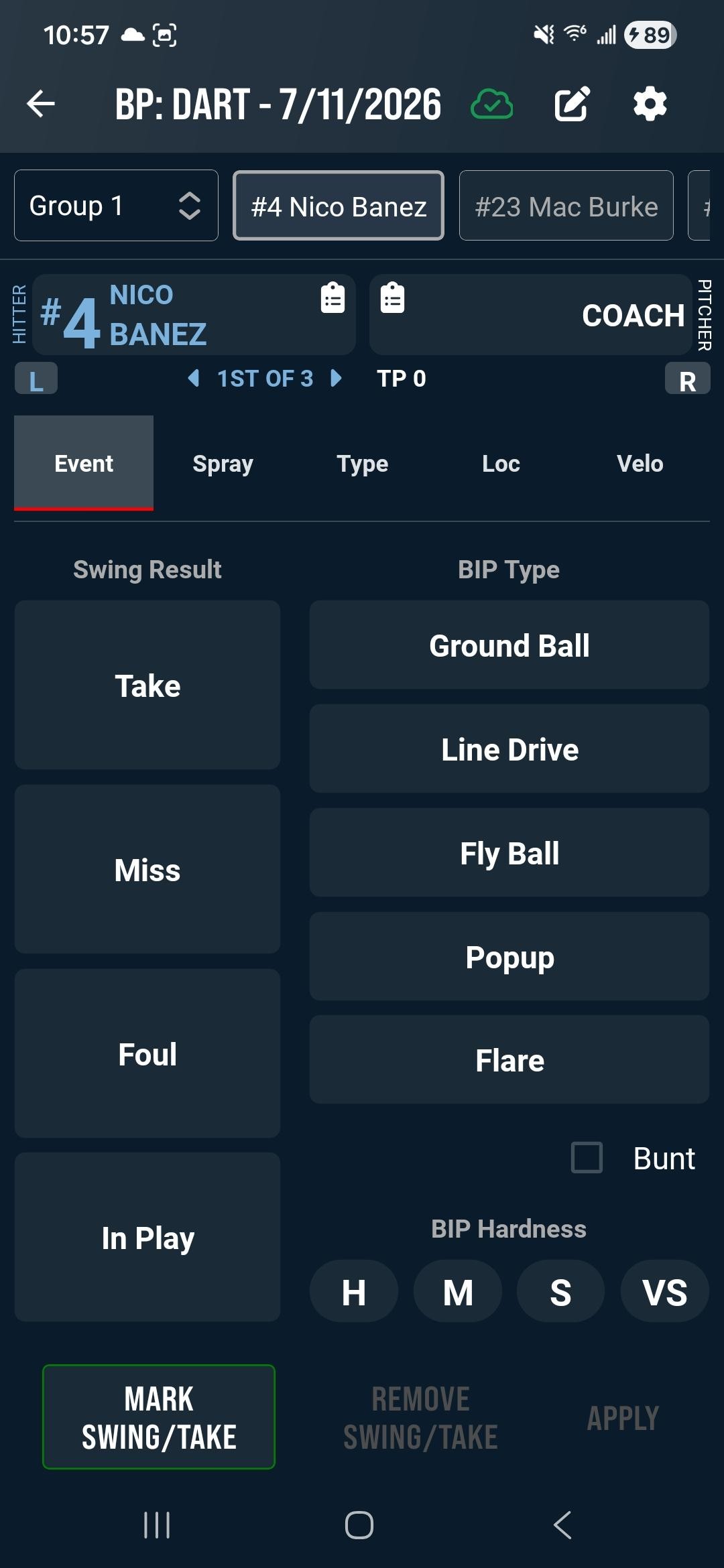
- Event - Tag Swing Result, BIP Type and BIP Hardness.
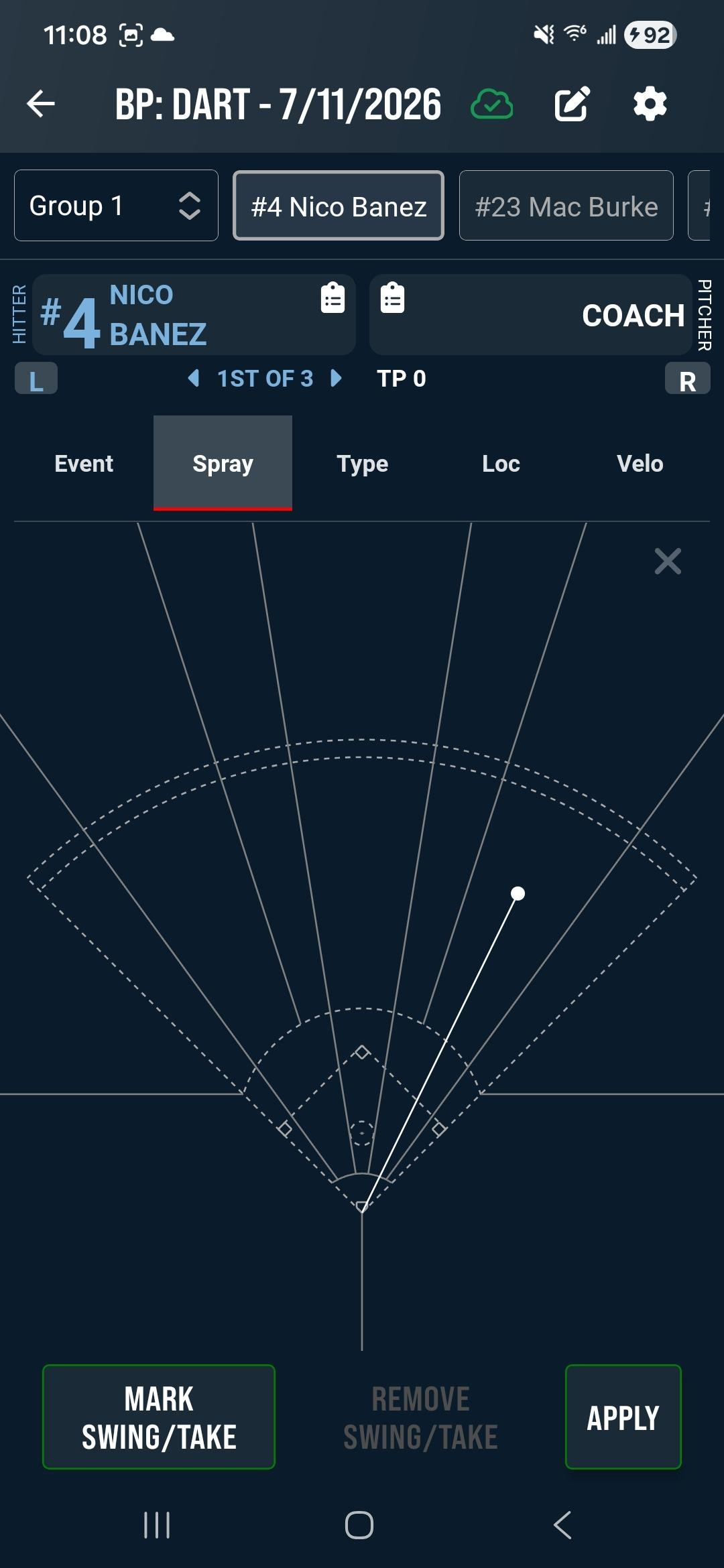
- Spray - Tag hit location on the Spray Chart
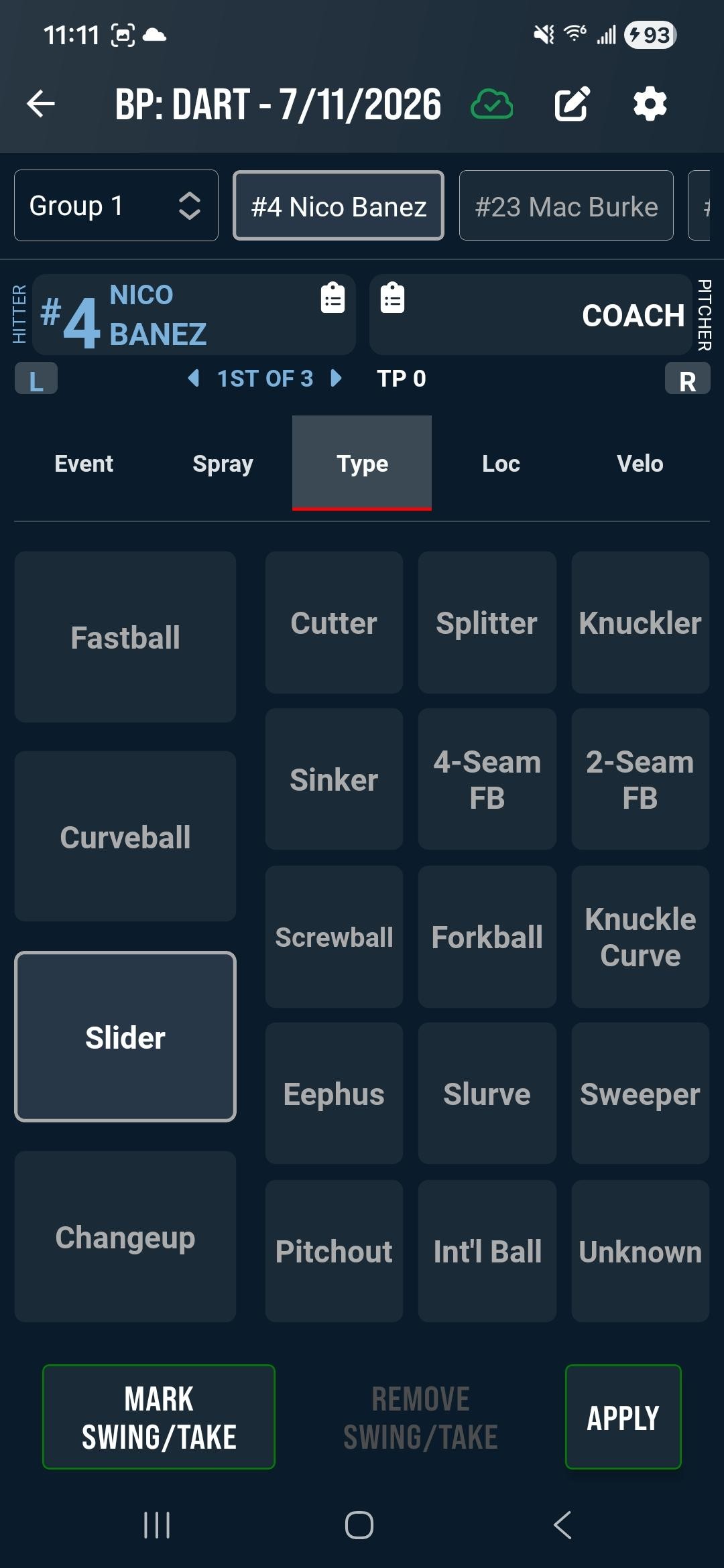
- Type - Tag the Pitch Type
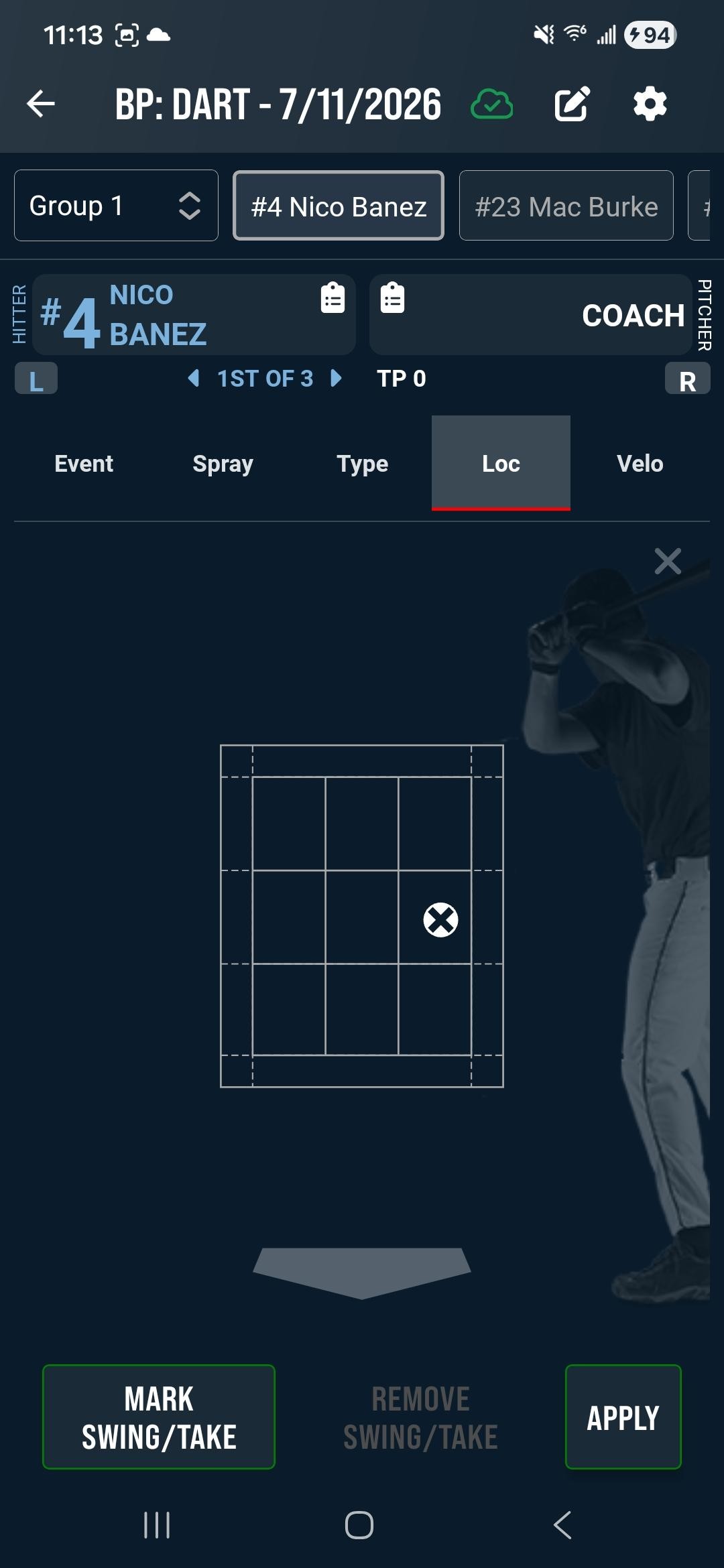
- Loc - Tag the Pitch Location
- Velo - Record the Pitch Velocity
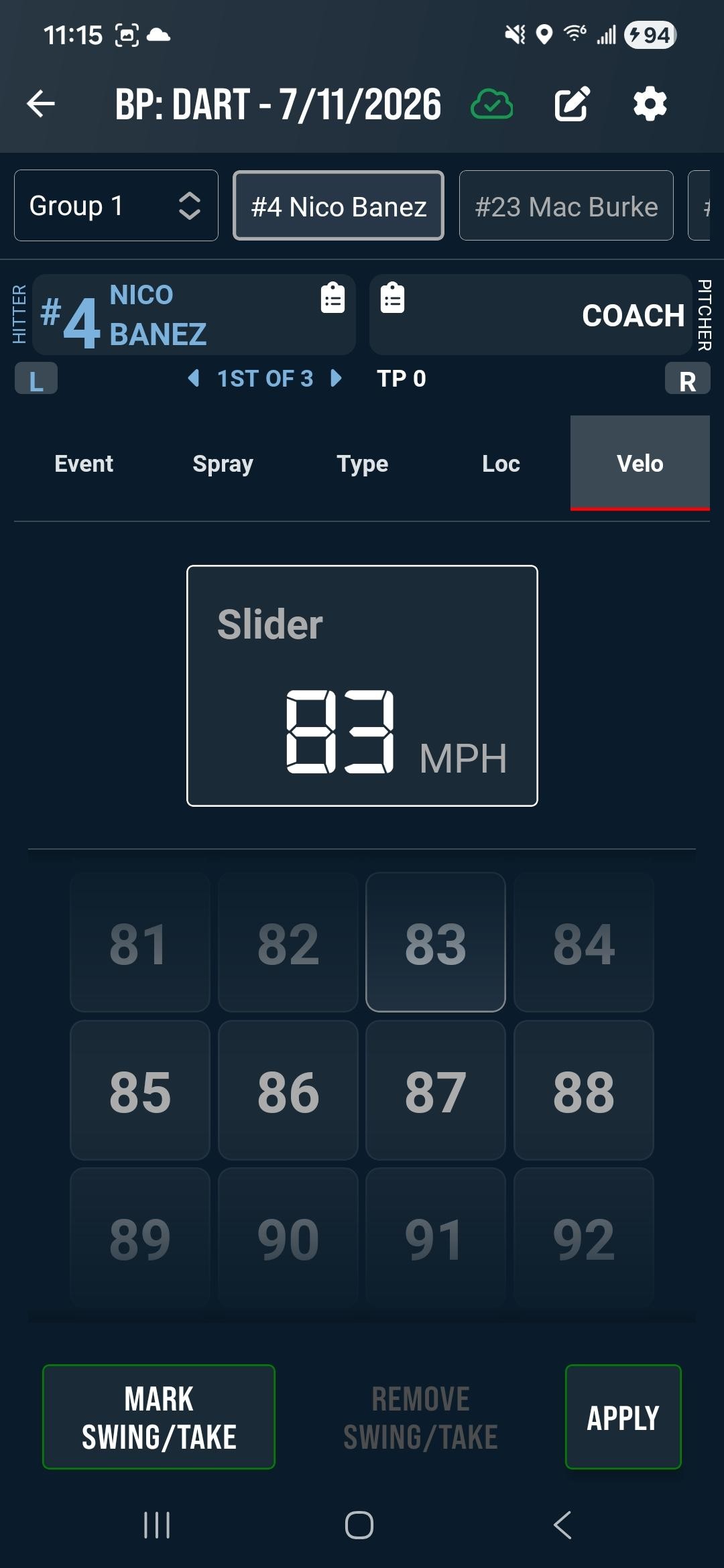
Tap Apply to save you entry.
Was this article helpful?
That’s Great!
Thank you for your feedback
Sorry! We couldn't be helpful
Thank you for your feedback
Feedback sent
We appreciate your effort and will try to fix the article