Introduction
The Practice tab adds the ability to view previously logged practices and to create and log three practice types directly from a mobile device: Sim Game, Batting Practice, and Bullpen.
Training/Workout sessions remain view-only in the mobile app and must be created in the desktop Synergy Logger.
Getting Started
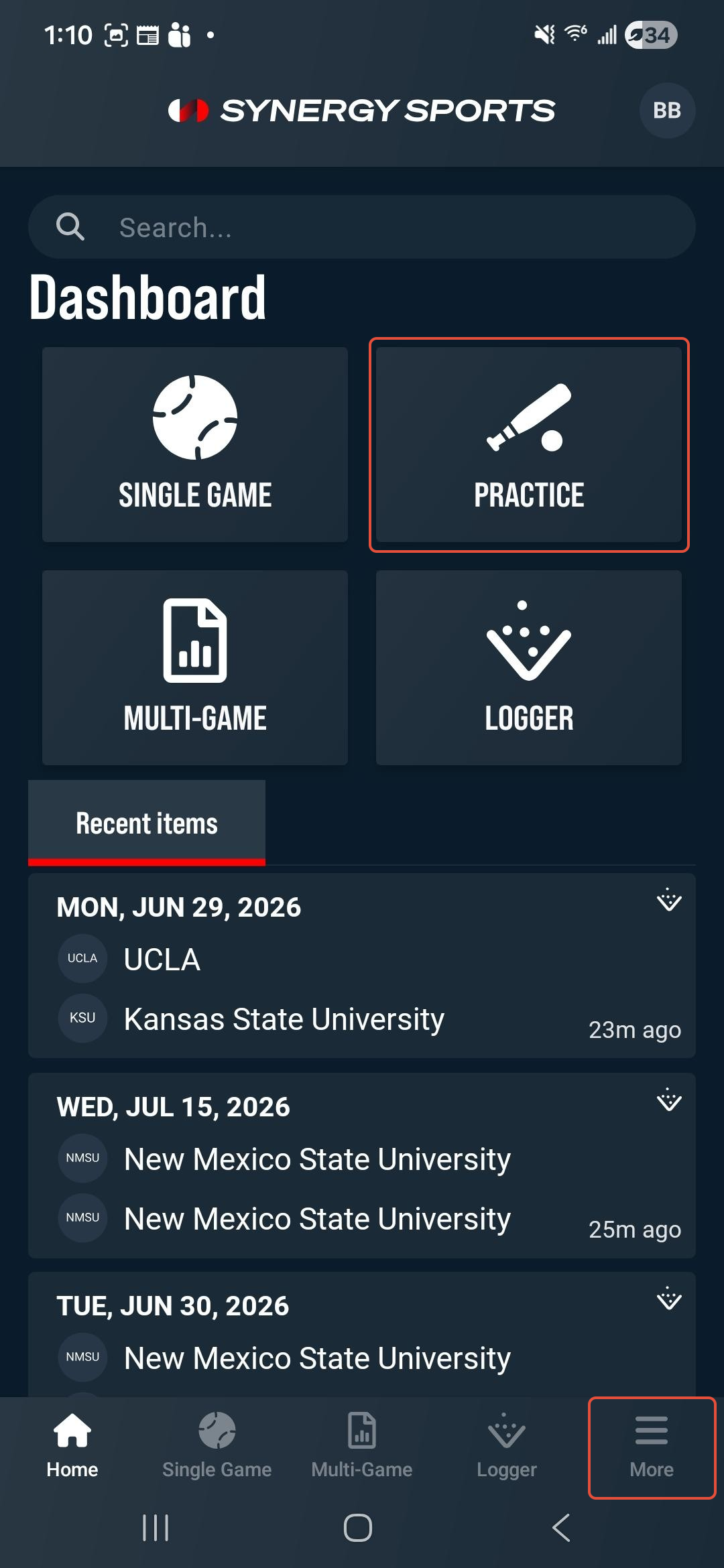
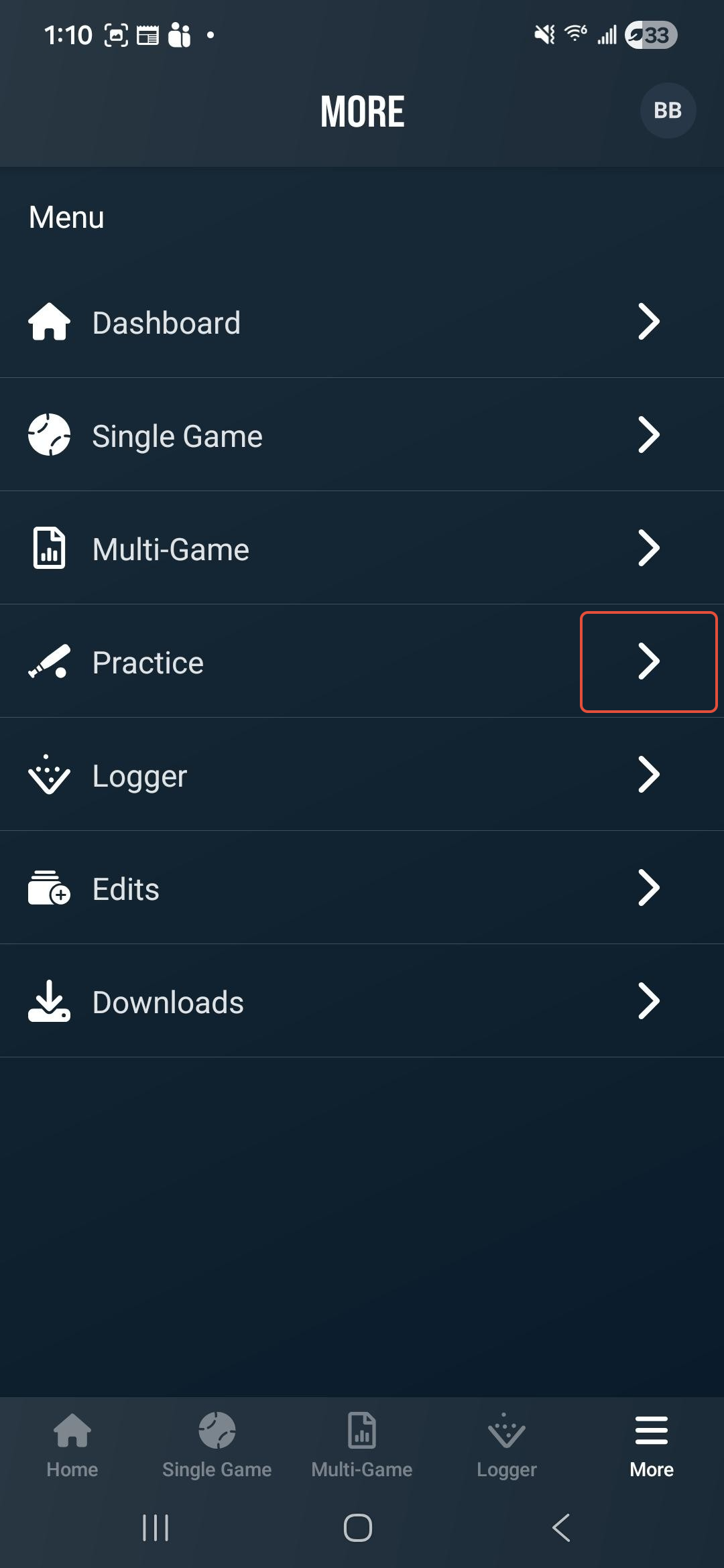
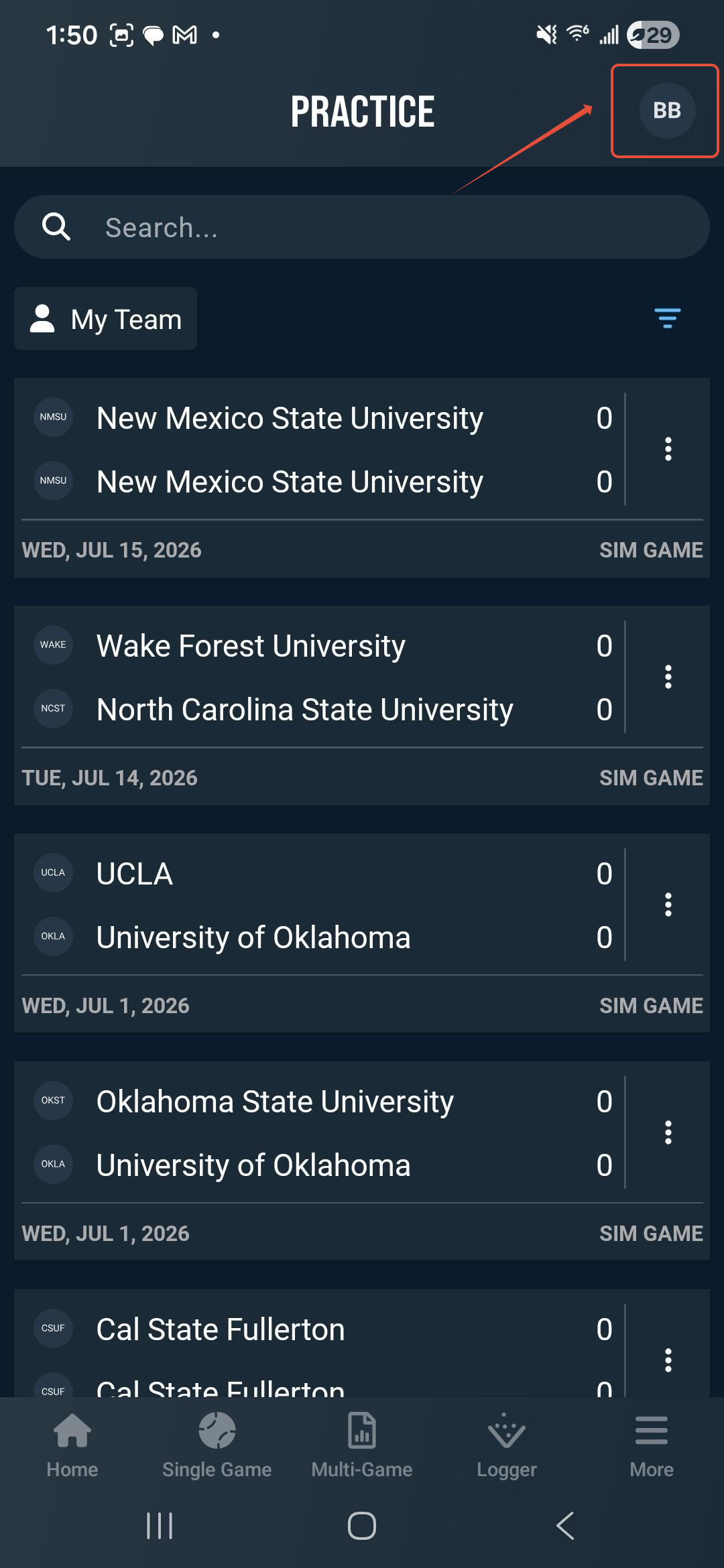
To view a Practice session, tap the Practice tile on the Home screen, or tap the More button and select Practice.
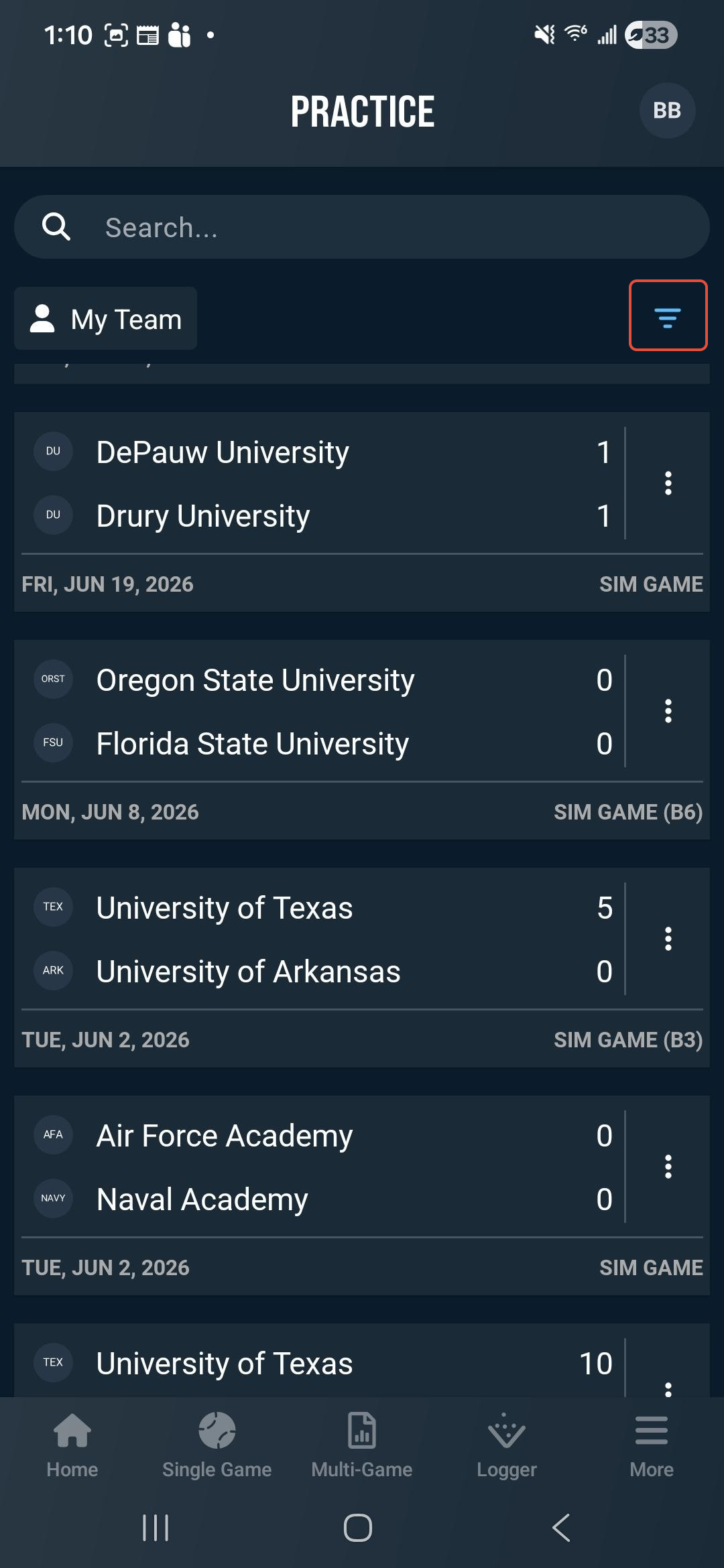
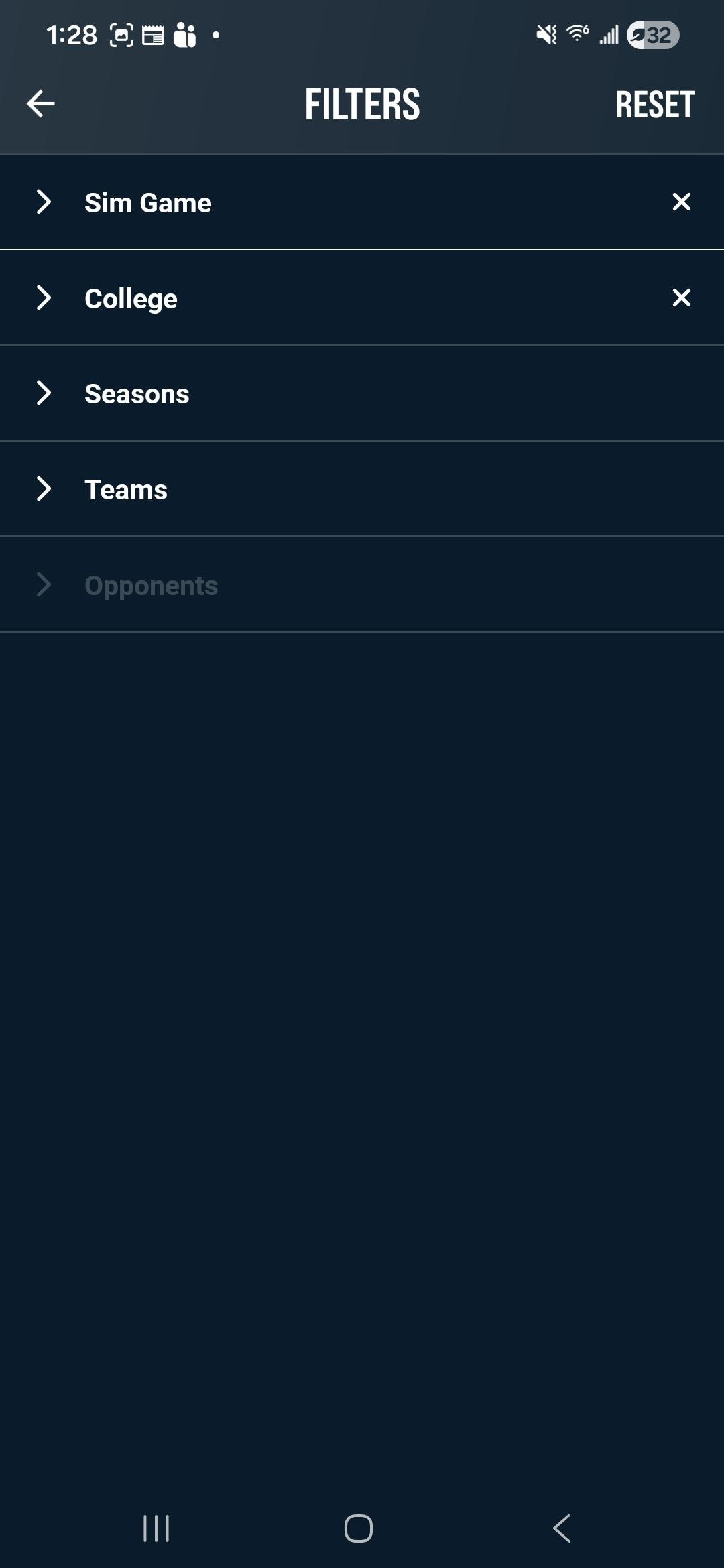
This will display all of your existing practice sessions. You can use the Filter button in the upper right to filter the list by Practice Type, League, Seasons, and Teams. You can also use the search tool to quickly find your desired practice session.
Creating a New Practice
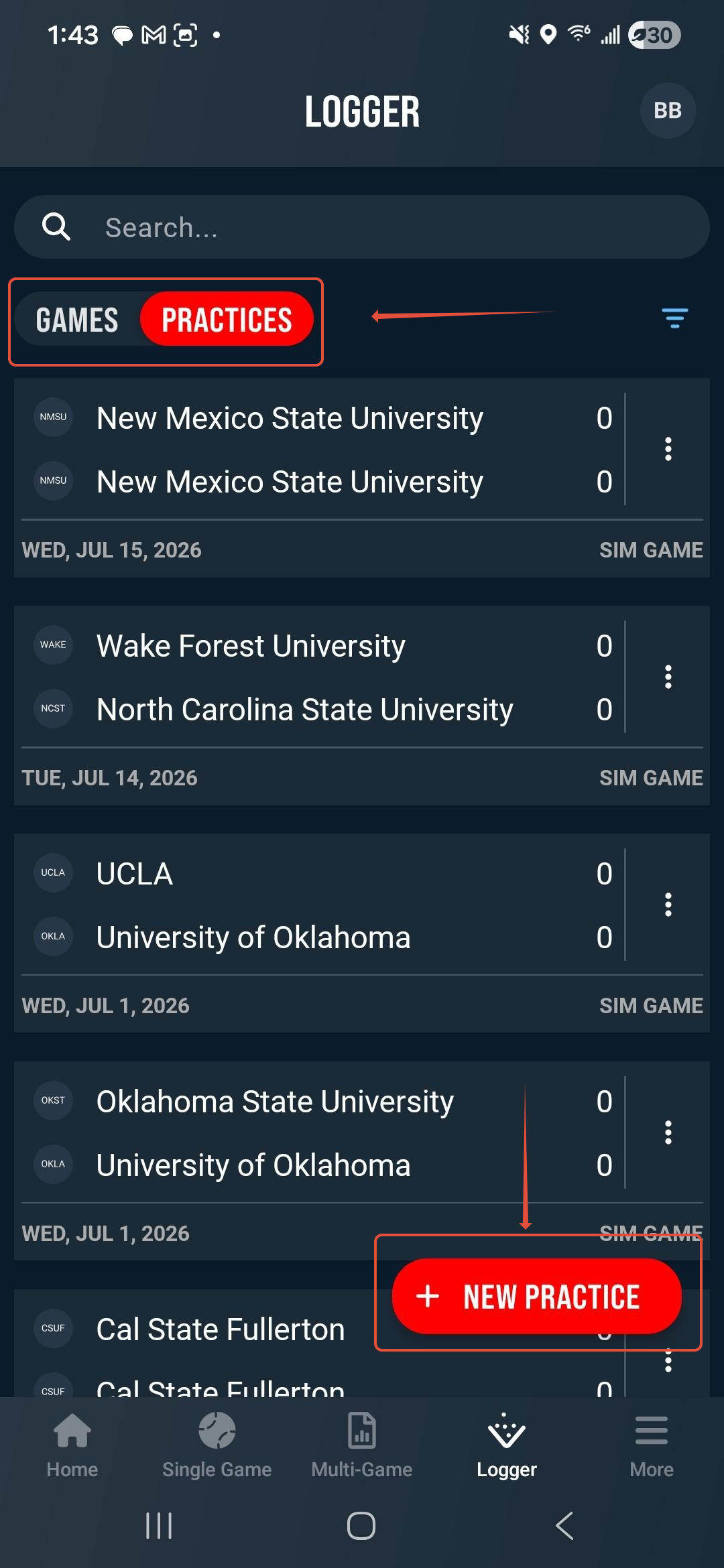
To create a new practice session, navigate to the Logger. Using the pill button, toggle on Practices and then tap the + New Practice button.
Select the Date, League, Practice Type, Teams, and Doubleheader indication. Training/Workout sessions are available for viewing only, and cannot be created in the Mobile app.
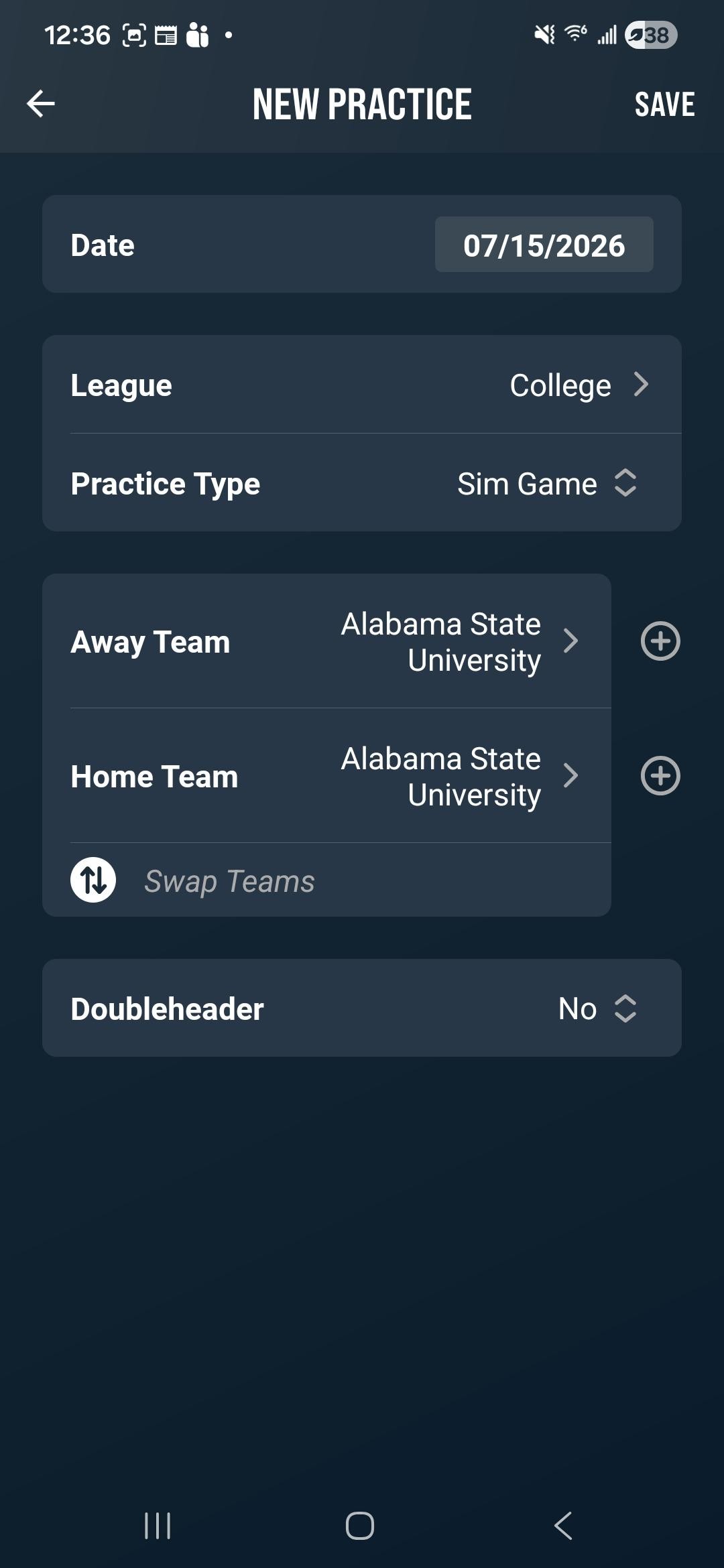
Once a new session is created, you can log the practice session directly from your mobile device.
Settings
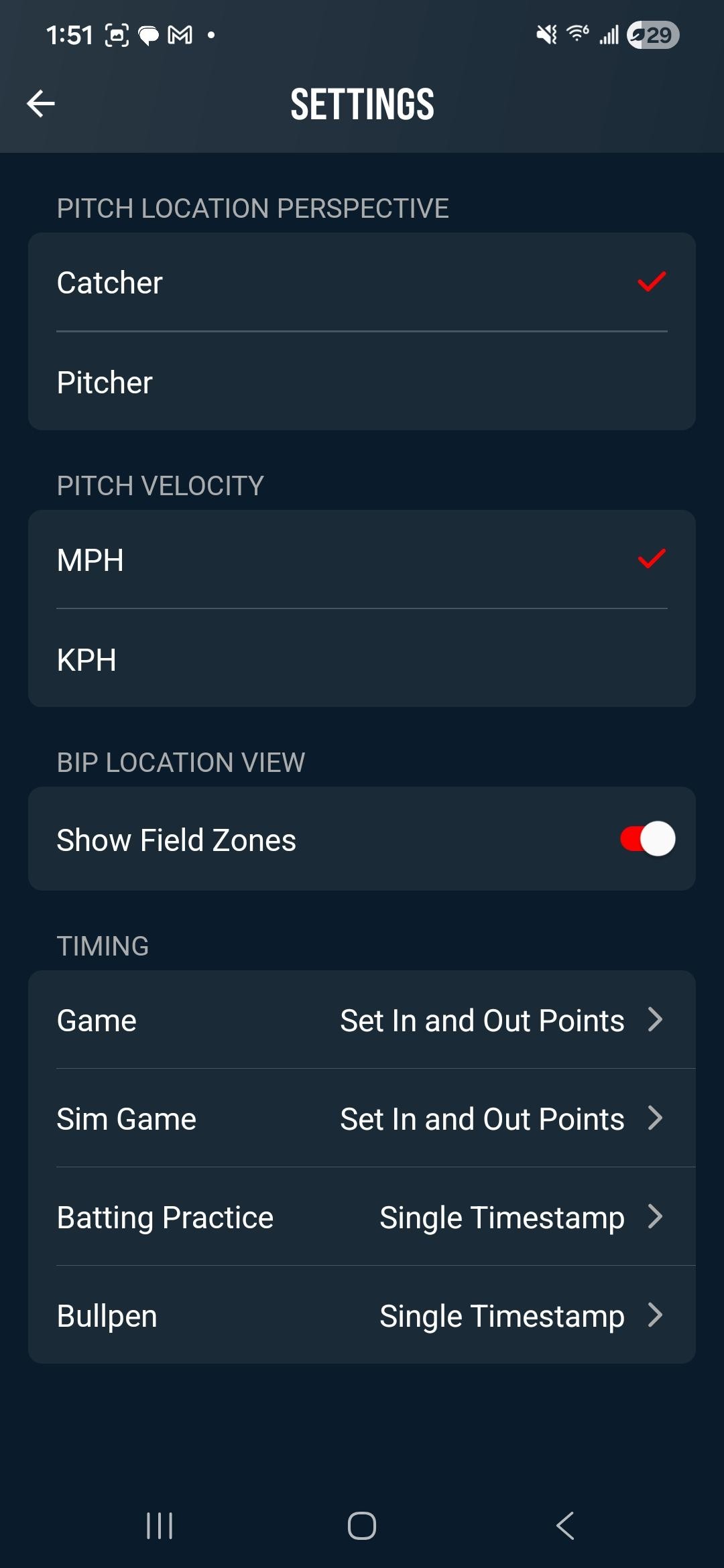
The timestamp settings for the different practice types can be adjusted in the Display settings menu by selecting your user icon in the upper right or the app.
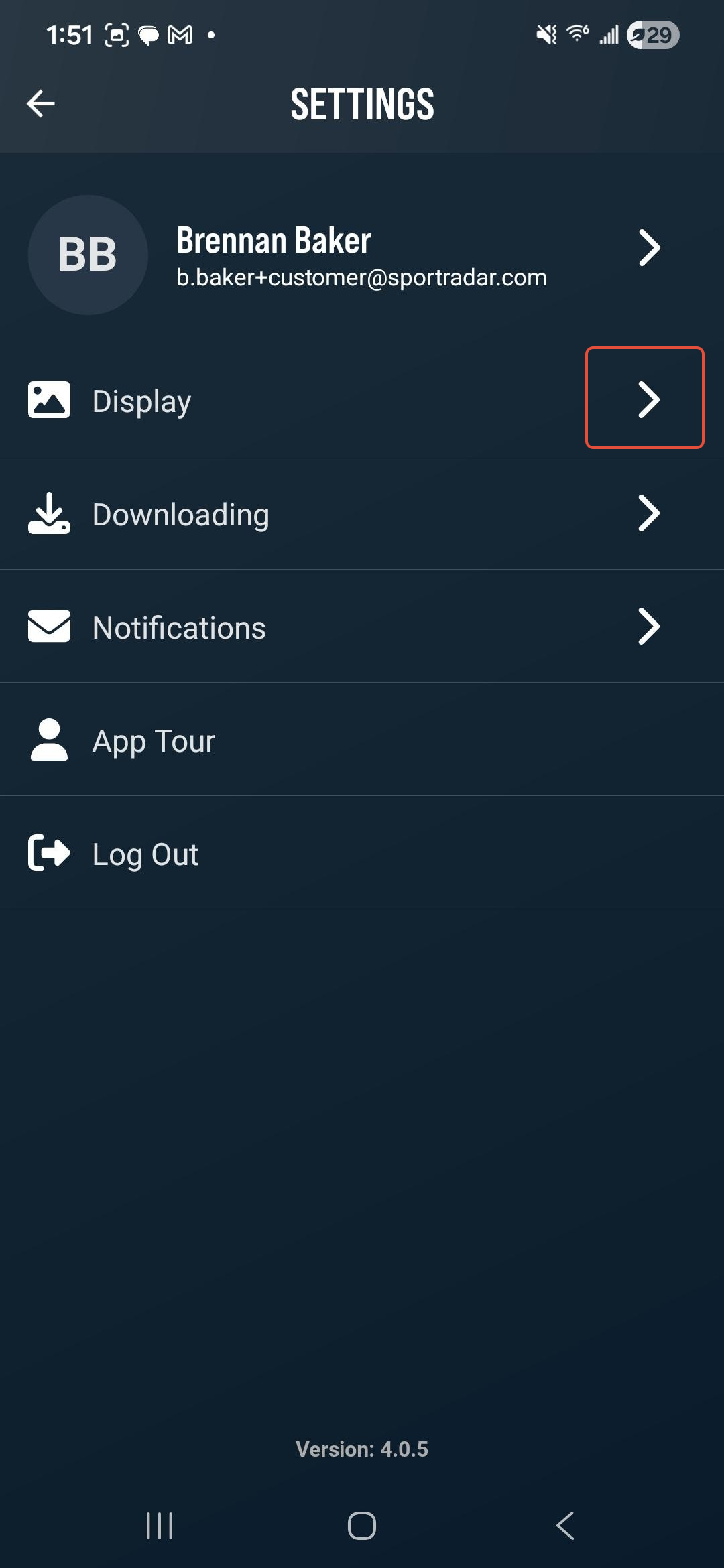
Game and Sim Game are set to Set In and Out Points by default. This means you mark the beginning of the event, and the end of the event, two clicks to timestamp the play. Batting Practice and Bullpen are set to Single Timestamp by default. This means you only need to mark the swing, or pitch release with a single tap.
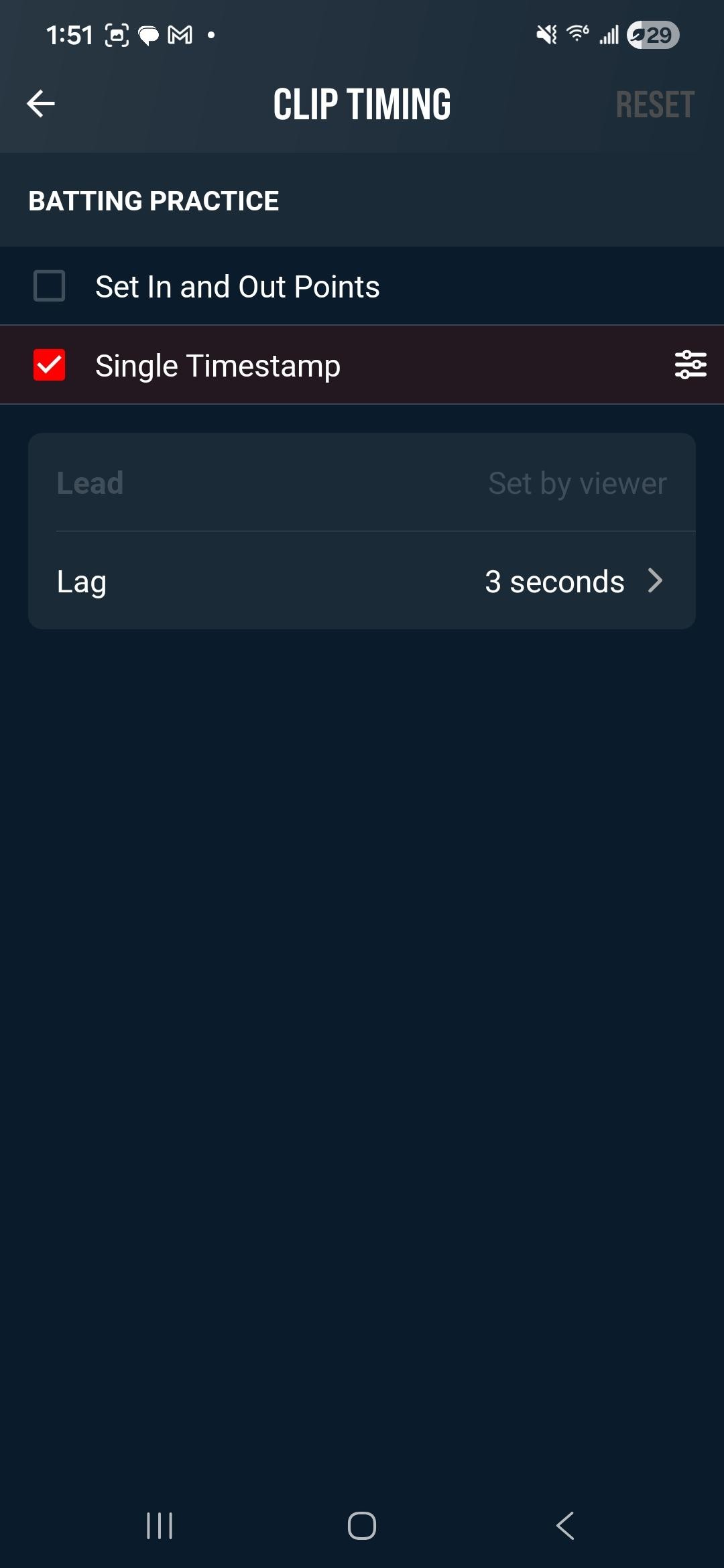
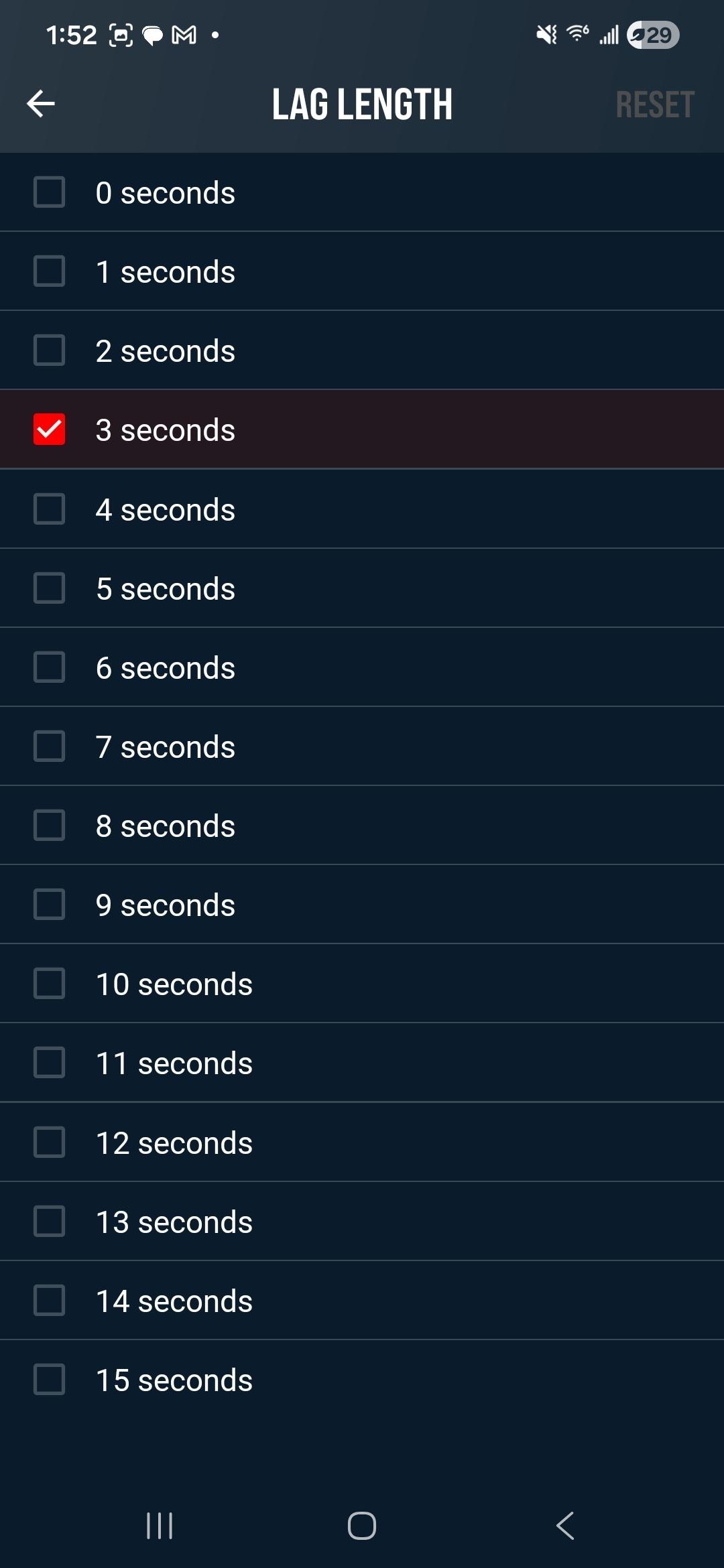
If a session type is set to Single Timestamp, you can adjust the length of Lag in seconds by selecting from the menu.
Was this article helpful?
That’s Great!
Thank you for your feedback
Sorry! We couldn't be helpful
Thank you for your feedback
Feedback sent
We appreciate your effort and will try to fix the article