The Multi-Game view allows you to dive deep into player performance across multiple games, seasons, and teams. This powerful tool puts detailed player insights right at your fingertips.
Follow these steps to get started:
Access Multi-Game View
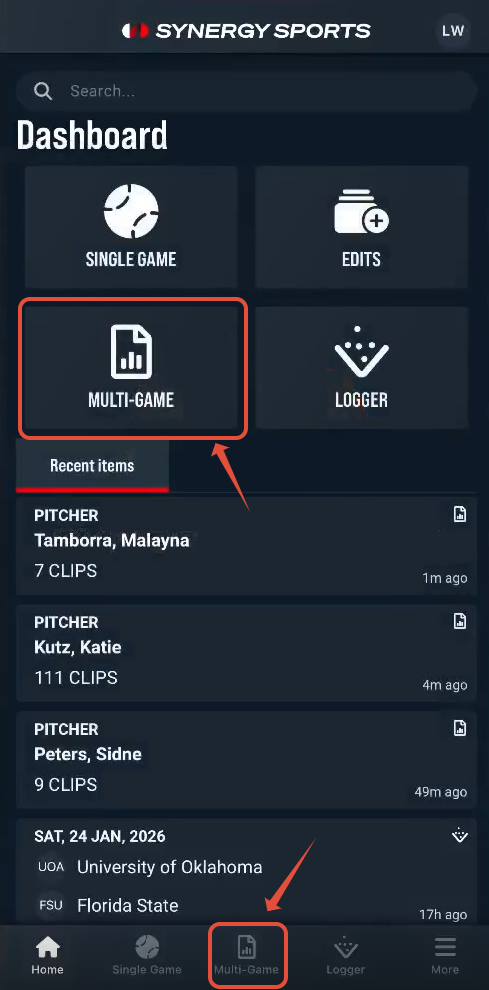
From your app's Home Screen, tap the Multi-Game icon to enter Multi-Game view.
Select Your Data Source
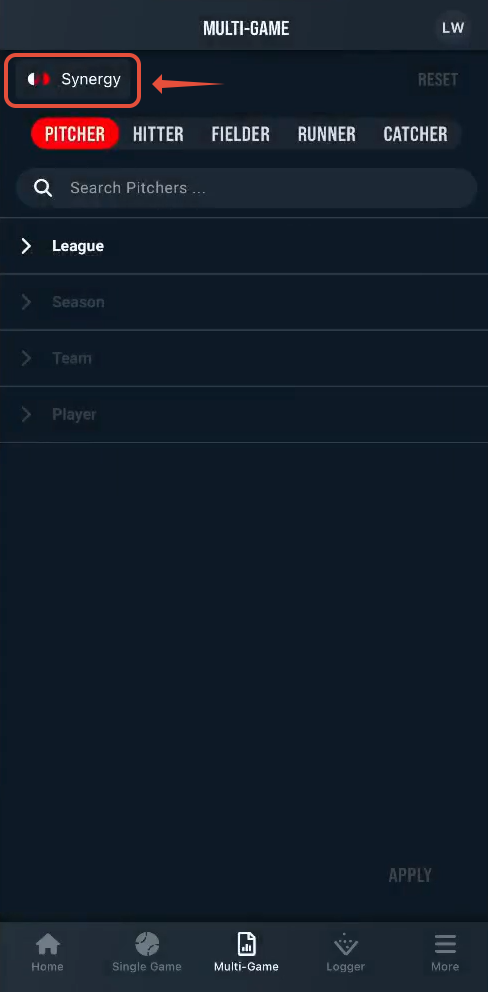
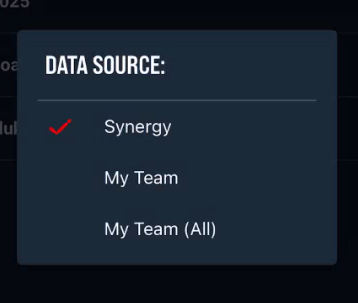
Tap the Synergy Icon to choose your preferred data source
- Synergy: Comprehensive data from our Synergy platform.
- My Team: Focus on your data tagged from the Synergy Logger.
- My Team (All): Focus on your data, as well as any Shared Games from the Synergy Logger
Choose Player Type
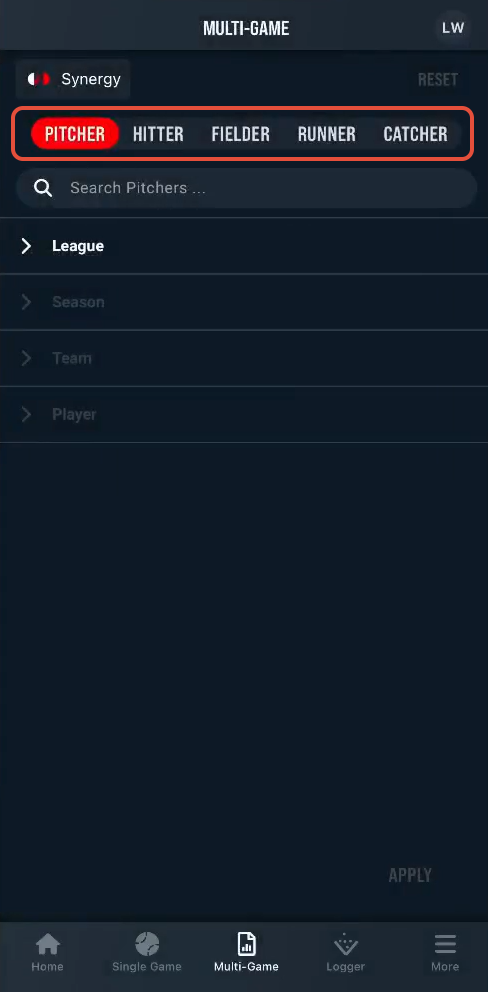
Select the role of the player you wish to analyze:
- Pitcher
- Hitter
- Fielder
- Runner
- Catcher
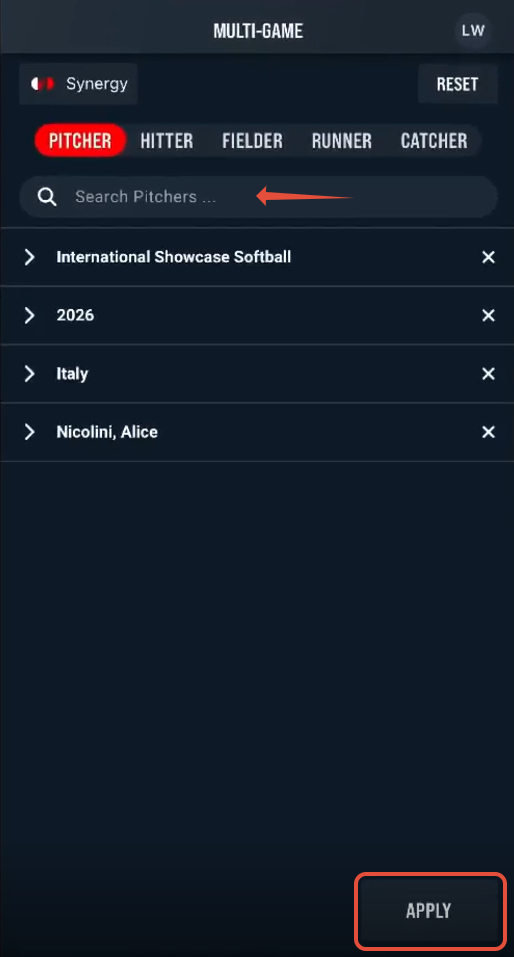
Select Your Player
Use the Search Bar or the available Filters (League, Season, Team, Player) to pinpoint the specific player you're interested in.
Once you've made your player selection, tap Apply.
Player History
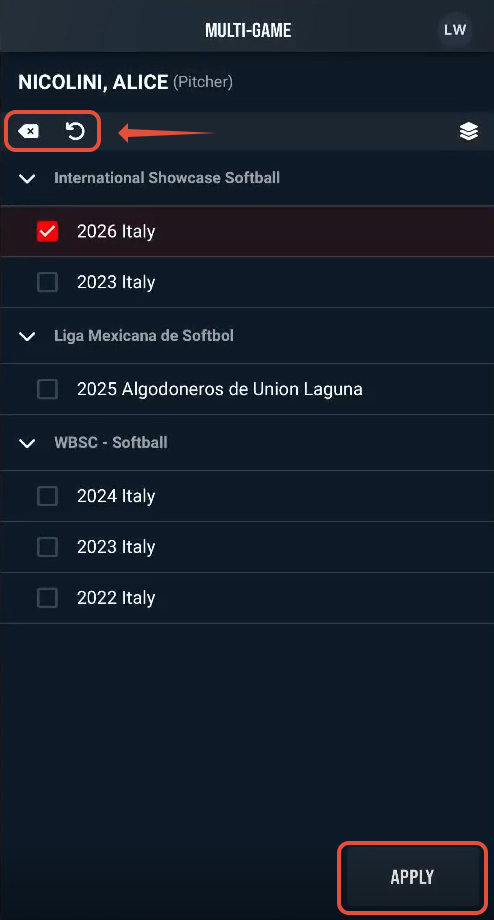
After selecting a player, their history will be displayed. Here, you can select specific teams and seasons to include in your analysis.
To clear your player selection and return to the player selection page, tap the X button located above the player history.
The Refresh button will deselect all currently chosen team and season selections, while keeping your selected player.
Select Event Types
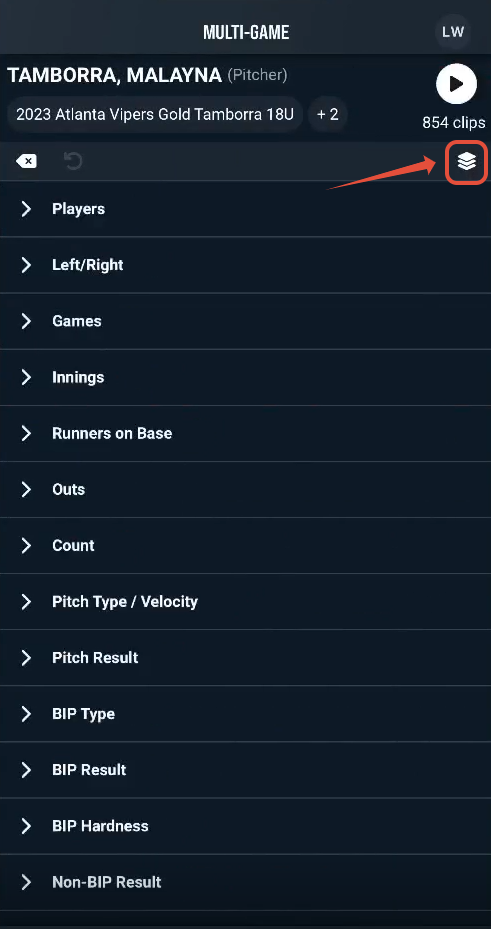
Tap the Event Types icon in the upper right, below the Play icon, to bring up a list of event types. You can make multiple selections
- Pitch
- Pickoff
- Runner Left Early
- Challenge
- Interruption of Play
- Other
Refine Your Search with Filters
Once your player, seasons, and teams are selected, use the extensive filter options to narrow down your results even further. These include:
- Players
- Left/Right (handedness)
- Games
- Innings
- Runners On Base
- Outs
- Count
- Pitch Type/Velocity (Range filter)
- Pitch Result
- BIP Type
- BIP Result
- BIP Hardness
- Non-BIP Result
- Baserunner Movement
- Bunts
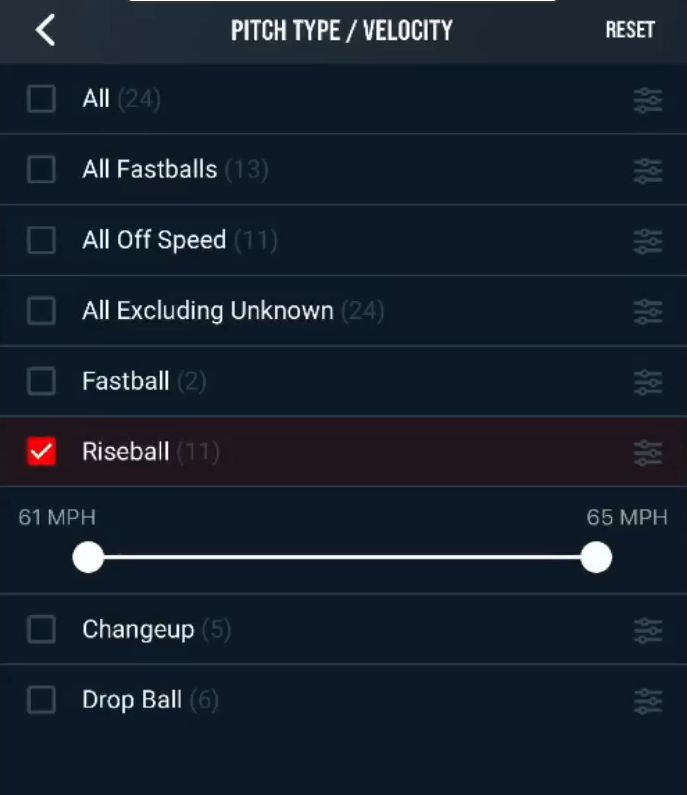
When utilizing the Pitch Type/Velocity Filter, you can first choose a specific pitch type, then use the range filter to precisely define the velocity range for your search results.
Removing Applied Filters
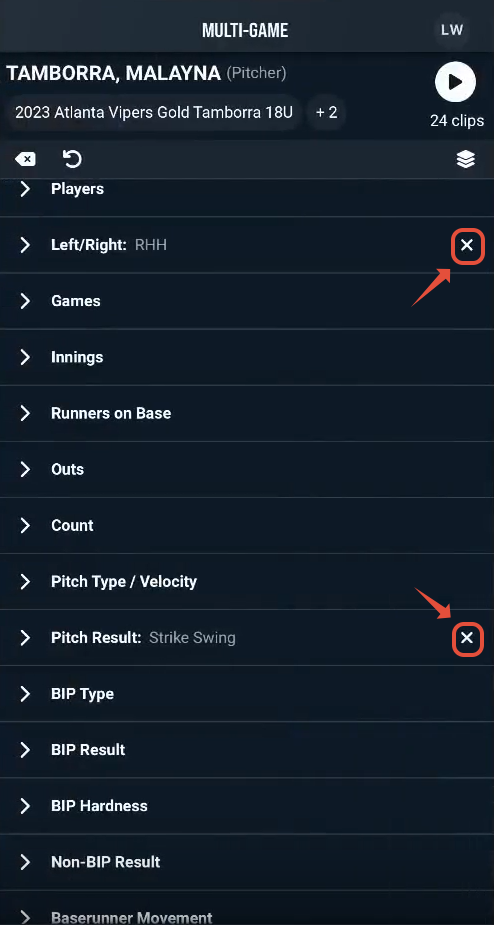
To remove any filter selection, tap the x located to the right of the applied filter.
View Video Playback
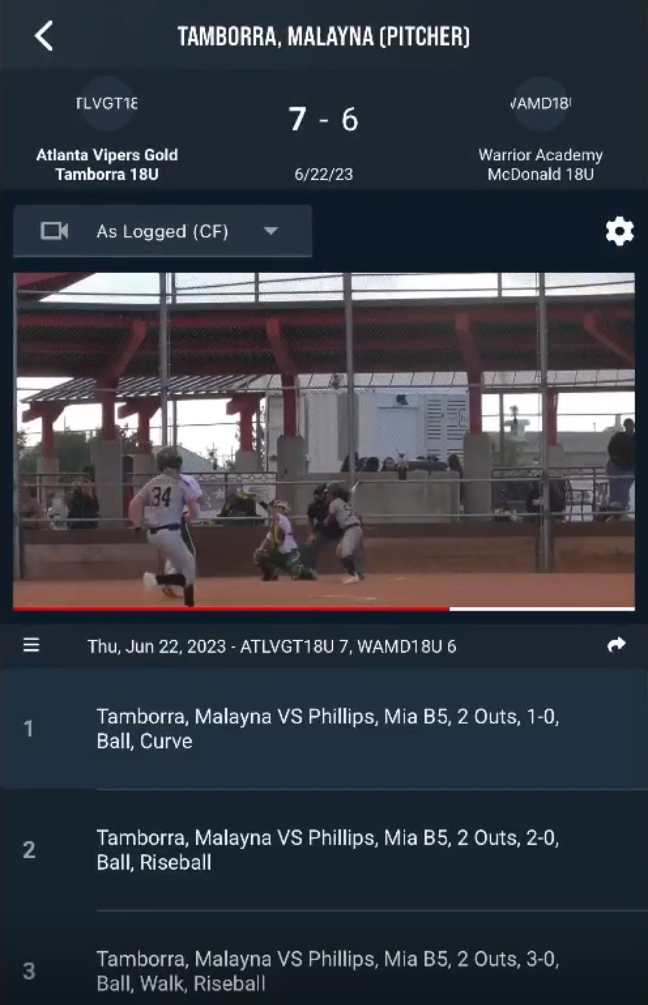
Once all your desired filters are in place, tap the Play icon in the upper-right corner of the screen. This will display the video player, with your filtered events organized in a playlist below the video.
Adjust Clip Settings
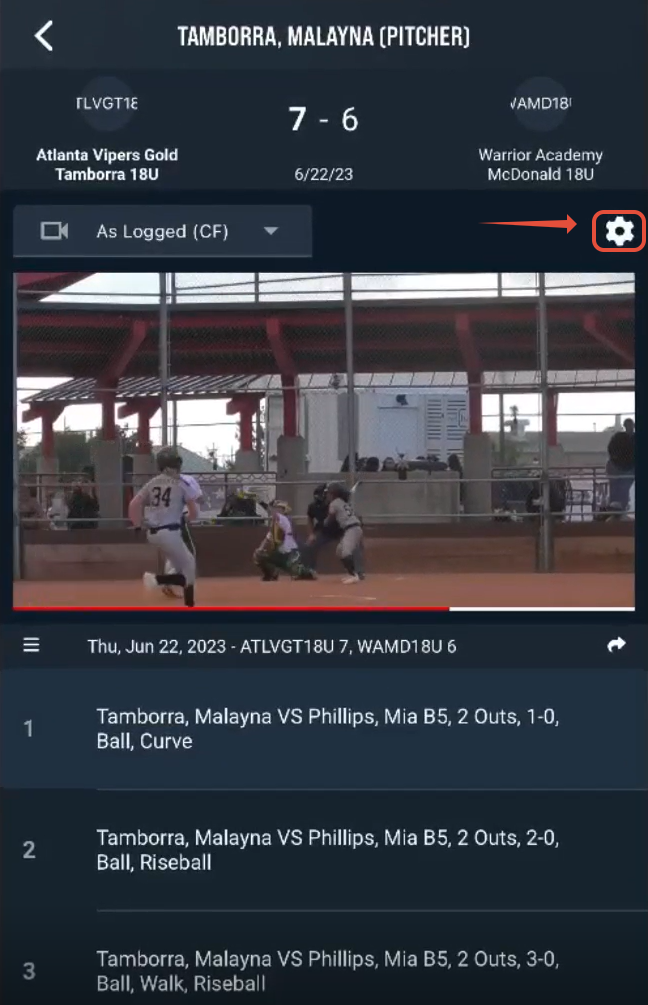
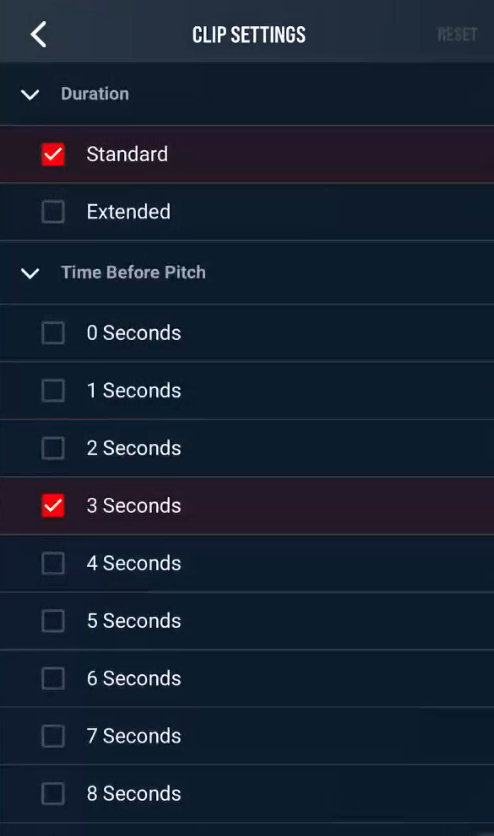
Tap the Gear icon to adjust the clip Duration and Time Before Pitch for your video playback.
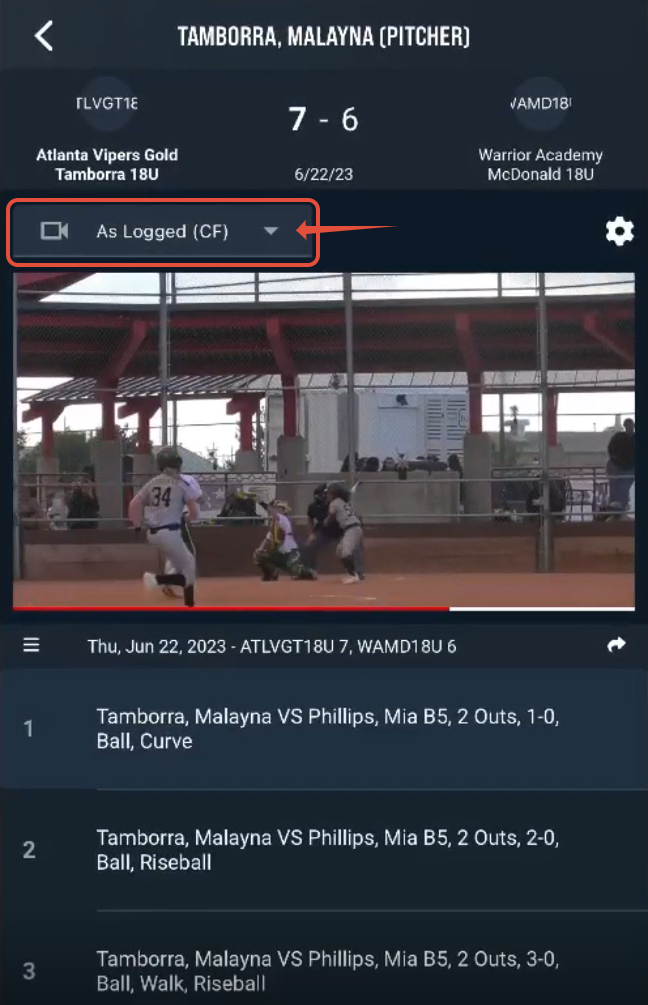
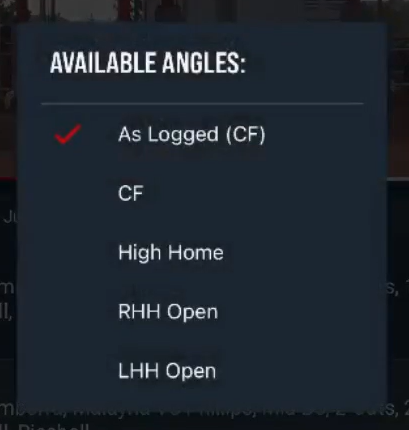
Accessing Alternate Angles
Above the video player, tap the drop-down button to select and view any available alternate camera angles for the event.
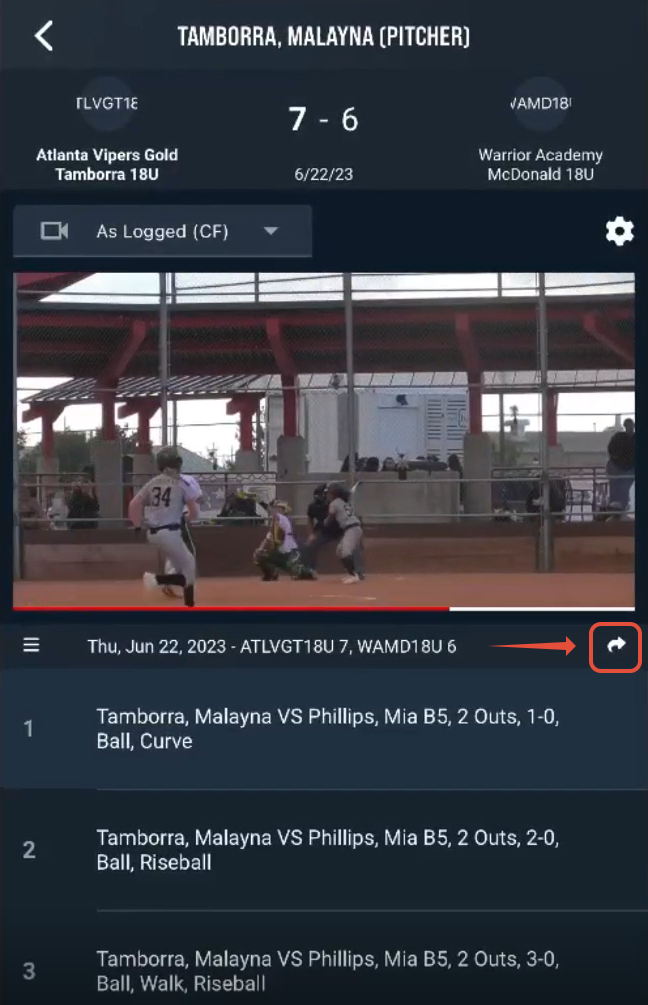
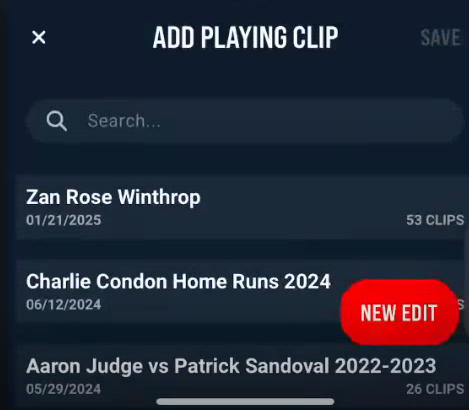
Sending Clips to Edits
Use the right-pointing arrow located above the playlist to send the currently playing clip to an existing edit, or to create a new edit and add the clip to it.
Was this article helpful?
That’s Great!
Thank you for your feedback
Sorry! We couldn't be helpful
Thank you for your feedback
Feedback sent
We appreciate your effort and will try to fix the article