Linked Games enable you to:
- Automatically attach your logged game video and pitch chart data to the correct Synergy game.
- Eliminate the need to upload the same video files and pitch chart data separately in Video Express.
- Use Synergy Team Logger as your primary application for logging games, uploading video, and pitch chart data.
Video Permissions for Linked Games
Rest assured, your team's privacy is a top priority.
- All private camera angles from your Team Logger videos for Synergy logged games will remain visible only to your team and will not be accessible by other schools.
- As with Video Express, Colleges can view the following public camera angles from other teams for Linked Games:
- As Logged (Best available camera angle used for Synergy logging)
- Broadcast
- CF
- High Home
- Low Home
- All other camera angles will remain private to your team.
Key Recommendations for Using Linked Games
To ensure smooth experience and accurate data tagging, please follow these recommendations:
- Link while creating your game: It's best practice to link to Synergy during the initial game creation process.
- Wait for video upload: Crucially, wait until all video files from each Camera Angle are uploaded to Synergy before changing the Logging Status to "Completed." This ensures all data, including Fielding & Baserunning, can be tagged correctly.
- Neutral Site Games: For neutral site games where Home/Away teams are swapped, you can still link to Synergy if the game date and teams are the same. Synergy will update once official box scores are available.
- Doubleheader Games: If only one game of a doubleheader displays for linking, you can link to a Synergy game on a different date involving the same teams if Synergy hasn't updated the schedule yet.
- One-to-One Linking: It's only possible to link to one Synergy game at a time.
- Uncertainty: If you're unsure about linking, contact Synergy Support and proceed with uploading video and pitch charts in Video Express as an alternative.
Workflows: Adding and Linking a Game
Adding a New Game
When you navigate to the Games view, you'll now see a "Linked" column with a colorized Synergy logo for games already linked to Synergy.

To add and link a game:
- Click "Add Game".
- Input your game information as usual.
- A new "Link to Synergy" section will appear above "Create from File."
- Click the "Search for Matching Game" button within this section.
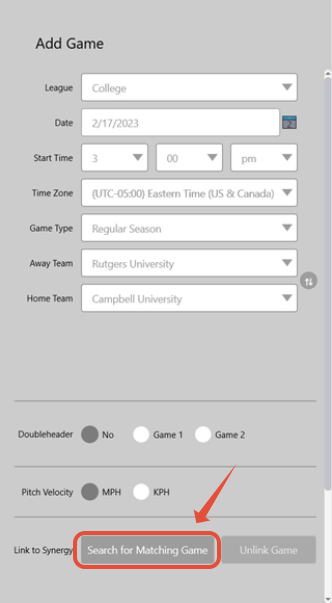
Searching for a Matching Synergy Game
After clicking "Search for Matching Game":
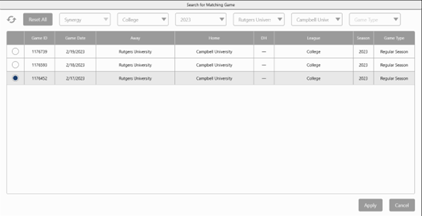
- A pop-up list will display potential corresponding Synergy games.
- By default, a Synergy game will be pre-selected if the game date and teams are the same.
- The list will show all games involving the Home and Away teams for the entire season.
- If your game isn't displaying, you can change the top filters to search for different Synergy games.
- Select the correct Synergy game from the list.
- Click "Apply".
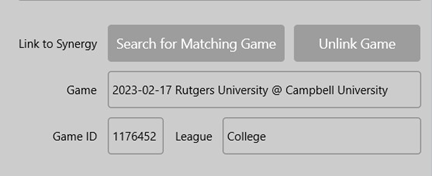
- The linked Synergy game will now be displayed, with an option to "Unlink" if needed.
- You can now continue with your normal process of adding lineups and creating the game.
Import View Changes
When adding video files on the Import view:
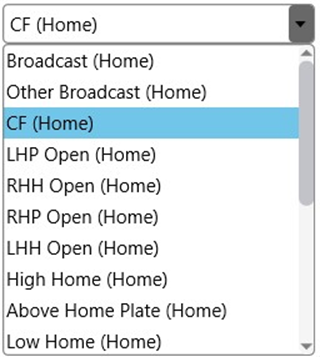
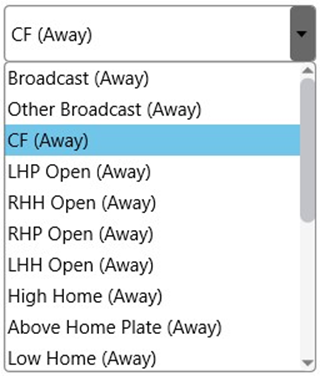
- You will now see either "Home" or "Away" displayed for each Camera Angle, indicating whether your account's team is the Home or Away team. This helps Synergy confirm the video files are linked from Synergy Team Logger.
- For neutral site games where Home & Away teams are swapped, Synergy will adjust the designation once official box scores are received.
- Important: Please wait until all video files from each Camera Angle are uploaded to Synergy before changing the Logging Status to "Completed." This action informs Synergy that your game is fully ready for logging.
Was this article helpful?
That’s Great!
Thank you for your feedback
Sorry! We couldn't be helpful
Thank you for your feedback
Feedback sent
We appreciate your effort and will try to fix the article