The Mobile App allows you to communicate across video clips, with members of your team. Any Synergy user with access to the clips will be able to view these messages on the Mobile App or the Synergy Editor.
Sending Messages
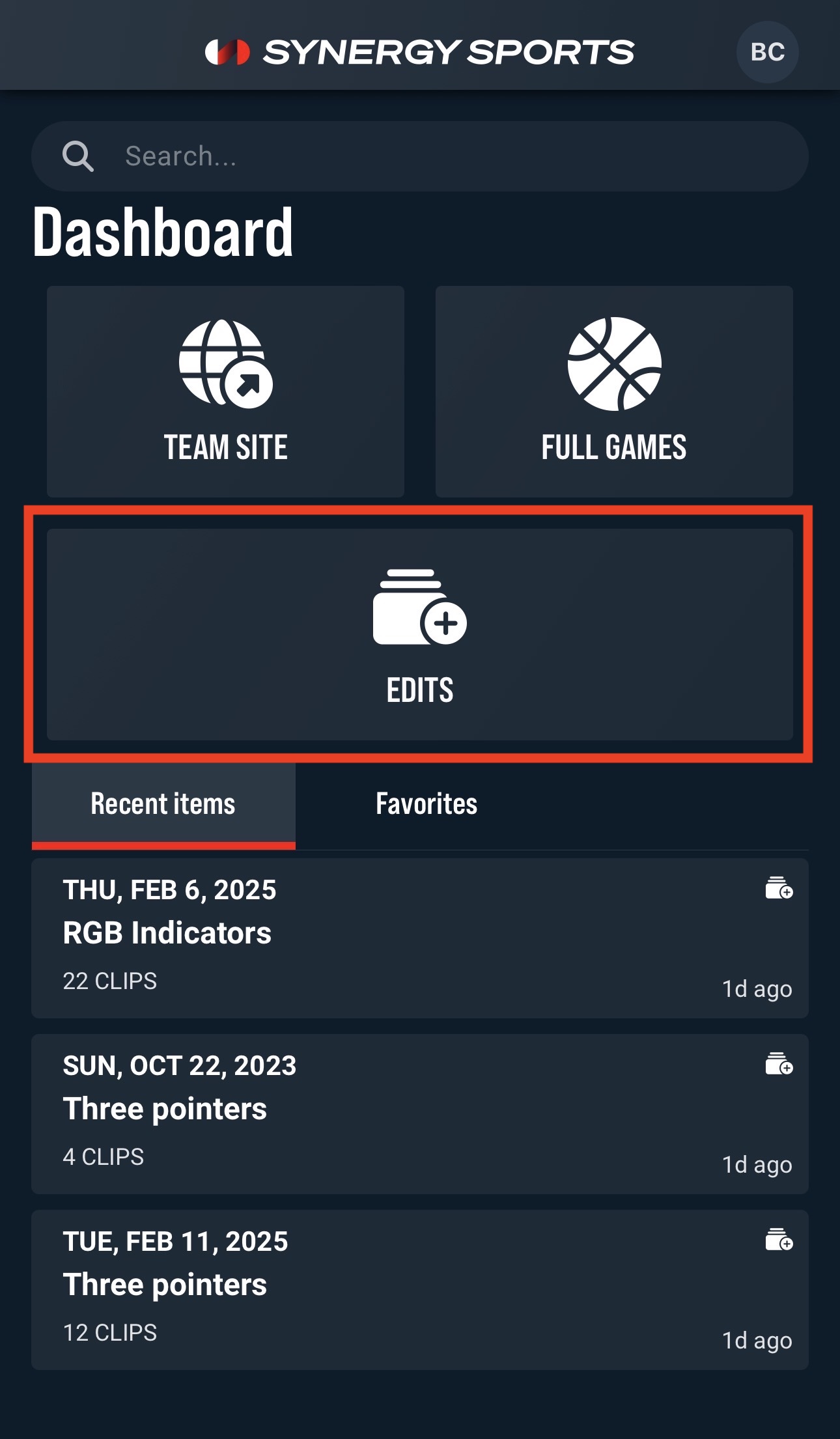
Navigate to your edits by clicking the Edits icon on the dashboard.
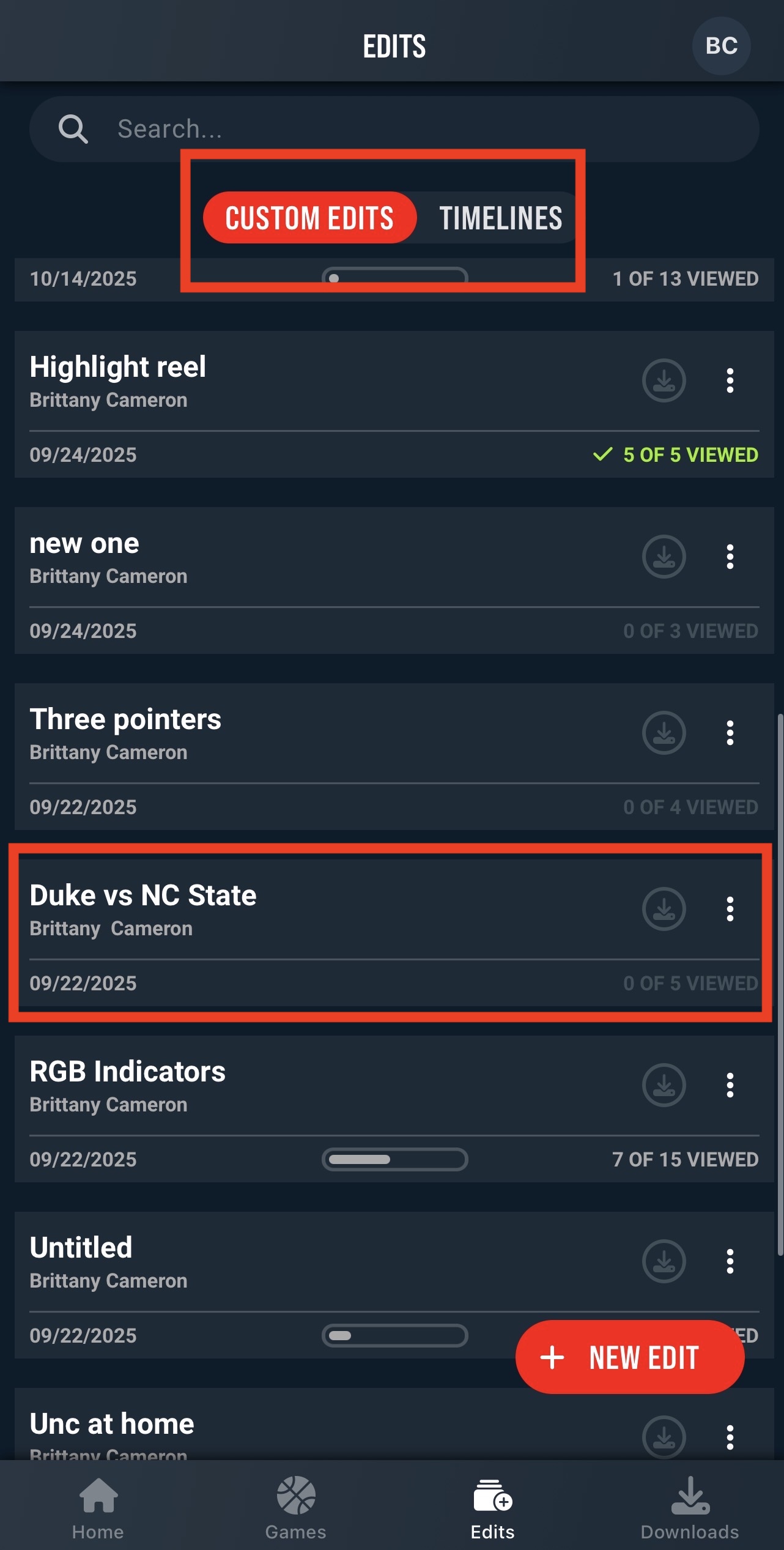
Use the Custom Edits or Timelines tab to find your edit, and then click on the edit to open it.
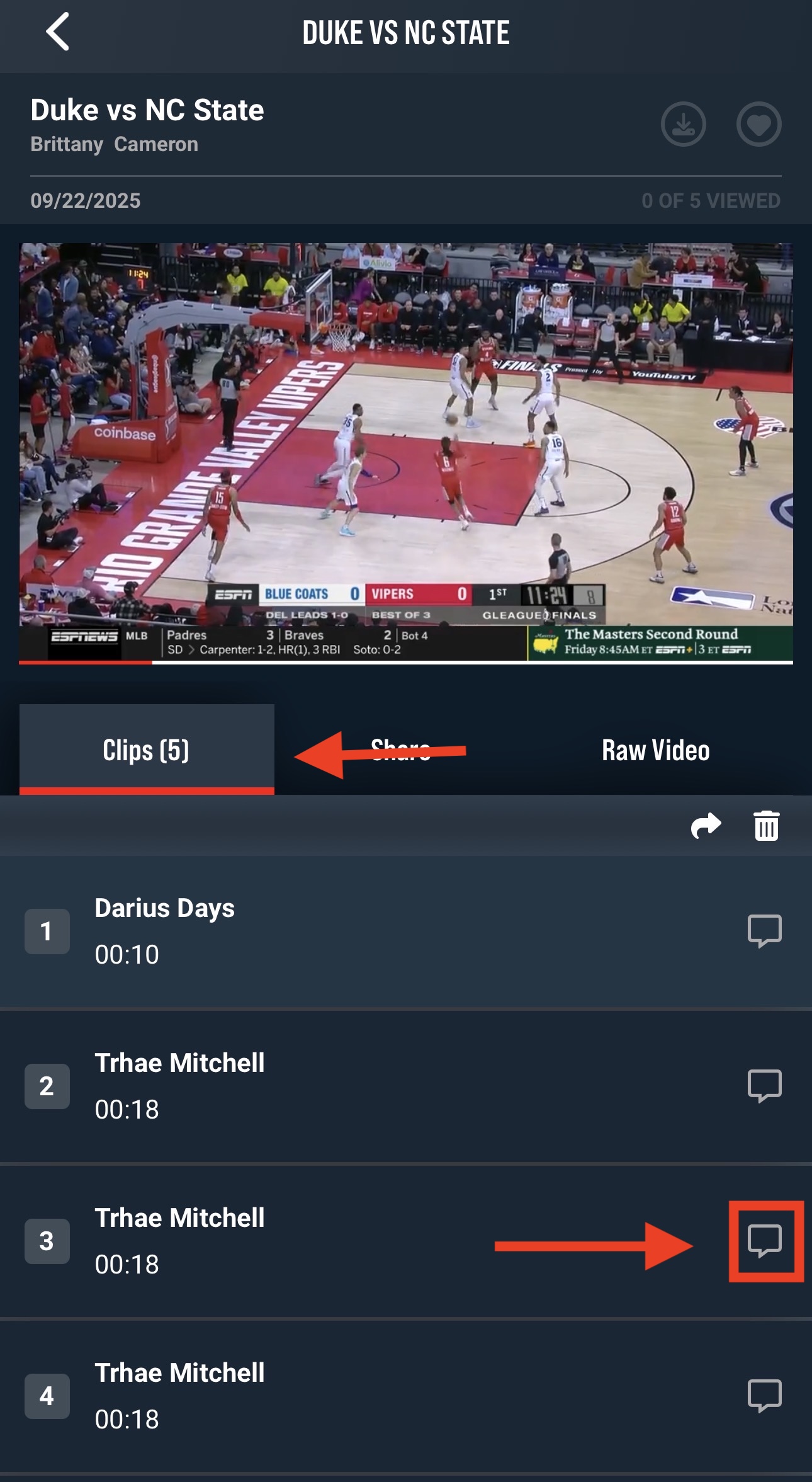
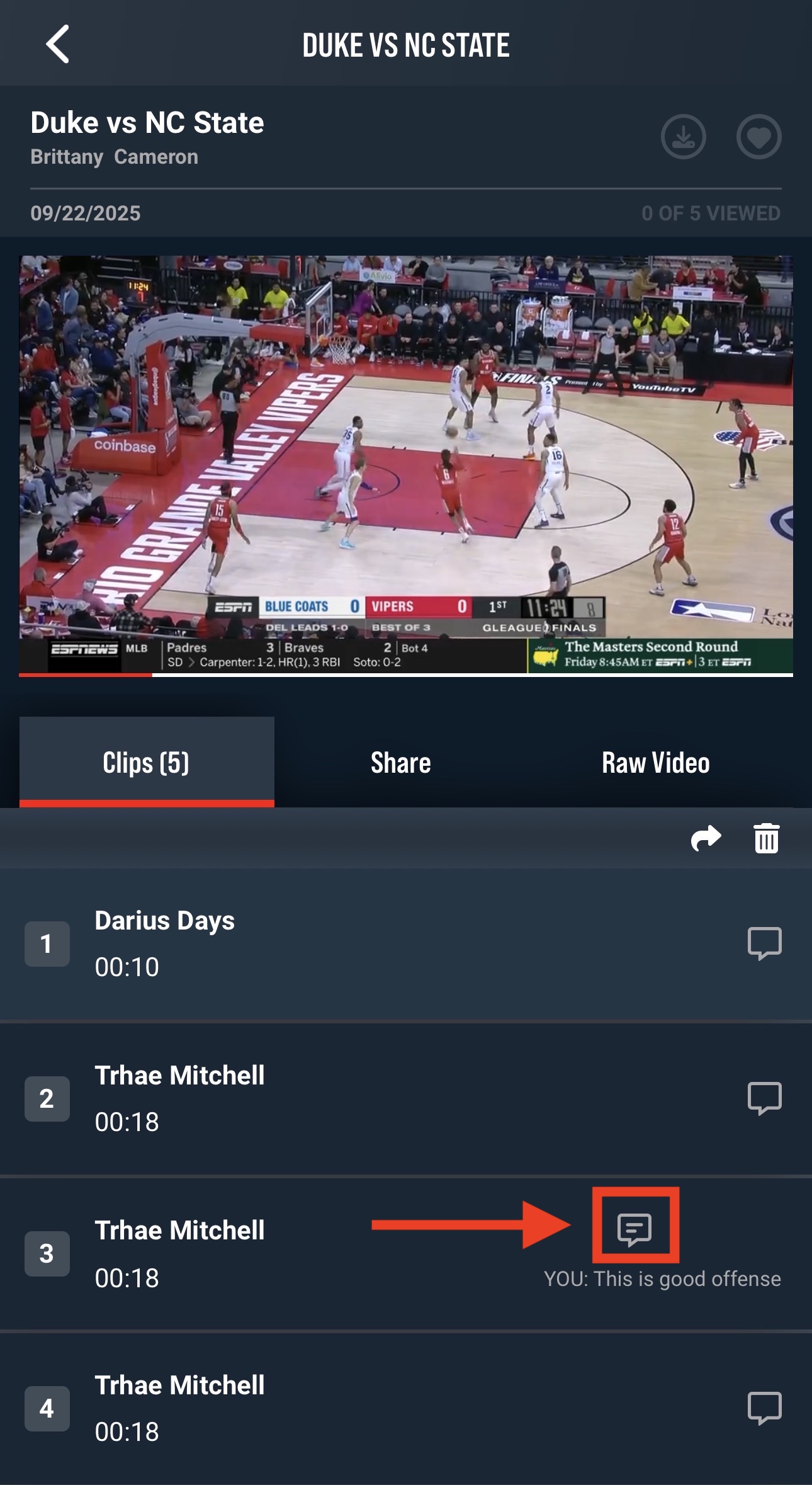
When the edit opens, you will see a tab for the Clips. To add a message, you will click the message icon on a clip.
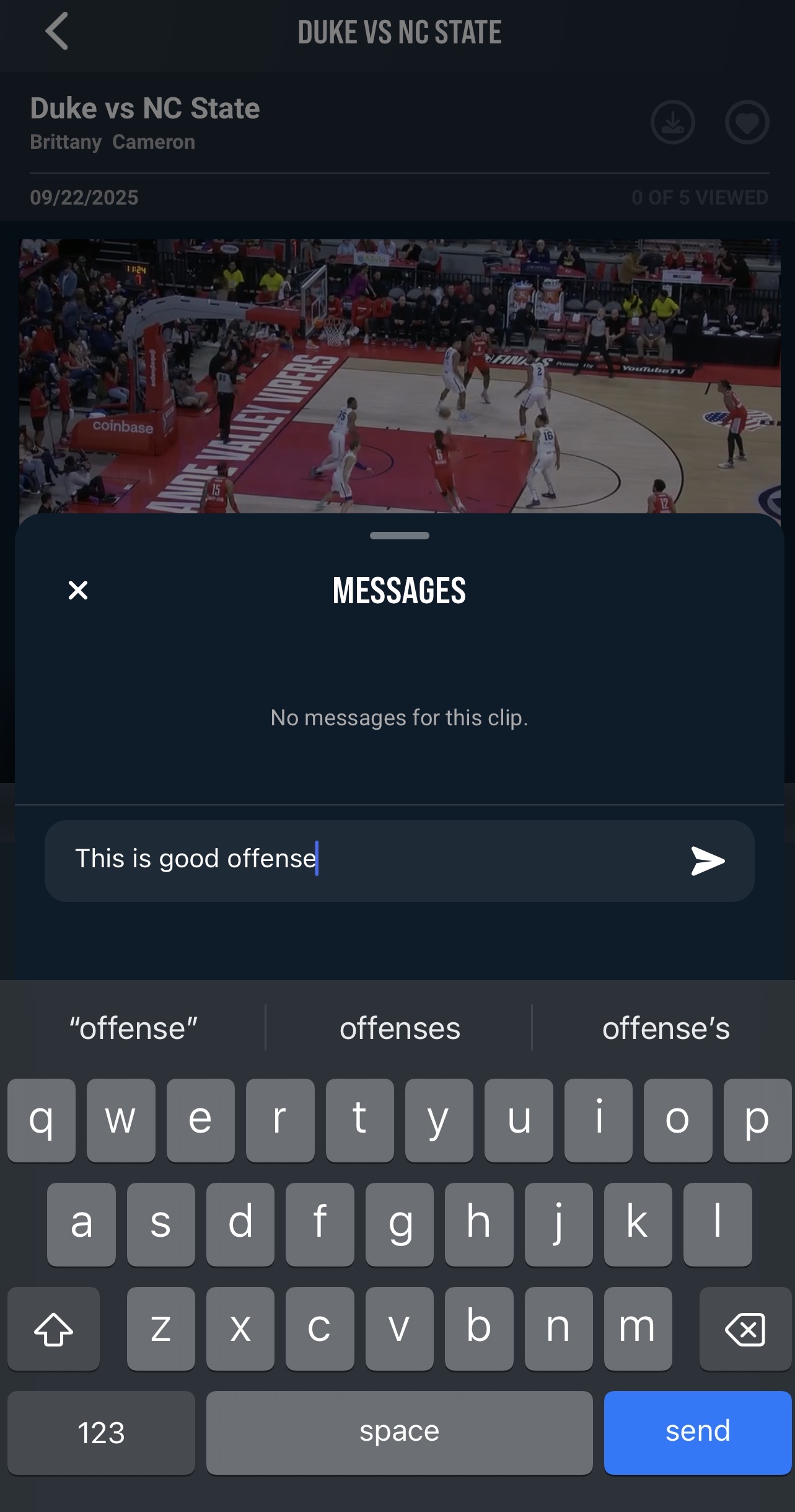
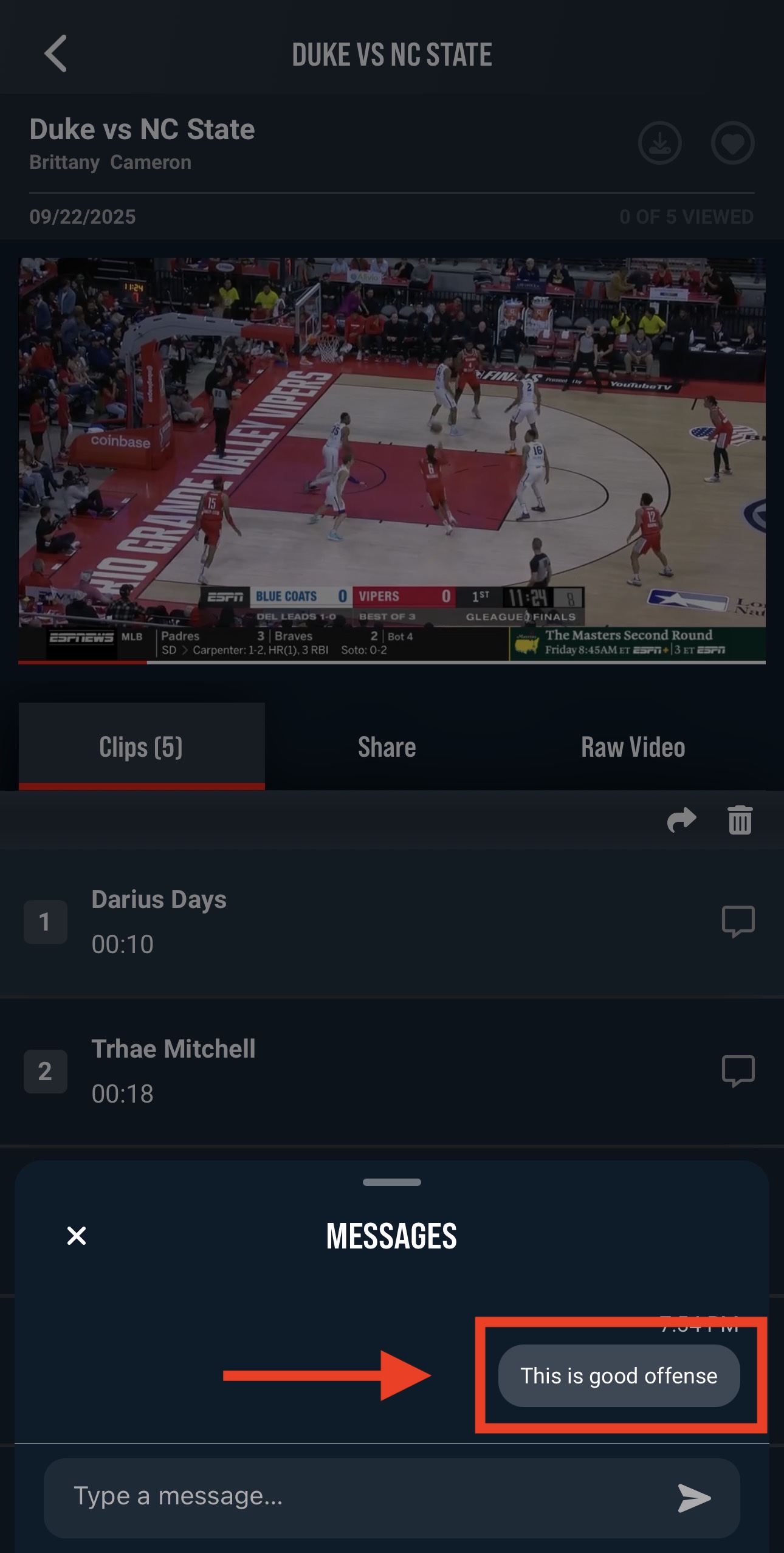
Then type your message and hit the send icon.
If you need to edit or delete a message after it is sent, click on the message icon again.
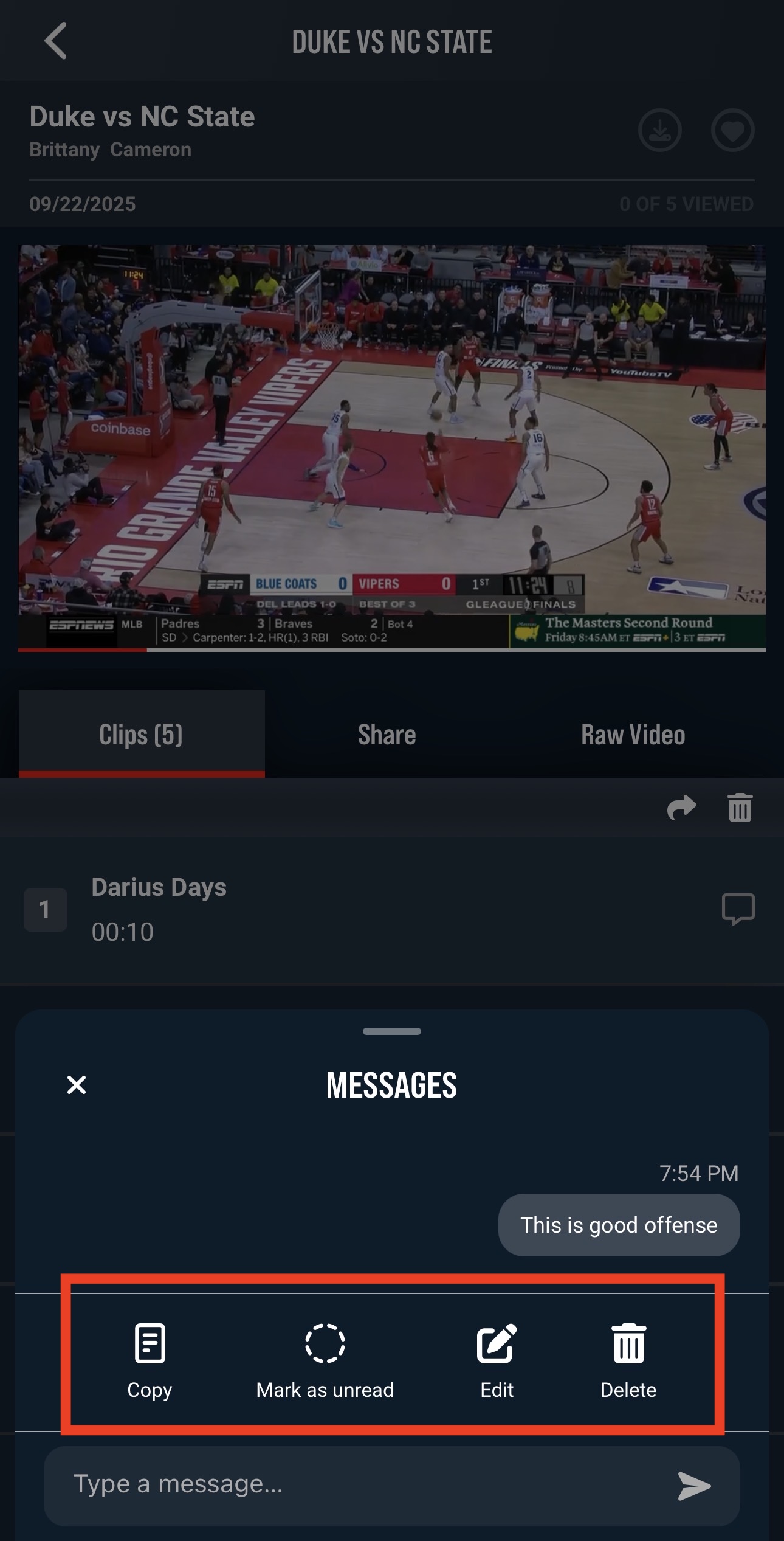
Then press and hold the specific message you want to alter.
The edit and delete options will appear.
Was this article helpful?
That’s Great!
Thank you for your feedback
Sorry! We couldn't be helpful
Thank you for your feedback
Feedback sent
We appreciate your effort and will try to fix the article