The Synergy Mobile App can be used to send custom and timeline edits. Below are the instructions for sending edits via a link or via Synergy.
Send Edits
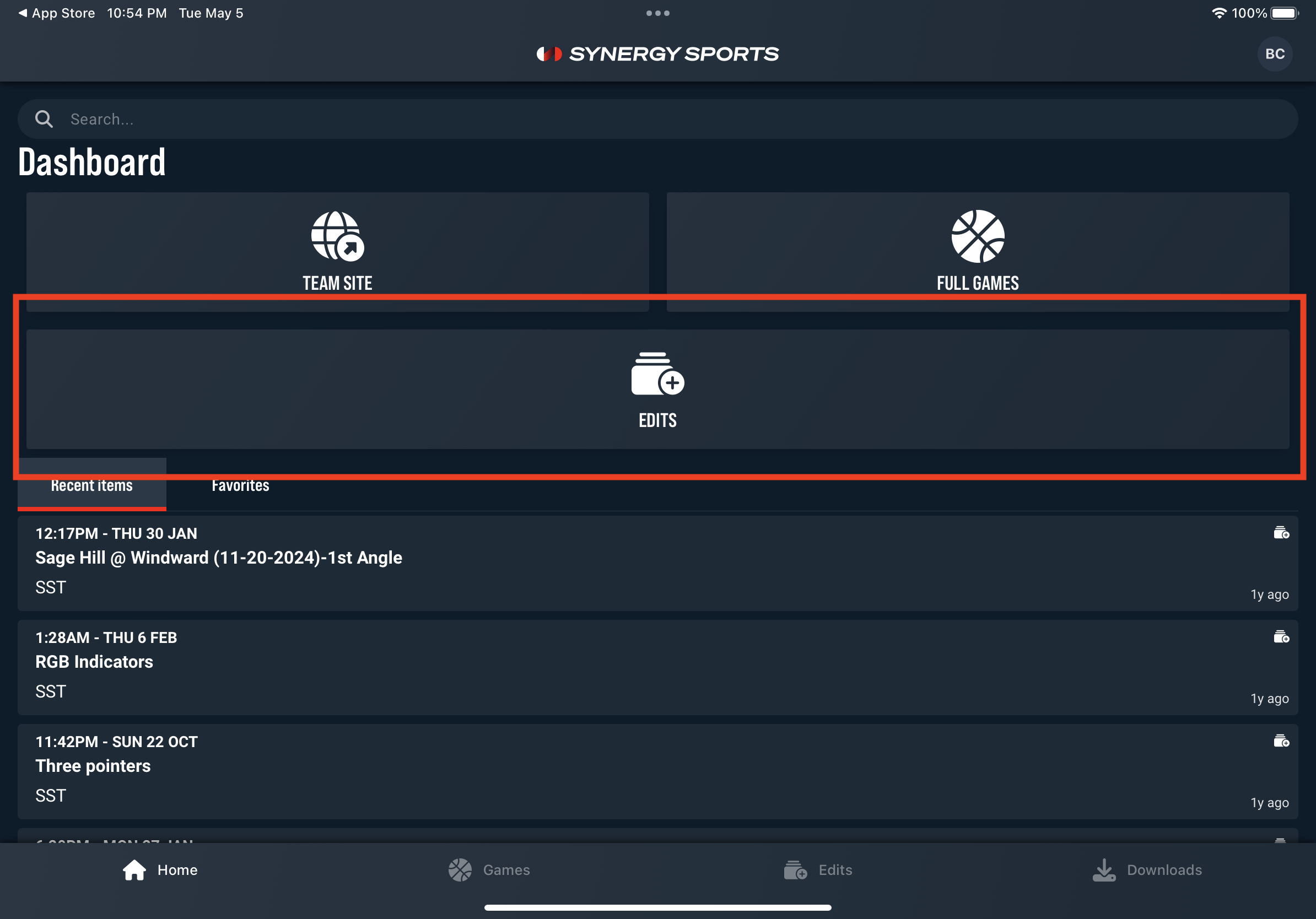
Navigate to your edits by clicking on the Edits icon on the Dashboard.
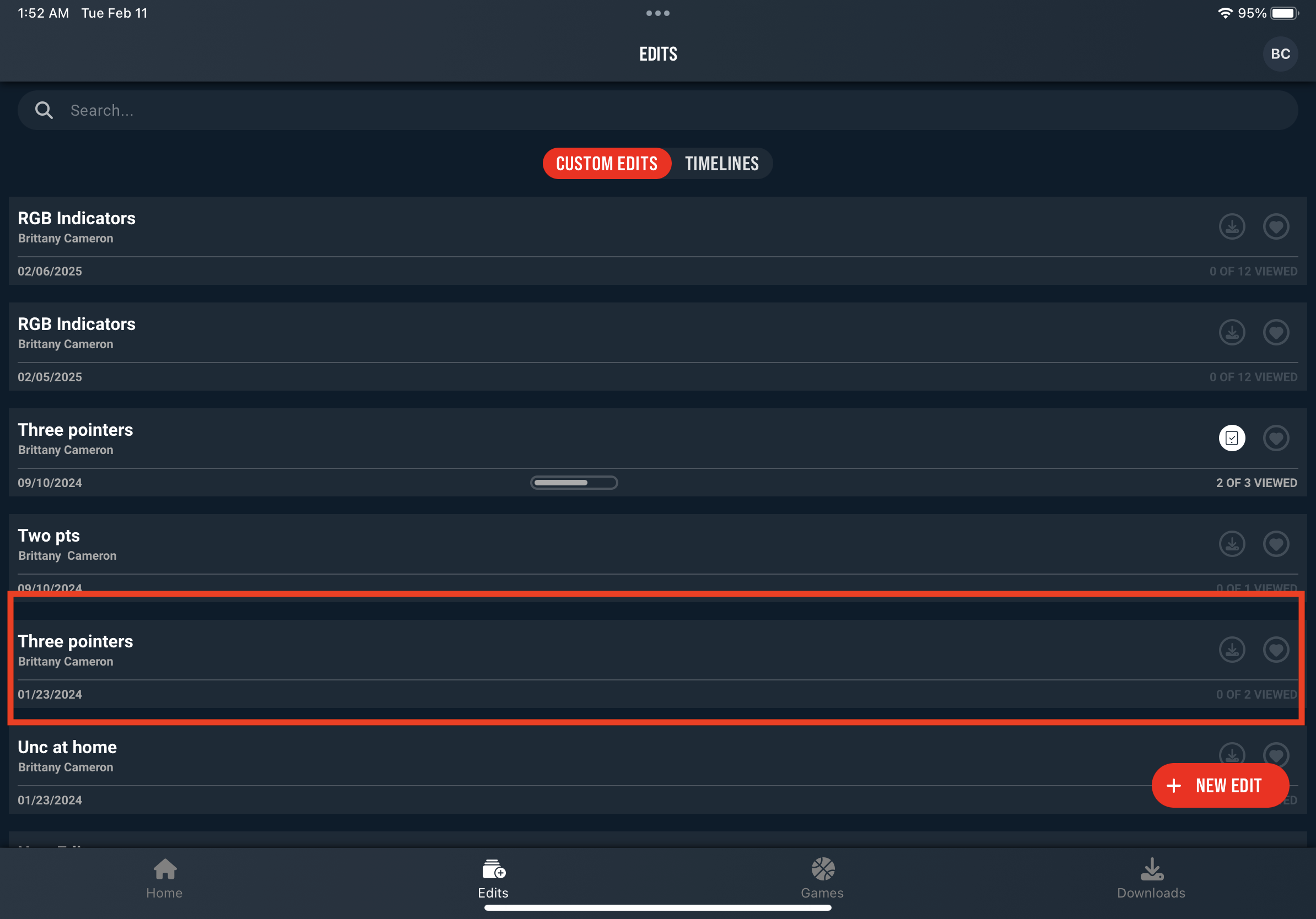
Click on the edit that you wish to send.
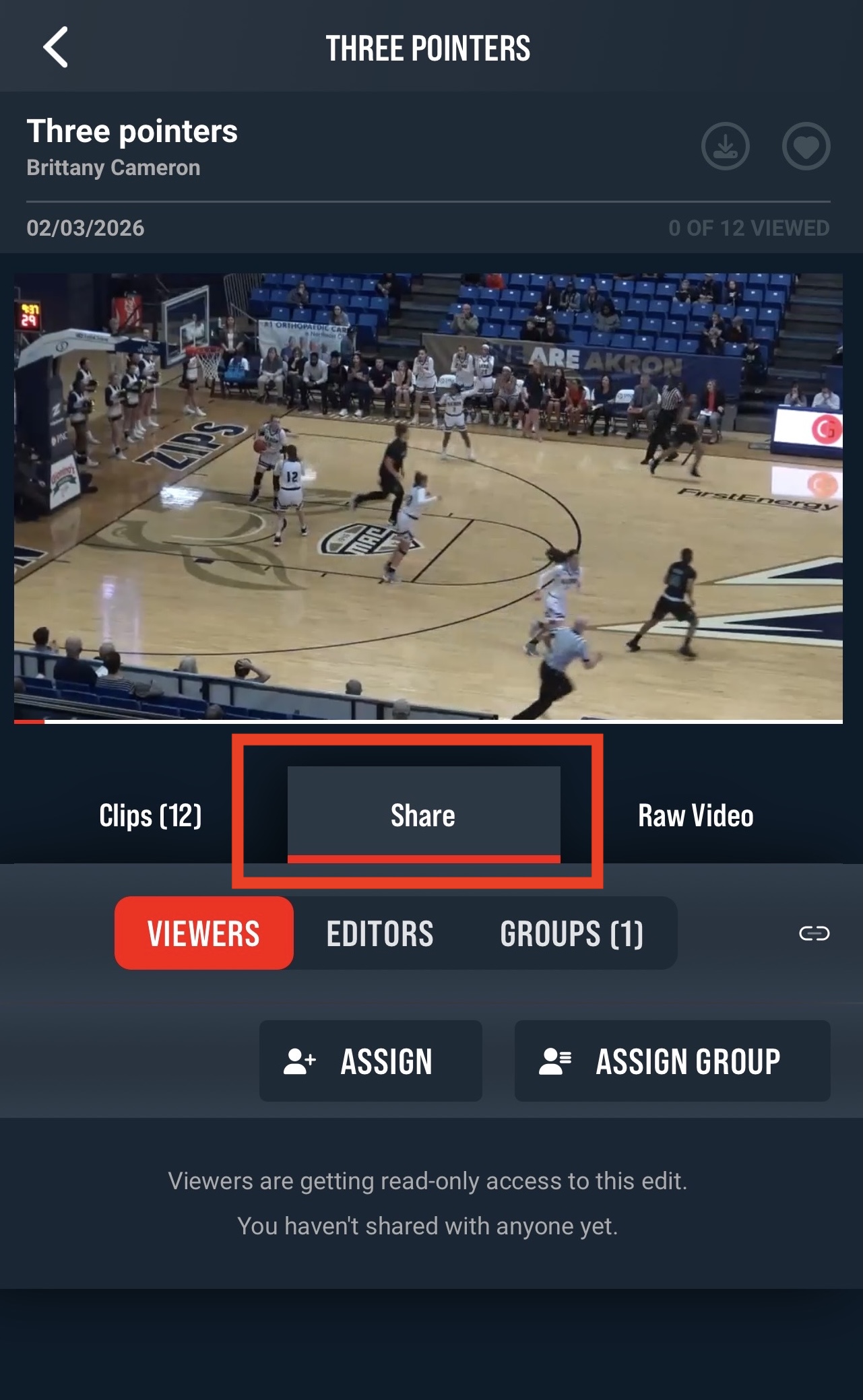
After the edit opens, you will click on the Share tab. From here you can choose to send the edit via a link or via Synergy:
- Send Via Link – edits can be sent to people without a Synergy account
- Send Via Synergy – edits are sent to members of your team, offering more collaboration
Send Via Link
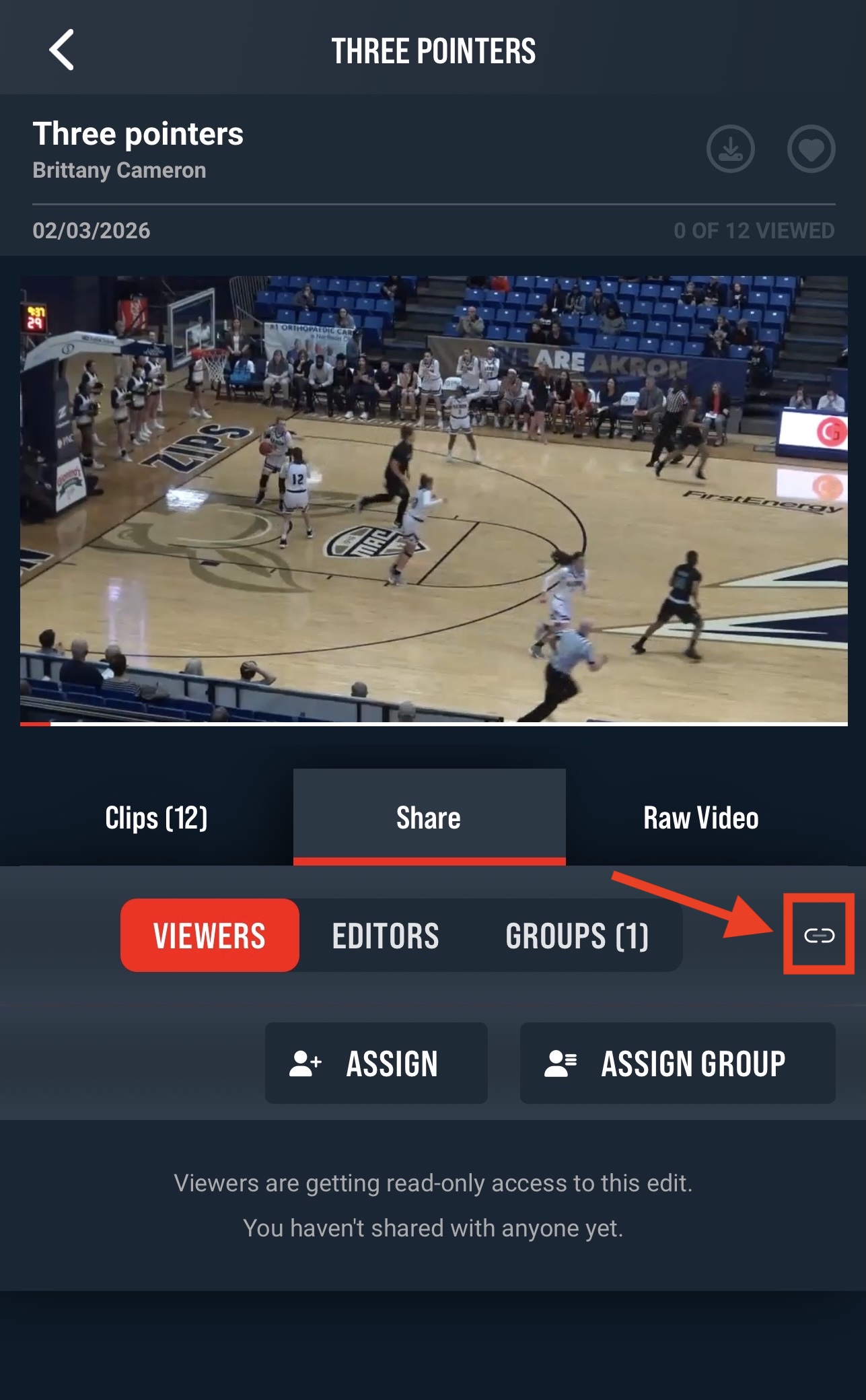
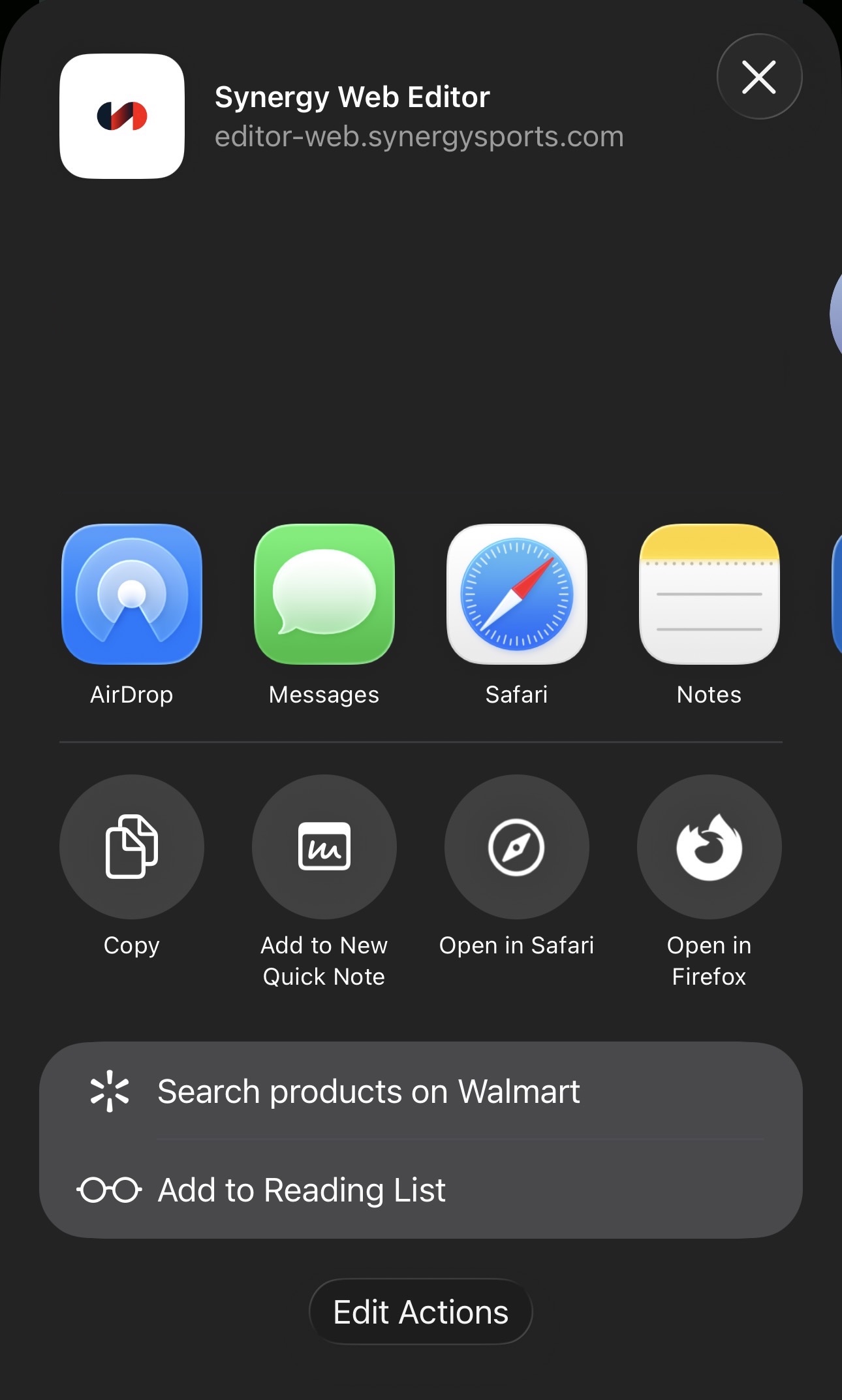
To send the edit via a link, click the link icon.
Then choose how you want to share the link. You can share in a text message, email, etc.
Send Via Synergy
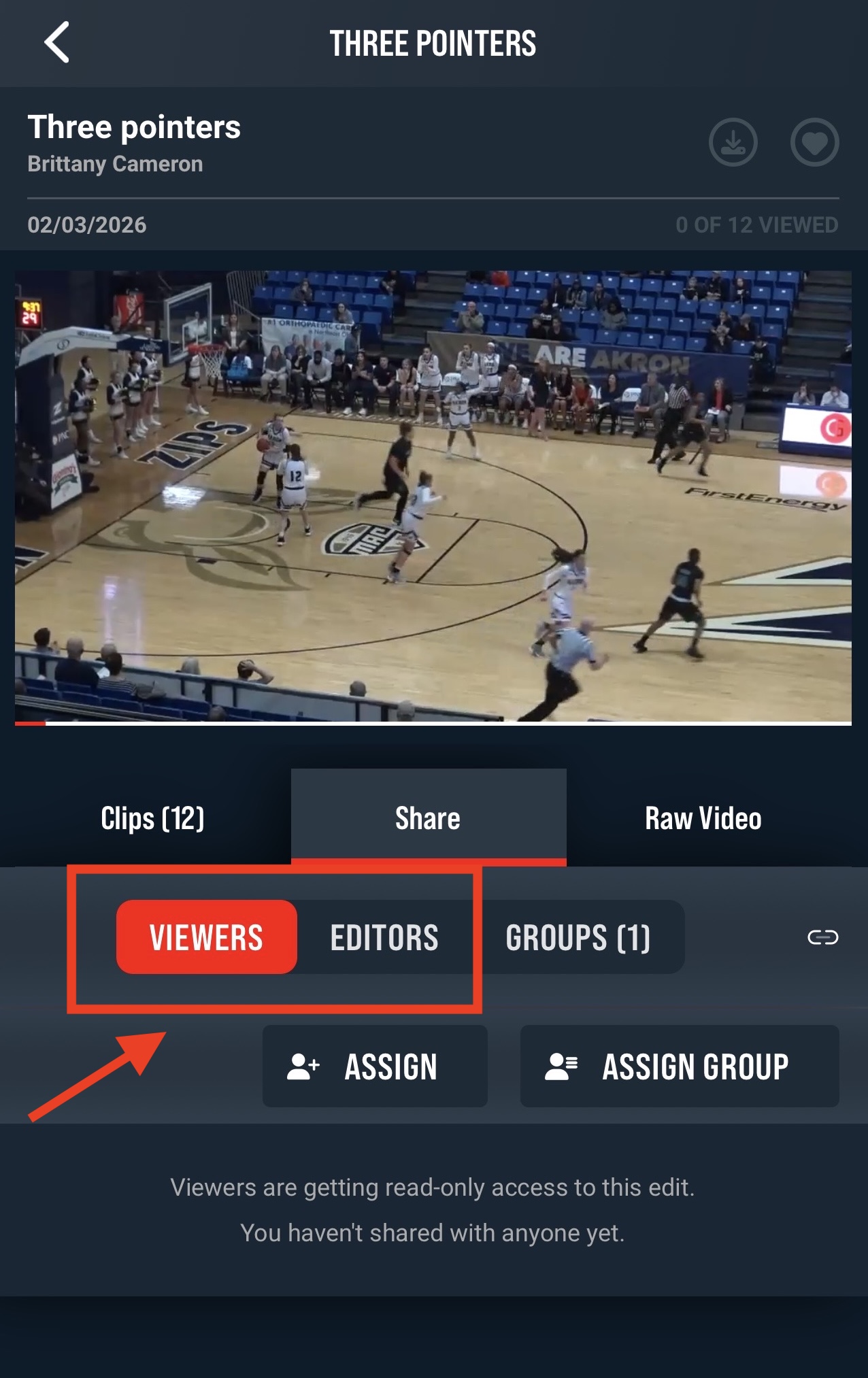
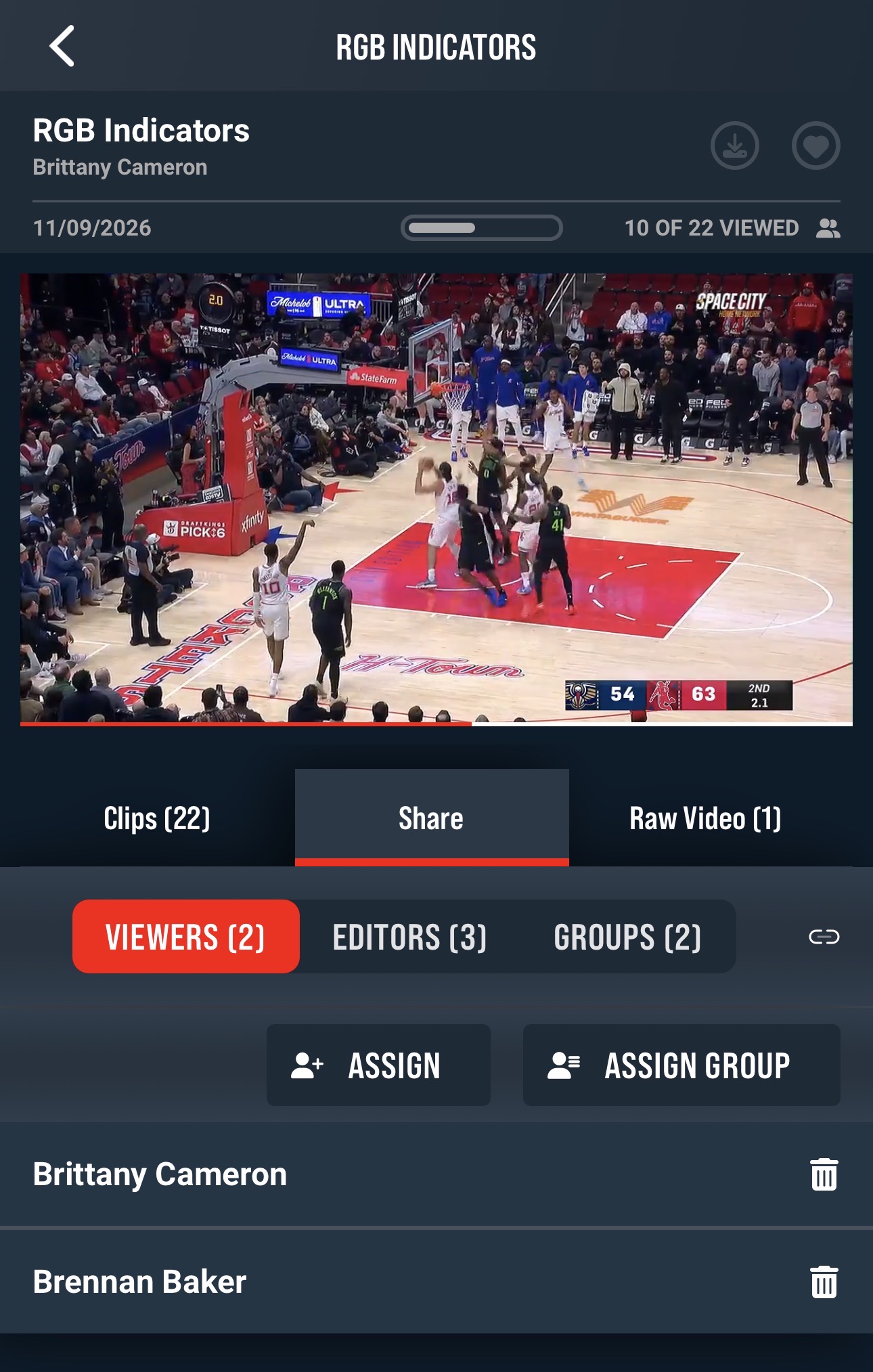
To create more manageable lists you can use the Viewers and Editors tabs. Under these tabs you can assign a person or a group to the edit, and you have the ability to delete them afterwards.
- Viewers will have read-only access to the edit.
- Editors will have full access to the edit and have permission to make changes.
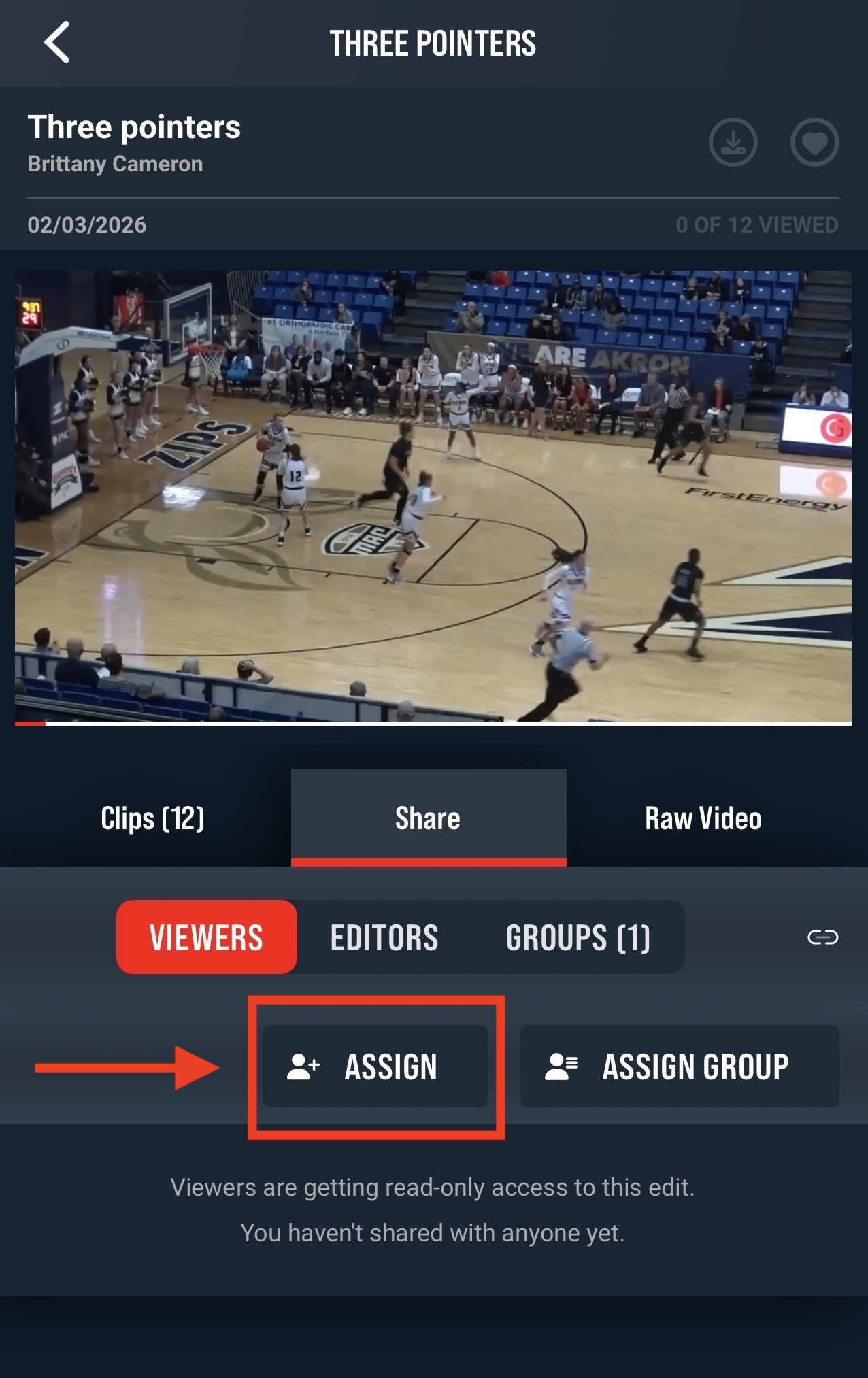
To add a single recipient, click the Assign button.
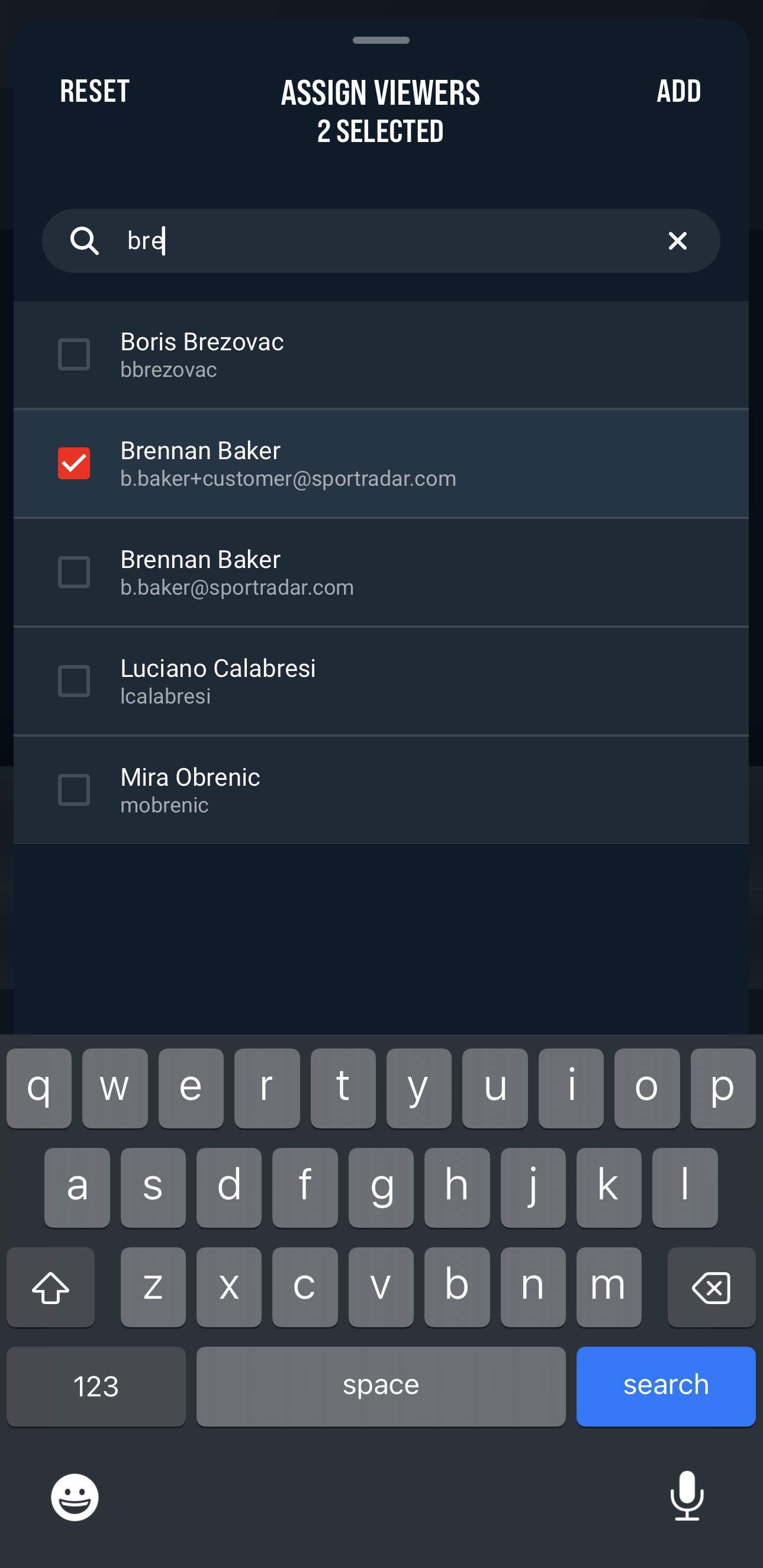
Then your team list will appear. Find and select a recipient from the list.
That name will now appear on the recipient list.
Assigning Groups
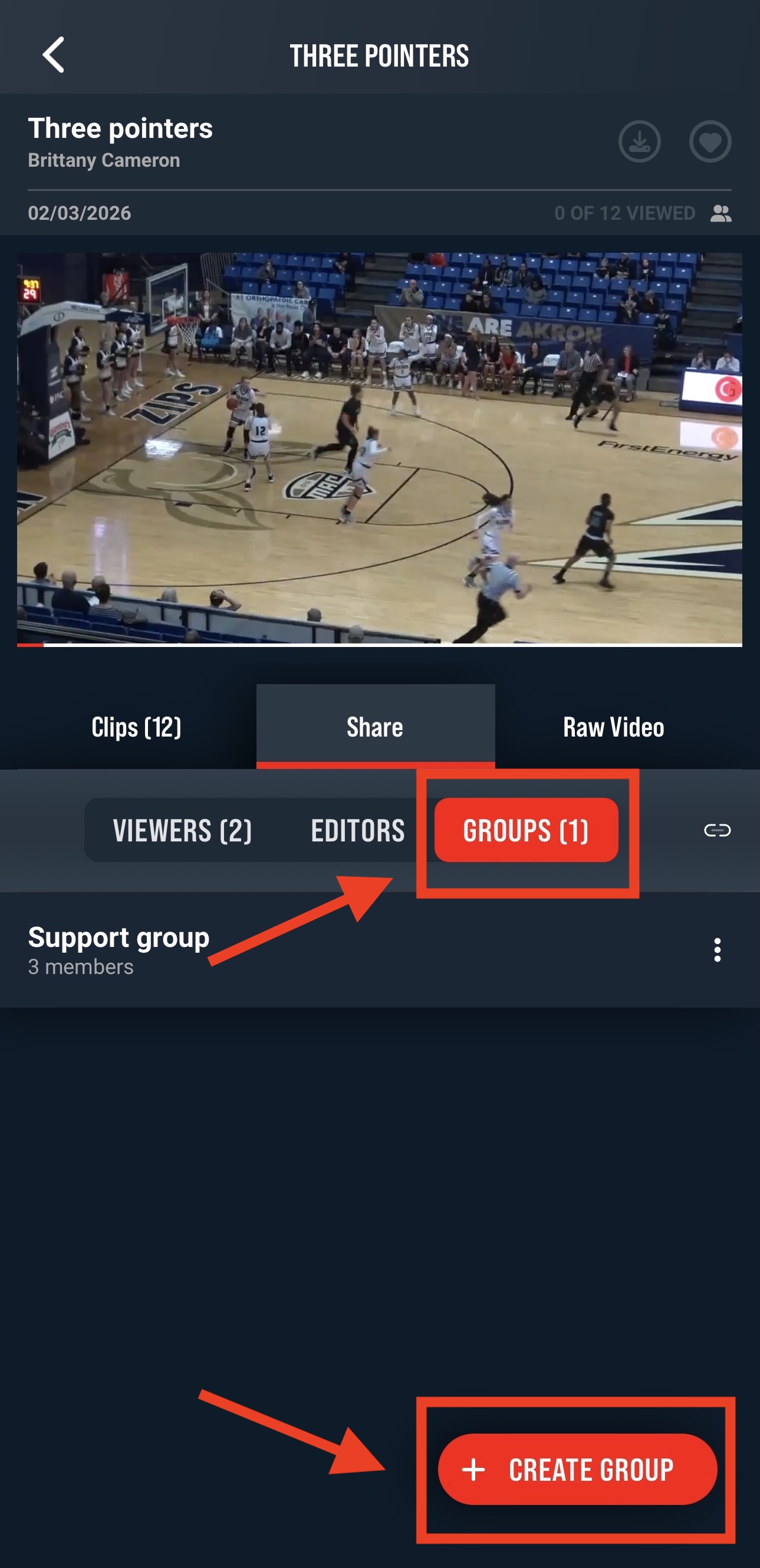
Before you can use the Assign Group button, you will first need to create a group. Go to the Group tab and click the Create Group button.
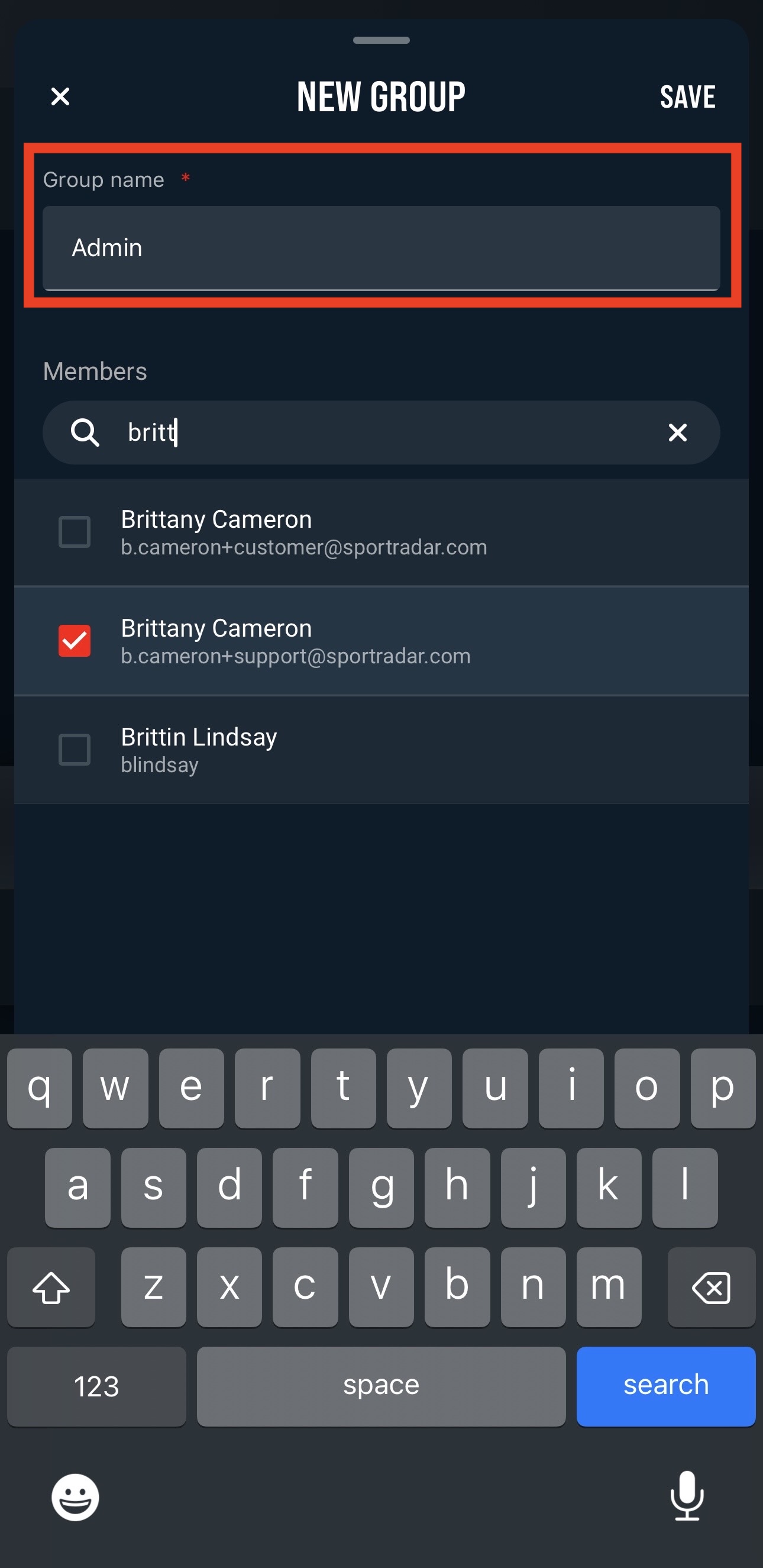
Give the group a name and then select the appropriate members.
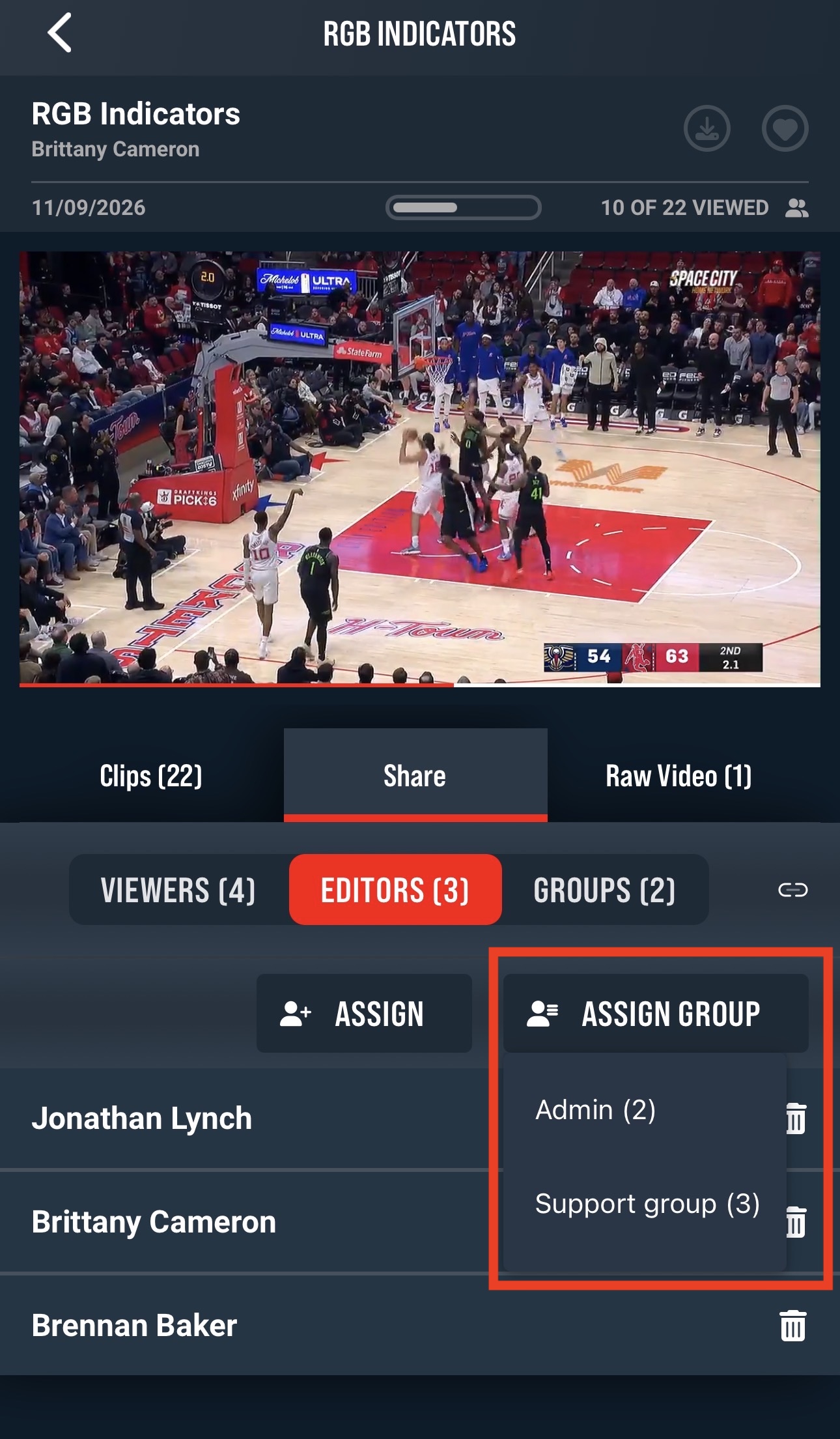
This group will now appear when you click on the Assign Group button.
Next Up - Basketball Mobile App: Create New Edits
Was this article helpful?
That’s Great!
Thank you for your feedback
Sorry! We couldn't be helpful
Thank you for your feedback
Feedback sent
We appreciate your effort and will try to fix the article